• Skip to main content
  • Skip to primary sidebar
  • Skip to footer

bVisual

  • Home
  • Services
    • How Visio smartness can help your business
    • Visio visual in Power BI
    • Visio Consulting Services
    • Visio Bureau Services
    • Visio Training and Support Services
  • Products
    • Visio Shape Report Converter
    • SS Plus
    • LayerManager
    • visViewer
    • Metro Icons
    • Rules Tools for Visio
    • The Visio 2010 Sessions App
    • Multi-Language Text for Visio
    • Document Imager for Visio
    • multiSelect for Visio
    • pdSelect for Visio
  • Case Studies
    • Case studies overview
    • Using Visio in Education for GIS
    • Visualizing Construction Project Schedules
    • Visio Online Business Process Mapping
    • Nexans Visio Template
    • CNEE Projects, WorldCom
    • Chase Manhattan Bank
  • News
    • Recent news
    • News archive
  • Resources
    • Articles➡
      • ShapeSheet Functions A-Z
      • Comparing Visio for the Web and Desktop
      • Customising Visio Shapes for the Web App
      • Key differences between the Visio desktop and web apps
      • Using the Visio Data Visualizer in Excel
      • Using Visio in Teams
      • Creating Visio Tabs and Apps for Teams with SharePoint Framework (SPFx)
      • Designing Power Automate Flows with Microsoft Visio
      • Innovative uses of Visio Lists
    • Webcasts ➡
      • Visio in Organizations
      • My session and other Visio sessions at MSIgnite 2019
      • Power up your Visio diagrams
      • Vision up your Visio diagrams
      • The Visio 2010 MVP Sessions
    • Visio Web Learning Resources
    • Books➡
      • Visualize Complex Processes with Microsoft Visio
      • Mastering Data Visualization with Microsoft Visio
      • Microsoft Visio Business Process Diagramming and Validation
      • Visualizing Information with Microsoft Visio
  • Blog
    • Browse blog articles
    • Visio Power BI articles
    • Visio for Web articles
    • A history of messaging and encryption
  • About us
    • About bVisual
    • Testimonials
    • Bio of David Parker
    • Contact Us
    • Website Privacy Policy
    • Website terms and conditions
    • Ariba Network

ShapeSheet Formulas

Published on August 21, 2014 by David Parker

Using Icon Sets shapes to display Shape Data values

A reader of my blog recently asked whether it is possible to use the icons in out-of-the-box Visio as the main shape, and get it to refresh with data. I pointed out that all of the icon sets are available in a handy stencil under Visio Extras, so all that remains is to make the icon display change according to data values.

SNAGHTML2b09d2
[Read more…] about Using Icon Sets shapes to display Shape Data values

Filed Under: Data Graphics, Shape Data, ShapeSheet Formulas, Visio, Visio 2013 Tagged With: Shape Data

Published on October 15, 2012 by David Parker

Adding More Smartness to Visio Connectors

Whenever I have been asked why I like Visio so much, I have usually cited its ability to connect shapes together; its ability to link to data; and its programmability. Visio 2010 formally added a structured diagram concept and API, and the premium edition introduced diagram validation. So many different types of Visio diagrams require elements to be connected together correctly, and I often have to add a little extra into the connectors to make them smarter.

What is a connector?

A connector is a Visio shape that has 1-D behavior. The most used example is the Dynamic connector shape, which not only connects elements together, but can also re-route itself according to the layout and routing options selected for a page.

[Read more…] about Adding More Smartness to Visio Connectors

Filed Under: Connectors, ShapeSheet Formulas, Visio Tagged With: Connectors, ShapeSheet Functions

Published on October 13, 2012 by David Parker

A Visio Logic Gate with Logic

I was recently asked how I would approach improving the Logic Gate 2 in the Circuits and Logic template, on the Analog and Digital Logic stencil. Well, this had resonance with me because I had often wondered why these shapes were not smarter than they are, so I looked more deeply into the shape construction to see how the Logic Gate 2 shape works, and how it could be improved so that the values of the inputs could be set and the logic applied to provide the correct output value. Eventually, similar improvements can be applied to all of the master shapes so that the connected logic diagram responds to input value changes.

The Existing Shape

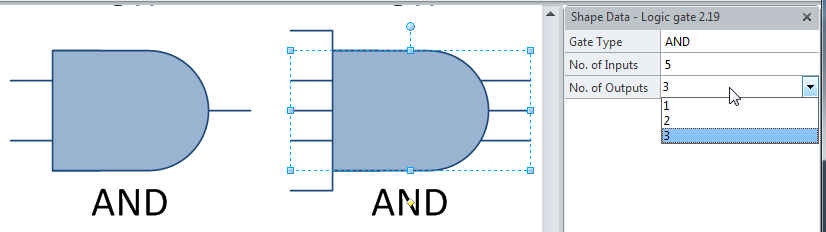
The Logic Gate 2 shape has Shape Data rows to provide some configuration. Firstly, you can change the number of inputs from 2 to 5, and the number of outputs from 1 to 3:

image
[Read more…] about A Visio Logic Gate with Logic

Filed Under: Connections, Shape Data, ShapeSheet Formulas, Visio 2010, Visio 2013 Tagged With: Logic Gates

Published on August 28, 2012 by David Parker

Checking a Visio Shape for Cell Errors

I have been analysing a client’s Visio shapes recently to find out how to increase their performance. These shapes have numerous cells with ShapeSheet functions that reference other cells in the same shape, in parent shapes, in the page and in the document. I suspected that there may be some formulas producing erroneous results, so I wanted to write a macro to check if there are any cell formula evaluation errors in the shape, or its sub-shapes.

A Visio Cell object has an Error property that returns the error code generated by the last evaluation of the result.  See http://msdn.microsoft.com/en-us/library/office/ff767327.aspx for more information about the the Error property, and http://msdn.microsoft.com/en-us/library/office/ff766442.aspx for the VisCellError constants.

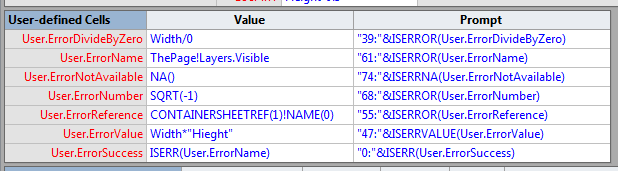
In order to test a macro that can check a shape for errors, I fist needed to generate examples of each possible error in a shape. So, I created a User-defined Cells section with seven rows – one for each possible VisCellError code value.

image

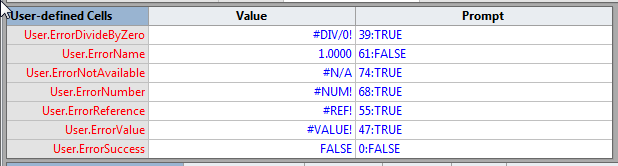
I was able to generate errors in all rows, except for the VisErrorName row. No matter how hard I tried, I could not get Visio to generate this error. I am fairly certain that I could generate errors (accidently) before Visio 2010, but I think that Microsoft have made this error much rarer because of the way they substitute last known values when a referenced cell or row is deleted.

image

So, now that I had a shape with errors, I then duplicated it, and made the duplicate copy part of a grouped shape. This way I could test my function, CheckForErrors(), which simply iterates through all of the selected shapes, and their sub-shapes, and prints out any cells with errors into the Immediate Window:

image

My macro printed out the following table:

image

So, I can now check any shape to see if it has any cell errors within it.

The VBA code that produced the listing is :

Public Sub CheckForErrors()
Dim shp As Visio.Shape
    Debug.Print Now()
    Debug.Print "Parent.Name", "Shape.Name", "Section", "Row", "Column", "Name", "Error", "Formula"
    For Each shp In Visio.ActiveWindow.Selection
        CheckShapeForErrors shp
    Next
End Sub

Private Sub CheckShapeForErrors(ByVal shp As Visio.Shape)
Dim shpSub As Visio.Shape
Dim iSect As Integer
Dim iCol As Integer
Dim iRow As Integer
Dim cel As Visio.Cell
    For iSect = visSectionFirst + 1 To Visio.visSectionLast
        For iRow = 0 To shp.RowCount(iSect) - 1
            For iCol = 0 To shp.RowsCellCount(iSect, iRow) - 1
                Set cel = shp.CellsSRC(iSect, iRow, iCol)
                If cel.Error <> VisCellError.visErrorSuccess Then
                    Debug.Print cel.Shape.Parent.Name, cel.Shape.Name, iSect, iRow, iCol, cel.Name, cel.Error, cel.Formula
                End If
            Next iCol
        Next iRow
    Next iSect

    For Each shpSub In shp.Shapes
        CheckShapeForErrors shpSub
    Next
End Sub

I would be interested to find out of anyone who can create a VisErrorName for me!

Filed Under: ShapeSheet Formulas, Visio, Visio 2010, Visio 2013 Tagged With: ShapeSheet Functions

Published on May 8, 2012 by David Parker

Creating a Custom Org Chart Template with Extra Properties

A Visio user recently asked how to add a salary amount for an Org Chart person automatically, based on their selected Level. I thought it was a bit long to answer in the forum, so I have written my answer below. It demonstrates how you can have your own custom template that works with the Organization Chart add-on in Visio.

My approach to creating a custom template that still uses the Organization Chart Add-On is to create a new drawing from the built-in template, and then to add extra properties to it.

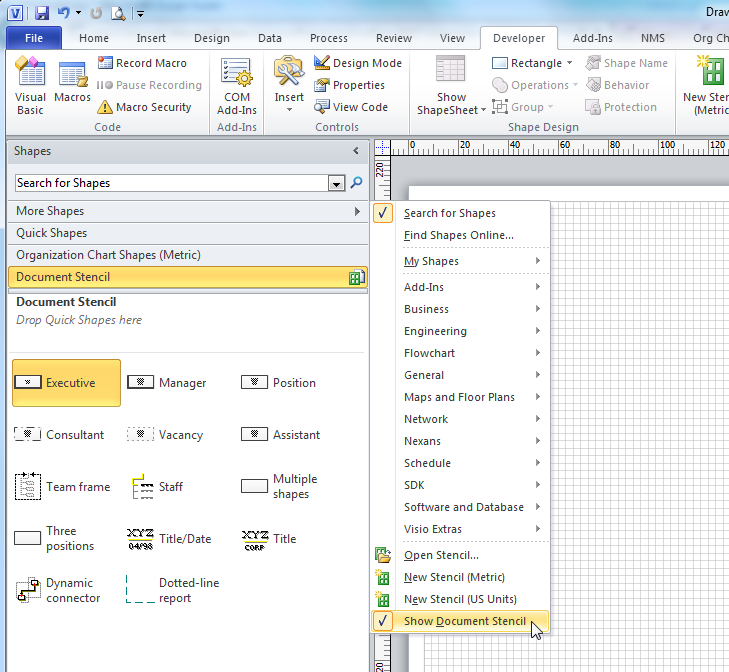
First, select Show Document Stencil to view all of the local copies of the built-in master shapes. If they are not there, then simply drag and drop them from the built-in stencil on to the first page, and then delete the shapes on the page. This will not delete the local copies of the masters.

image
[Read more…] about Creating a Custom Org Chart Template with Extra Properties

Filed Under: Org Charts, Shape Reports, ShapeSheet Formulas, VBA, Visio, Visio 2010 Tagged With: Org Chart

Published on April 26, 2012 by David Parker

Visio Date Format Pictures Affect Data Entry via the Calendar Popup

I have been creating roadmaps in Visio lately, and the client is only concerned with the months and years, so I thought it would be sensible to use a Date Format Picture to display only the month and year in the Shape Data window. What I did not expect is that the mere existence of this Date Format Picture would alter the actual date stored in the cell. In this blog, I layout my concerns about the Calendar popup that is provided for Date type Shape Data rows.

In the following example, I have created a shape, coloured pale orange below, and added 25 Date type Shape Data rows. I have not applied any format to Property1, but then I have applied each of the 17 suggested Date Format Patterns provided on a drop-down list in the Define Shape Data dialog. Finally, I added a further 7 patterns manually. I then selected Today as the value for every single Shape Data row:

image
[Read more…] about Visio Date Format Pictures Affect Data Entry via the Calendar Popup

Filed Under: ShapeSheet Formulas, Visio Tagged With: Dates, Visio 2007, Visio 2010

  • « Go to Previous Page
  • Page 1
  • Interim pages omitted …
  • Page 14
  • Page 15
  • Page 16
  • Page 17
  • Page 18
  • Page 19
  • Go to Next Page »

Primary Sidebar

  • LinkedIn
  • Twitter

Recent Posts

  • Creating Boolean Context Menus in Visio
  • Installing Visio Templates and Stencils
  • Creating a Dynamic connector master automatically
  • A visual exploration of Penrose Tiling in Visio
  • How SVG in Visio can cause a Shape.BoundingBox(…) error

Categories

Tags

Accessibility Add-Ins AdvancedInstaller Connectors Containers Data Export Data Graphics Data Import Data Visualizer Educational Excel GraphDatabase Hyperlinks Icon Sets JavaScript LayerManager Layers Legend Link Data to Shapes MSIgnite Office365 Org Chart PowerApps PowerBI PowerQuery Processes Setup and Deployment Shape Data Shape Design ShapeSheet ShapeSheet Functions SharePoint 2013 SQL Teams Validation VBA Video Visio Visio 2007 Visio for the desktop Visio for the Web Visio Online Visio Services Visio Viewer Webinar

Footer

bVisual Profile

The UK-based independent Visio consultancy with a worldwide reach. We have over 25 years experience of providing data visualization solutions to companies around the globe.

Learn more about bVisual

  • Amazon
  • E-mail
  • Facebook
  • LinkedIn
  • Twitter
  • YouTube

Search this website

Recent posts

  • Creating Boolean Context Menus in Visio
  • Installing Visio Templates and Stencils
  • Creating a Dynamic connector master automatically
  • A visual exploration of Penrose Tiling in Visio
  • How SVG in Visio can cause a Shape.BoundingBox(…) error

Copyright © 2026 · Executive Pro on Genesis Framework · WordPress · Log in