My fellow Visio MVP, Michel Laplane, and I recently converted and transformed 15k Lucidchart documents to Microsoft Visio for a large multi-national organization. This was approximately 4 years after they had moved from Visio to Lucidchart! I do not know the full reason behind these changes in technology, and I do not have a particular dislike of Lucidchart, but my passion is Visio, so I was willing to assist SohoDragon in this migration for their client. The Lucidchart application is solely a web-based diagramming system with the documents stored in AWS, so perhaps it does not fit easily within the corporate compliance architecture of Microsoft Azure, Teams and SharePoint. Microsoft Visio though has the same files for both the desktop and web editions, although there are some restrictions in the size and features of editing Visio document in the web. However, all the M365 users will have the ability to view and comment of the Visio documents that they have permission for. Visio Plan 1 or Plan 2 subscriptions will be required for editing the migrated documents because they have not been created with the templates provided in Visio for M365, and Visio documents which have any page with over a thousand shapes will currently only be editable in the Visio desktop edition. The Lucidchart documents needed to be audited, exported and transformed into Visio documents, and then uploaded to similar folders in SharePoint, where user permissions could be applied. We decided to use multiple secure Windows VMs to process the documents and then upload them to SharePoint before the VMs were deleted.
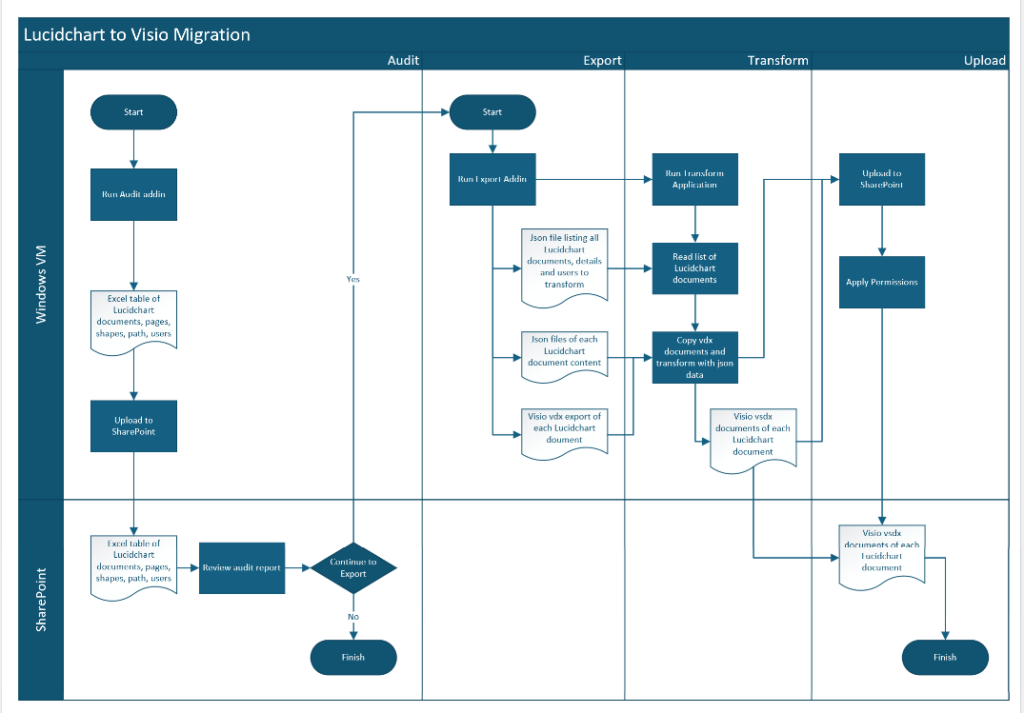
Lucidchart does have the ability to import Visio documents, which some colleagues are using successfully in projects where multiple users can simultaneously co-edit these converted files and there is no 1k shape limit … Microsoft please take note. However, we were more concerned with the Lucidchart export to Visio capability, and can we automate this for large numbers? Firstly, we tested the two versions of export to Visio that Lucidchart provides, either to the older vdx format (a single monolithic Xml file) or to the newer vsdx format (multiple xml files zipped up in the Open Packaging Convention (OPC)). To our surprise, the older vdx export was more complete than the newer vsdx format, but both lacked some smartness. I guess this is not surprising because it might encourage smooth transition to Visio, but I would support a world where vector diagrams could move easily between applications.

A sample Organization Chart in Lucidchart has connectivity, images and data 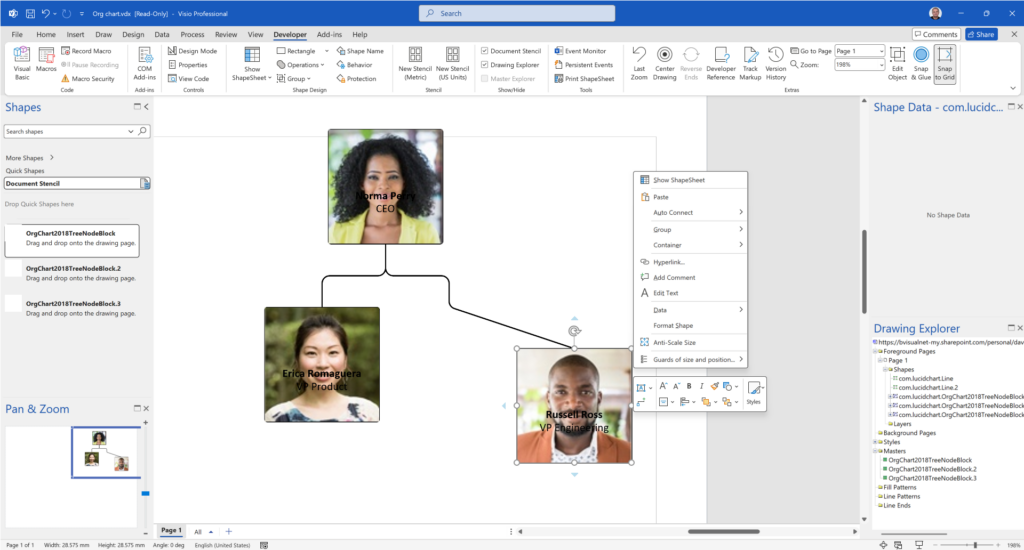
Lucidchart export to Vdx with one person shape moved shows poor lines and no data 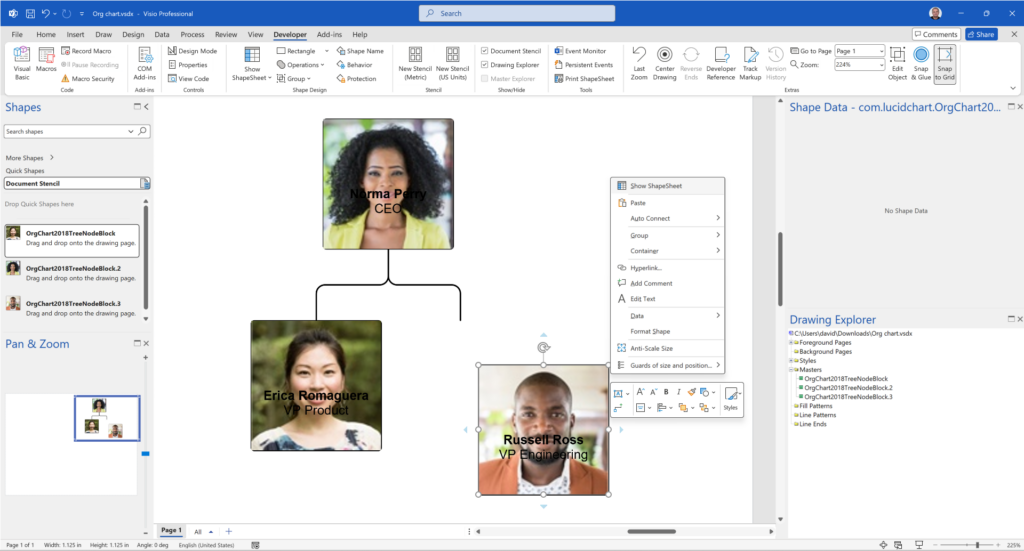
Lucidchart export to Vsdx with one person shape moved shows broken connections and no data 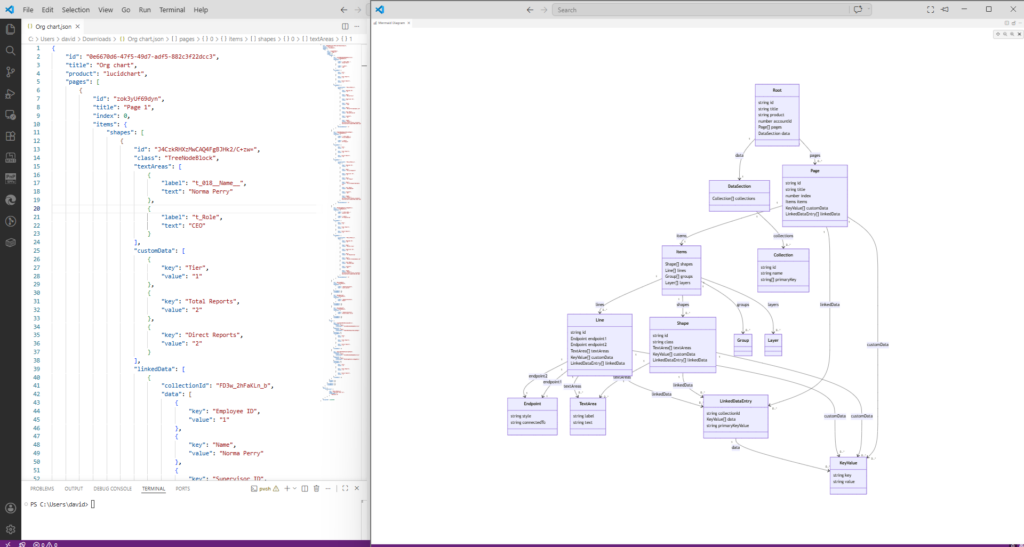
Lucidchart export to Json with schema shows that there is data available on each shape
It was clear to us that that most of the Visio smartness was lost in the export, so we searched for ways to get some of it back. Fortunately, Lucidchart does have an API, which is far less rich that the Visio one, but we found some ways to use it to reach our goals, which included images, connectivity, containment and data.
Some images are rendered from a url in Lucidchart, but they need to be embedded within Visio shapes, so this requires code to extract the image first during the transformation, and then applying formatting, if available.
Most connections in Visio are created by each end of a 1D line being glued dynamically to a 2D shape or statically to a connection point in a 2D shape . We found that most of these needed to be re-affirmed after the export from Lucidchart, but this does have the side-effect of triggering the Visio routing algorithms. This meant that previously manually edited line segments now followed the Visio auto-routing. This issue was not exposed by the hundred test documents in the proof of concept, but became apparent in certain types of diagrams during the full migration.
There are container and list shapes in Visio that are created by having specific User-defined Cells in the shapes, and this seemed to be something that was totally missing from the Lucidchart exports. We managed to repair most of these during the migration.
Shape Data rows are more important in some diagram types, such as org charts or network diagrams, and again, this was mostly missing from the Lucidchart export to Visio. Sometimes the text is the dynamically linked to value of a Shape Data row. We tried to repair that too.
The following screenshot of the transformed Visio document shows that the images, lines, connections, shape data and hyperlinks are added back onto the shapes.

So, how did we do this? Well, Michel created a number of Lucidchart and browser add-ins that created, firstly an audit facility to gather information about each Lucidchart document, its path and user permissions, and secondly an export tool that can export batches of vdx, vsdx, images, pdf, and importantly, a json files of diagram data and collaborators. Then I created a transformation application that took a copy of these basic Visio vdx documents and use the json data of each file to create smarter Visio vsdx documents.
One issue is that Lucidchart file names, paths, page names and data rows can include some characters that are not allowed in Windows or Visio, so these needed to be substituted. Another issue is that Lucidchart files are stored with a unique id, so the same name can be used by multiple files in the same folder, which not allowed in any Windows folder.
Annoyingly, the Lucidchart API can fail with very large documents, making it necessary to manually export them, but fortunately this is a small percentage of the files that we encountered. Similarly, the number of migrated documents with more than one thousand shapes on a page was a small percentage too, so most of the Visio documents will be editable with a suitable subscription.
There are many ways that Lucidchart could have a better export to Visio, but they are many different types of diagrams provided by each application, and some of these are quite specialized and would take a deep understanding of the features of each. If there are a large number of a particular type of diagram then we would endeavour to create more specific transformations. For this mass migration we utilized the provided Visio export from Lucidchart and then enhanced the Visio shapes to add back in some of the smartness. One problem of this approach is that the Lucidchart export does not utilize the master shape to multiple instances of the master shape throughout a document that Visio is famous for. Instead, the export creates a master for each shape in the Visio document. This increases the size of the file and means that it does not use any of the built-in templates, stencils and masters delivered with Microsoft Visio. Therefore, every migrated document is totally custom, and will never be editable by Visio in M365.
An alternative approach would be to map the Lucidchart pages to a diagram type available in Visio, and then automatically re-draw then using the standard template, or even customized ones. This is the approach that I have taken for some previous projects that required migration of specialized diagrams from a third-party application.
Then there is a question of the occasional Lucidspark and Lucidscale documents that we encountered. Both can be converted to Lucidchart documents, but each will only be a snapshot of the state at the time of conversion. Lucidspark is an ideation application, and is similar to PowerPoint or Whiteboard, and Lucidscale can be visualize cloud architecture. Microsoft do not have smooth integration between Visio and PowerPoint or Whiteboard, but Visio Plan 2 desktop edition does have the underused Export to PowerPoint, and my add-in SS Plus enhances it. Visio does have pretty good Azure cloud architecture stencils and masters available, and some third parties provide add-ins to automatically visualize the architecture.
Special thanks to Patrick Howitt and Peter Ward at SohoDragon for managing this project.
Related articles

Protecting the integrity of custom Visio masters
All of my Visio solutions contain custom masters because this is the best way to create smart shapes that respond to user’s needs. This usually means creating Shape Data, User-defined Cells and Action rows that govern aspects of the shape with formulas designed to provide an efficient user interface. As a developer I sometimes forget…

Creating Boolean Context Menus in Visio
Over the many, many years that I have been creating Microsoft Visio solutions, I have had to create numerous right-mouse context menus for shapes to control their Shape Data values. Over that time, patterns emerge, so this article is highlighting three different appearances for simple Boolean values, otherwise known as True/False or Yes/No values, and…
A visual exploration of Penrose Tiling in Visio
Maybe it is because I used to be a building architect, but I have always been fascinated by the relationship between numbers and visualisations. Perhaps the most famous one is the Golden Ratio which has been used as the basis of many building designs and art pieces. It is often recognised to create a harmony…
How SVG in Visio can cause a Shape.BoundingBox(…) error
I have used Visio’s Shape.BoundingBox(…) for many, many years and I cannot ever recall it failing, but I have now managed to create some shapes that cause it to error. This caused many hours of confusion, so I nearly abandoned using the method, until I discussed it with my fellow Visio MVP, John Goldsmith (see…

Jumping between Shapes in Visio
Many Visio diagrams get quite large, and sometimes it is useful to provide the ability to jump to another shape quickly in the same document, either on a different page or on the same one. Although there is an add-on provided in desktop Visio that is used by the Off-Page Reference shape provided in the…
Fixing dimensions of 2D shapes
I am often asked what makes Visio unique and makes it stand out from the crowd, especially in today’s online world. Well, I think there are many reasons, but one of them is the ability to create scaled drawings with parametric components of specific dimensions. This was crucial for my adoption of Visio back in…
