Maybe it is because I used to be a building architect, but I have always been fascinated by the relationship between numbers and visualisations. Perhaps the most famous one is the Golden Ratio which has been used as the basis of many building designs and art pieces. It is often recognised to create a harmony that is universally understood, and is repeatedly found in nature, yet it all boils down to a simple ratio of about 1.618 … and is related to the Fibonacci Numbers. Roger Penrose (re-)discovered shapes based on the Golden Ratio can be arranged aperiodically on an infinite canvas without a repeating pattern. These Penrose Tiling shapes were developed into two groups (P2 and P3) each with two shapes.
There are rules about the arrangement to ensure that they do not fall into a repeatable series. These rules can be followed by ensuring that the ends of the arcs within each shape meet each other. The shapes can be used to try to create an aperiodic pattern of an infinite size, and then a timer can randomly change the colours. It’s a little festive fun!


The basic shapes for P2 Tiling are the Kite and Dart, and for P3 Tiling is the Thick and Thin Rhombi, and I have placed connection points at the end of each arc to assist with snapping shapes together correctly.
So, with this being Visio, we can change the visibility of the helpful arcs with the Shape Data window for the page, and we can set a Timer on so that the colours change every minute, or whenever something changes.


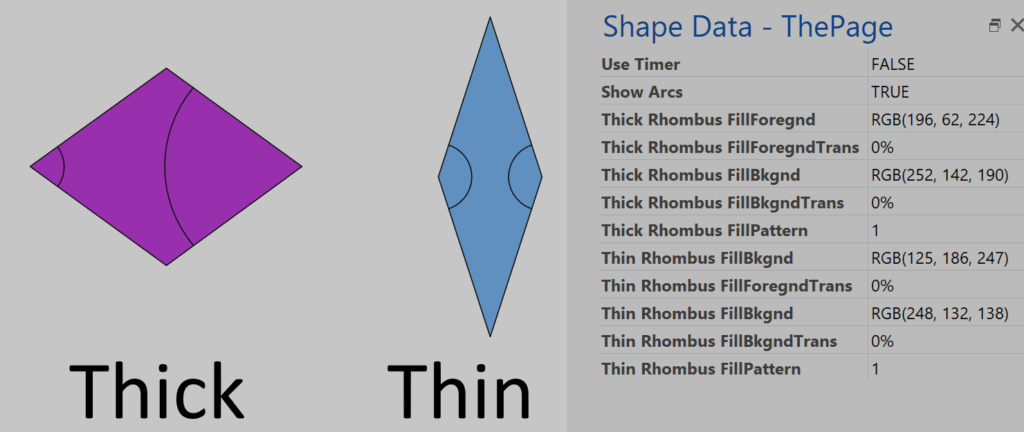
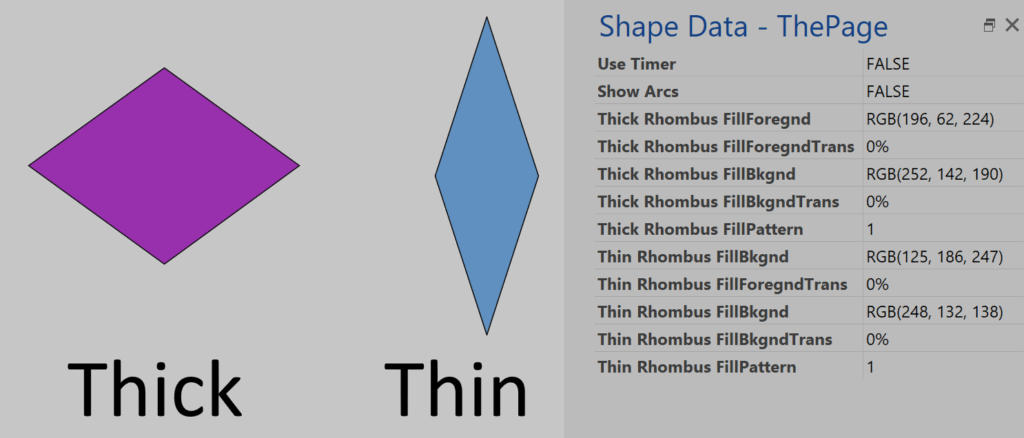
The individual Red, Green and Blue values of a shape specific Prop.xxx_FillForegnd and Prop.xxx_FillBkgnd value in the page are set randomly with the formula in the User.Timer cell. Additionally, the Prop.xxx_FillPattern can be varied too if the page Vary Pattern Shape Data row is also set to True. :
=NOW()+IF(User.UseTimer,SETF(GetRef(ThePage!Prop.ThickR_FillForegnd),"=RGB("&INT(RAND()*255)&","&INT(RAND()*255)&","&INT(RAND()*255)&")")+SETF(GetRef(ThePage!Prop.ThickR_FillBkgnd),"=RGB("&INT(RAND()*255)&","&INT(RAND()*255)&","&INT(RAND()*255)&")")+IF(ThePage!Prop.VaryPattern,SETF(GetRef(ThePage!Prop.ThickR_FillPattern),"="&INT(RAND()*24)),0),0) Then the formula of the FillForegnd , FillBkgnd and optionally FillPattern of the shapes will automatically get updated from the page Shape Data rows because it has the SETATREF(…) functions.
=SETATREF(ThePage!Prop.ThickR_FillForegnd)

=SETATREF(ThePage!Prop.ThickR_FillBkgnd)

=SETATREF(ThePage!Prop.ThickR_FillPattern)
In fact, I have added similar formulas for transparency but not currently automating them with the timer. Alternatively, formatting a single shape will automatically format all of the same type (those with the same Master) on the page.
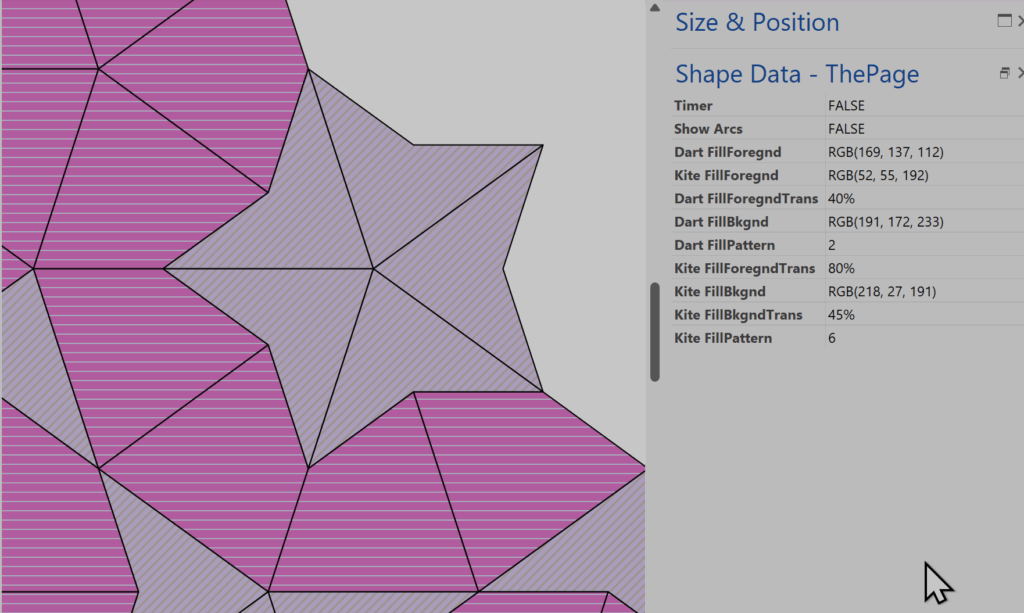

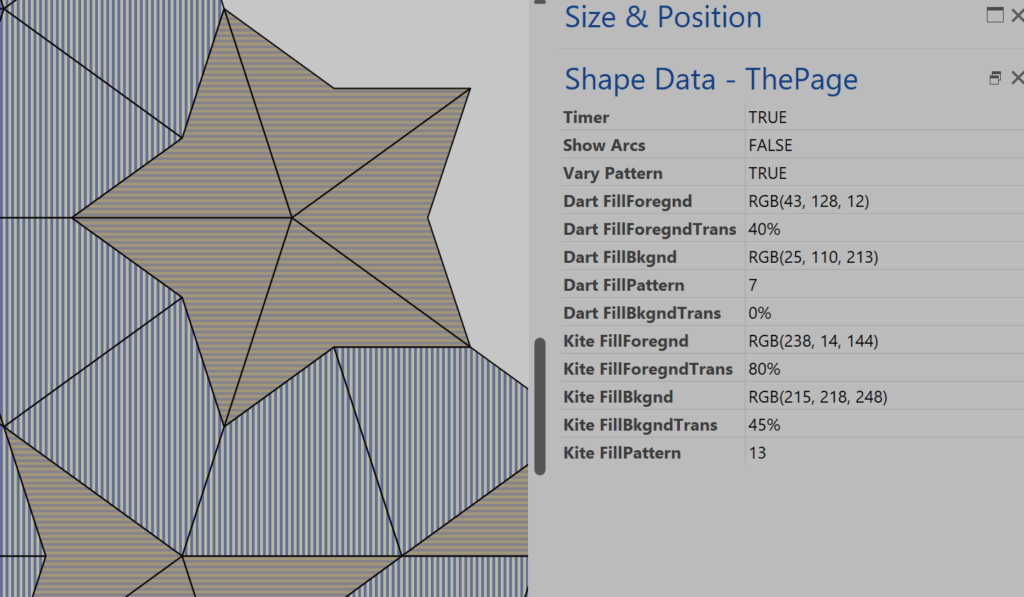
Mostly, the shapes will snap nicely if the adjacent edges are parallel, but I have also added opposing connection point types at the end of the arcs. This means that they can glue to each other … at least if you move the right one towards the other. However, gluing is not essential, just helpful at times.
I have added 4 right mouse menu actions to each shape to assist in rotating shapes clockwise and anticlockwise by 36 and 72 degrees. The normal Visio rotation handle can be used too, but I used them to only rotate to 0, 90, 180, 270 and then used the extra 32 or 72 degree rotation actions afterwards.

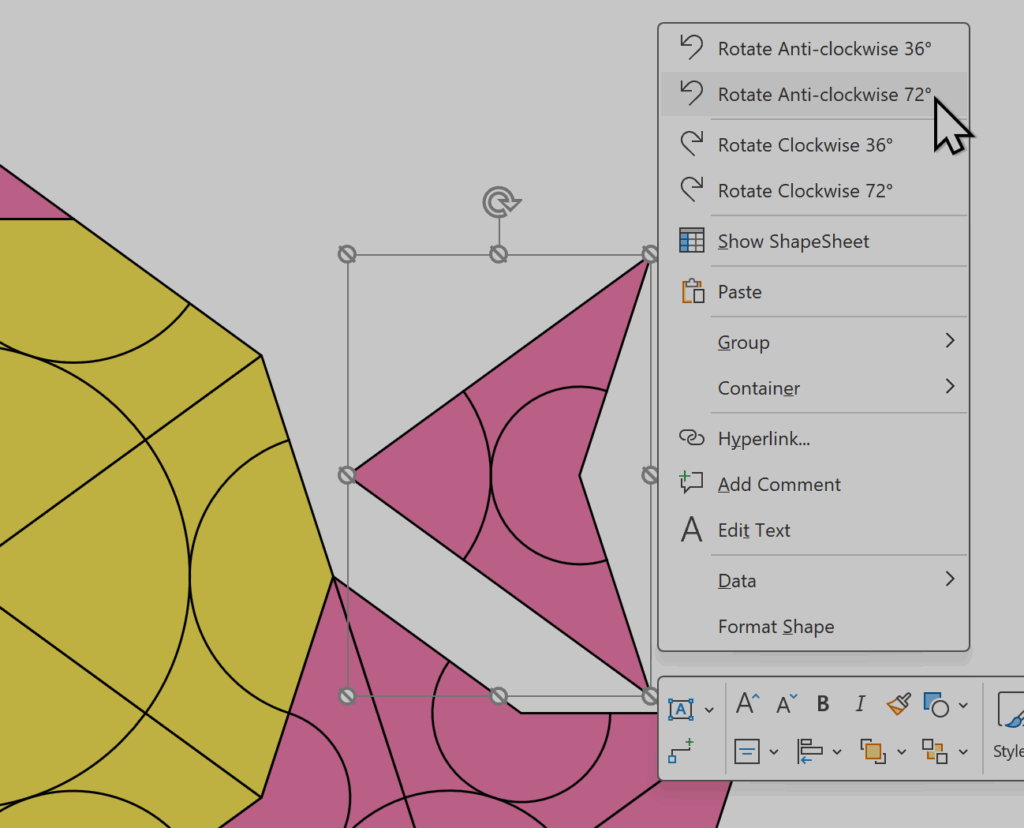
This file is available for download and you can create your own aperiodic patterns! Penrose Tiles.vsdx
Update : My friend, and fellow Visiophile, Chris Roth has pointed out that he made some similar shapes a few years ago ! See visguy.com/2020/10/02/visio-penrose-tile-shapes !
Related Articles
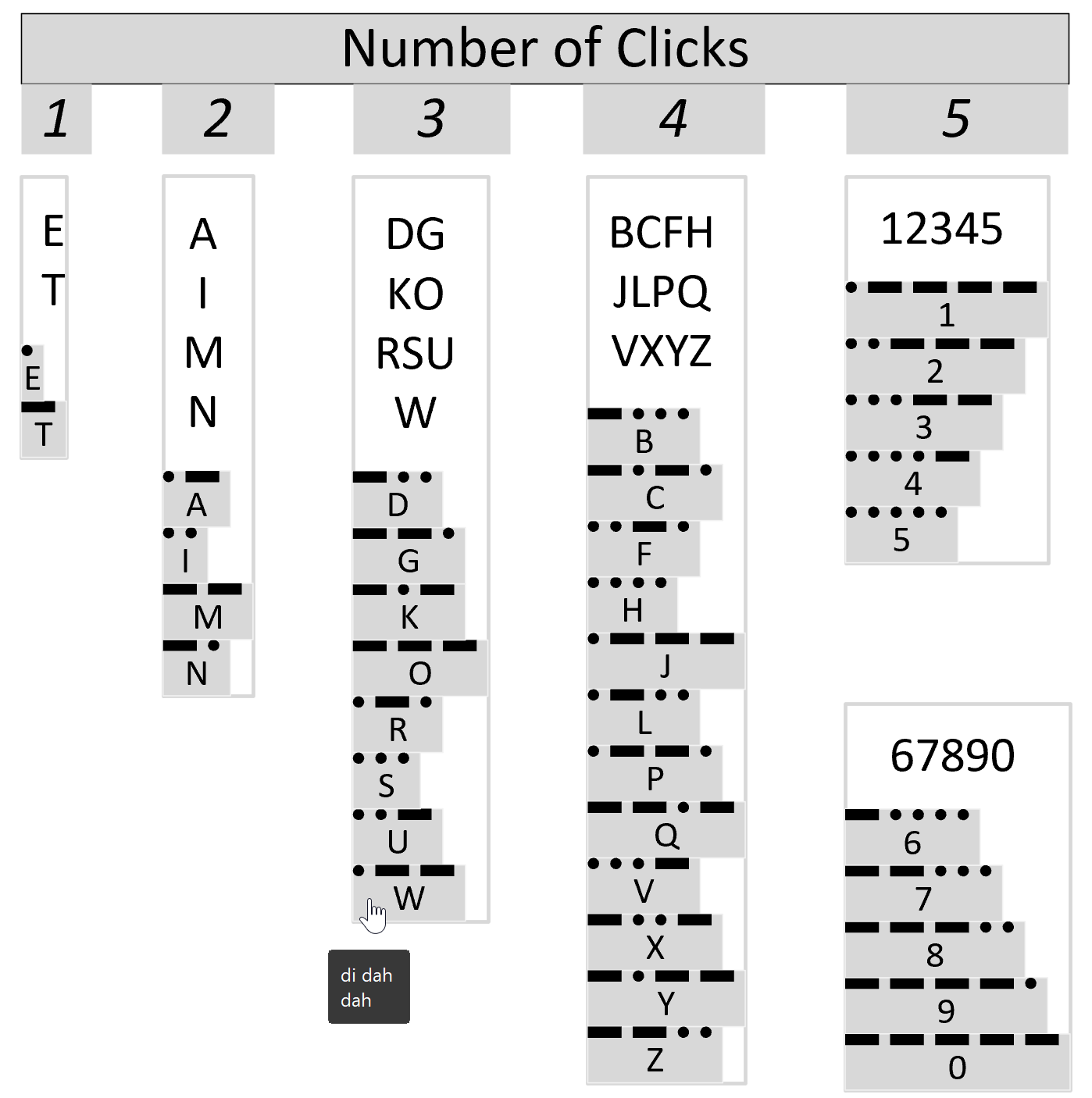
Understanding Morse Clicks with Visio
A few years ago, I wrote an article about messaging and encryption inspired by a visit to the National Museum of Computing in the UK. I developed a Morse Click shape to demonstrate how Visio can be used to represent and learn Morse Code. However, I never published the shapes here, and my good friend…
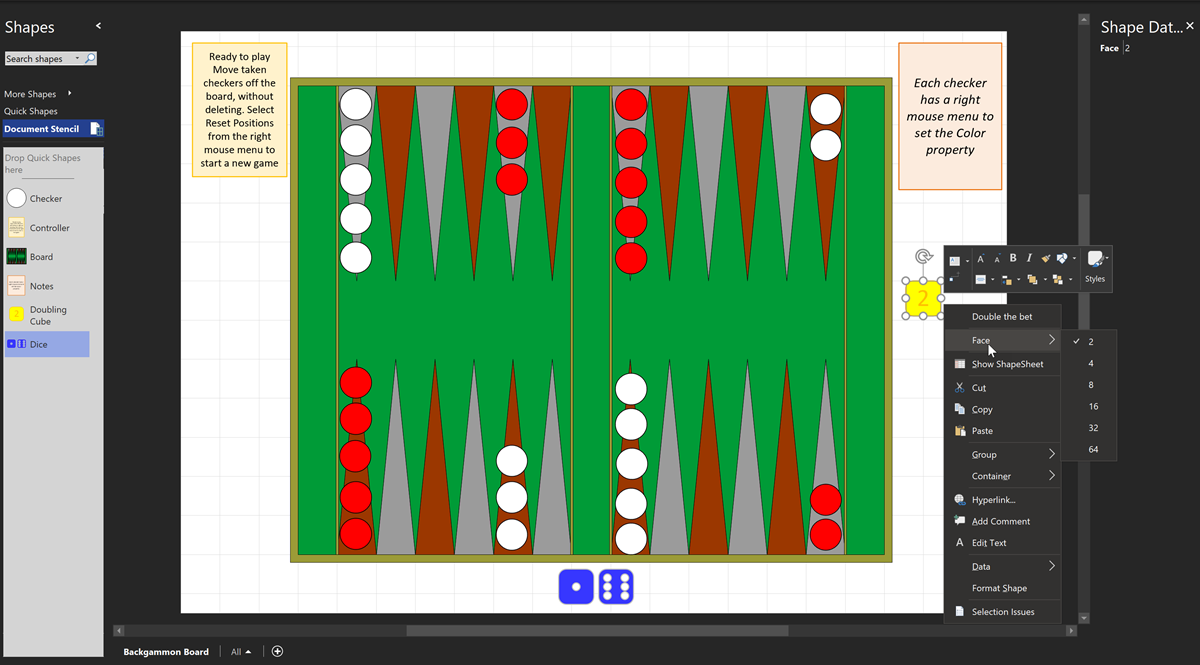
Play Backgammon with Visio
Still in lockdown on holiday, so I thought I would create a version of backgammon that can be played with Visio for the web. This was inspired by my original Visio tutor, the late David Edson, who created a Visio backgammon document which included macros. Macros are not available in Visio for the web, so…
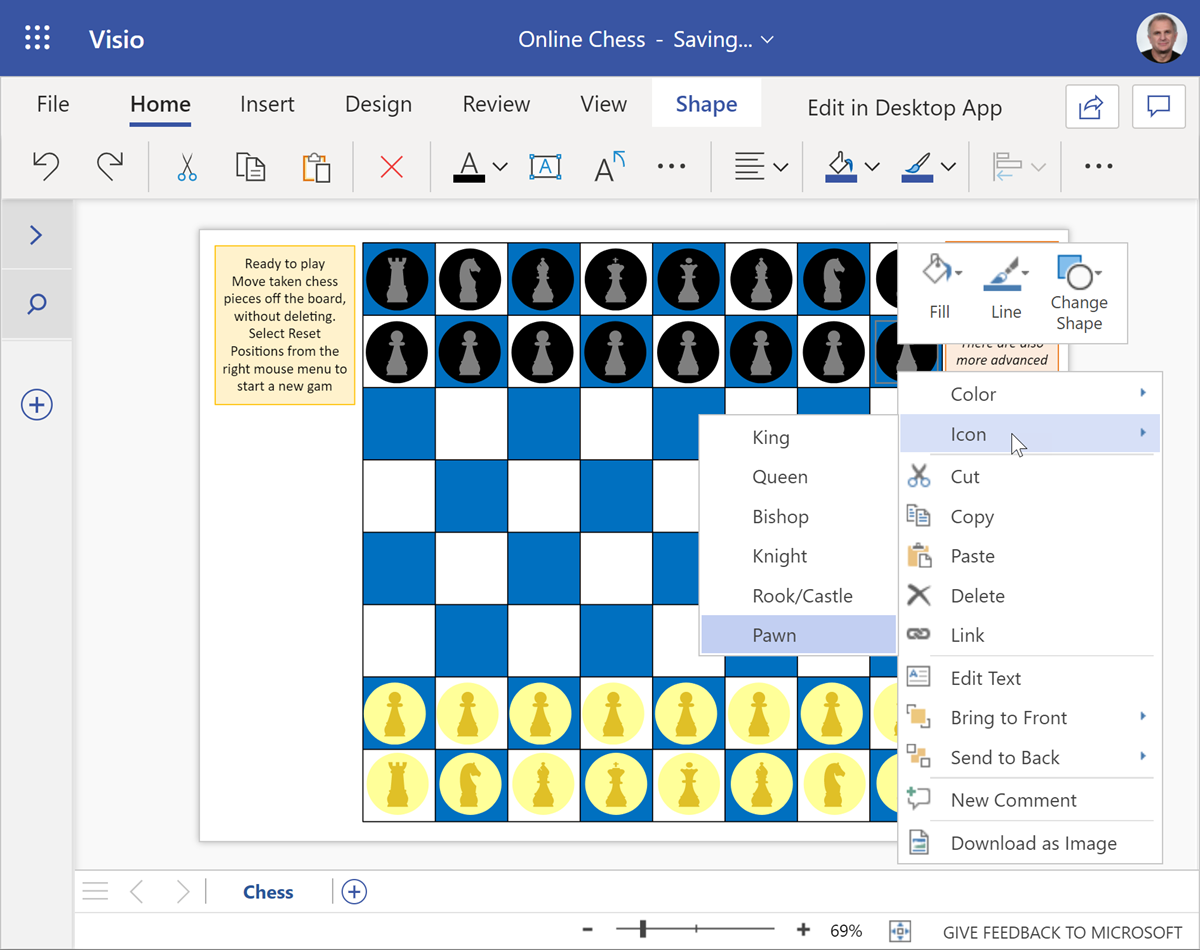
Play Chess with Visio in Teams
[Update : a new version of this file allows Visio for M365 users to edit/play with see Making Custom Shapes for Visio for M365] Following on from my last article about playing checkers with Visio in Teams, I decided that I should also revisit my earlier Visio chessboard to make it work in Visio online.…
Play Checkers with Visio in Teams
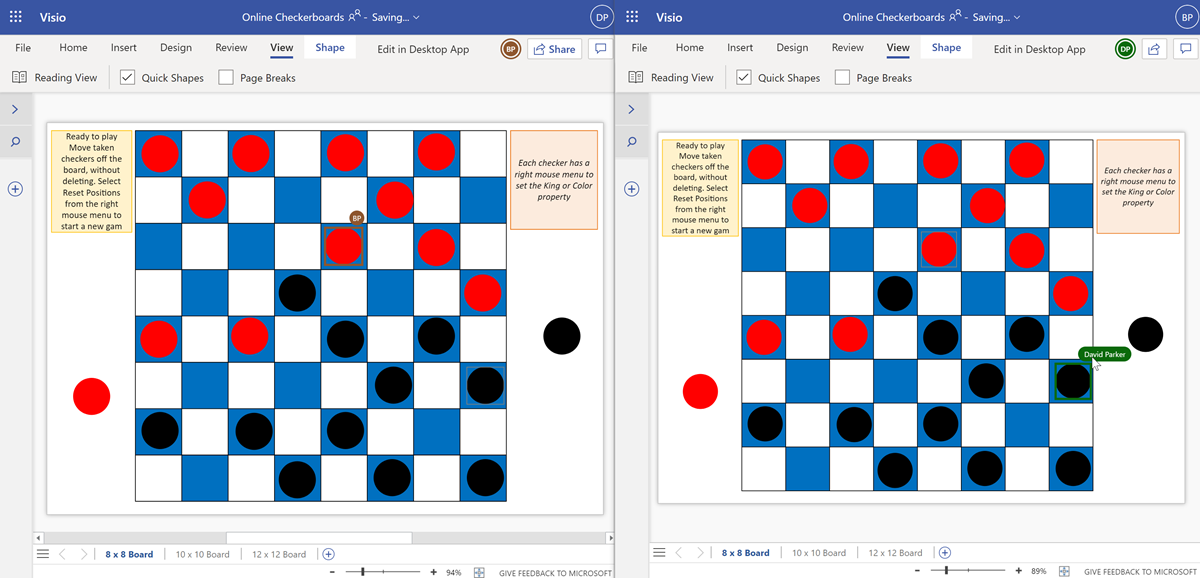
[Update : a new version of this file allows Visio for M365 users to edit/play with see Making Custom Shapes for Visio for M365] We are all spending more time in Teams or SharePoint nowadays, but not everyone knows that Visio documents can now be shared and collaborated with, and even set as a Teams…
Cyber Monday giveaway free Visio Chess
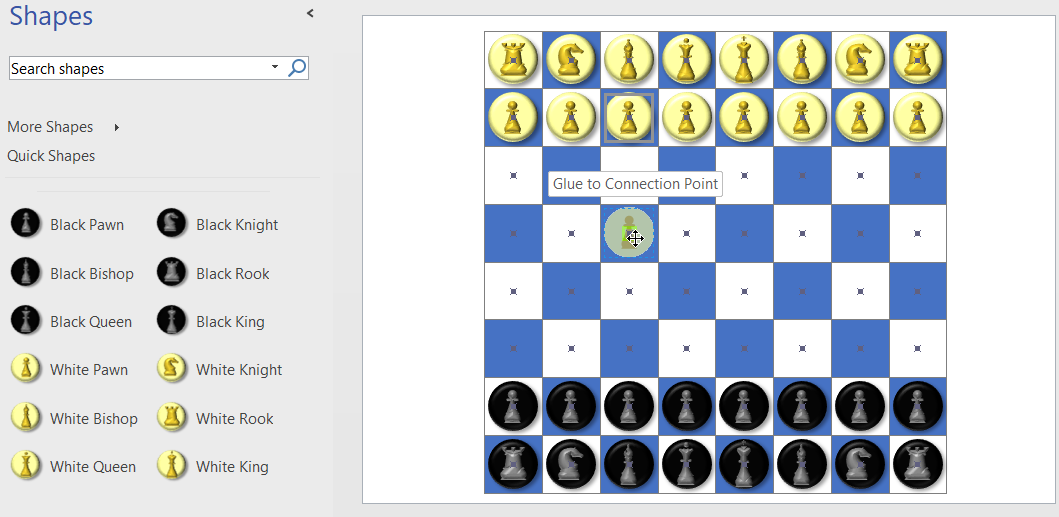
Earlier today, I gave away checkers for Visio (see Cyber Monday free #Visio Checkers! ) , and now this article completes my Cyber Monday freebies with a downloadable chess set for Visio! This version of the chess/checker board requires connection points (Type = 2 – Inward/Outward) on each of the 64 squares, an, as before, I…
Cyber Monday free Visio Checkers!
As it is Cyber Monday, I thought I would give away a compelling checkers board for Visio! In the UK, we call it Draughts, but the rules are the same… in my last post, I showed how to create a chess/checkers/draughts board, and in this one I add some checkers that can glue to the…
