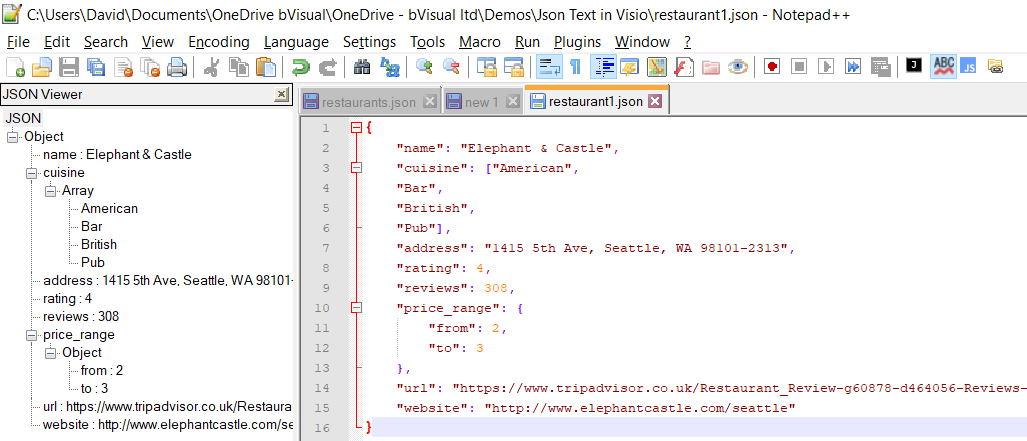
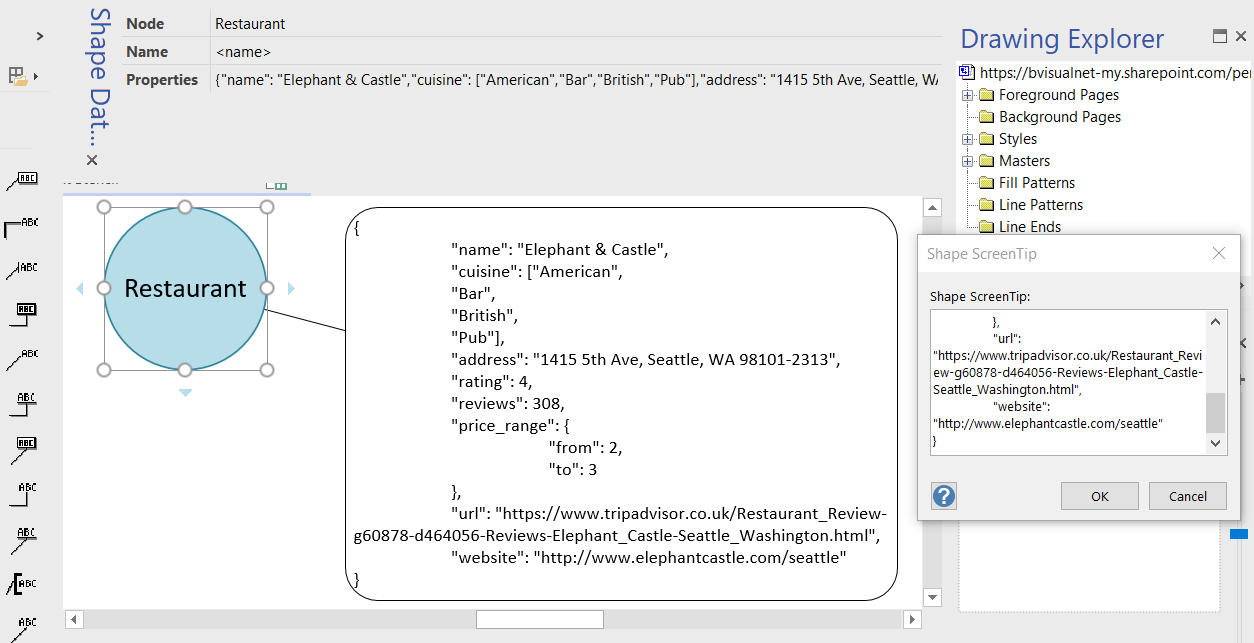
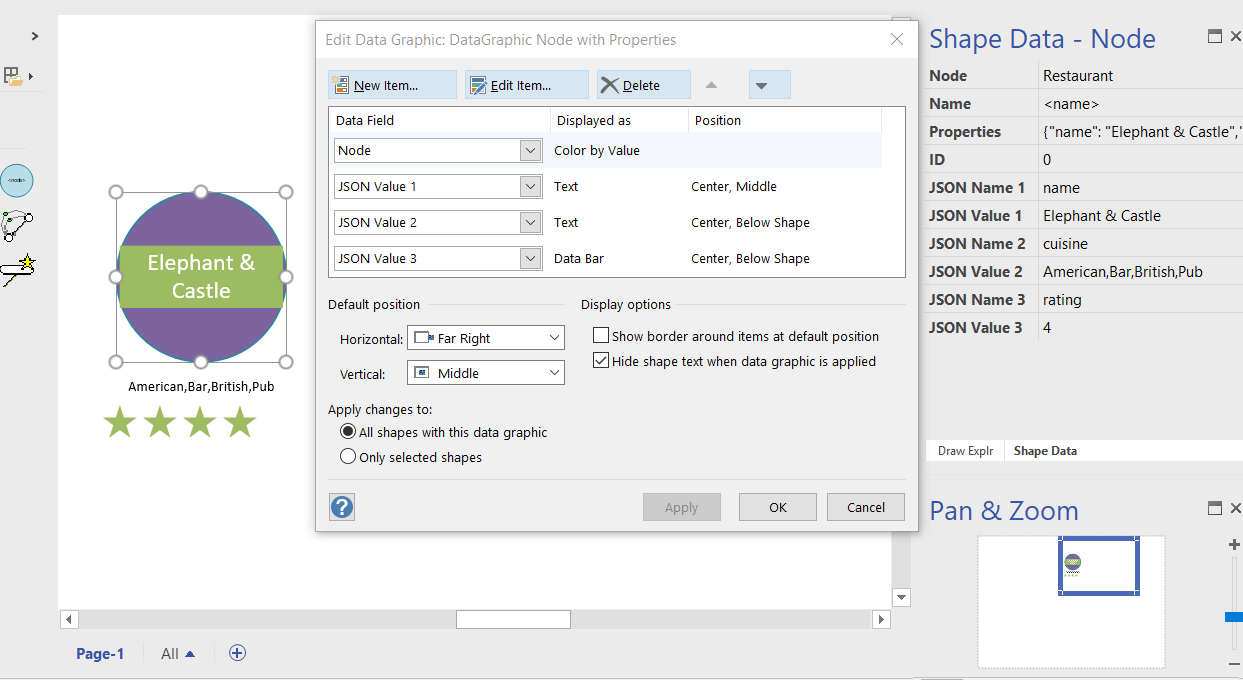
I often create Visio masters with a fixed number of Shape Data rows, and sometimes I get requests to modify them because of changes in business needs. Well, my previous posts about Graph Databases got me thinking if it would be possible to embed JSON text in Visio shapes in some sort of meaningful way. Then the user could enter just attribute-value pairs at will, without the need for me to modify their master shape. Alternatively, the data could be inserted into the shape from a database, such as SQL server. So, in this article I discuss the suitability of JSON text in Visio shapes.
[Read more…] about Using JSON text in Visio shapesShapeSheet Formulas
Cyber Monday free Visio Checkers!
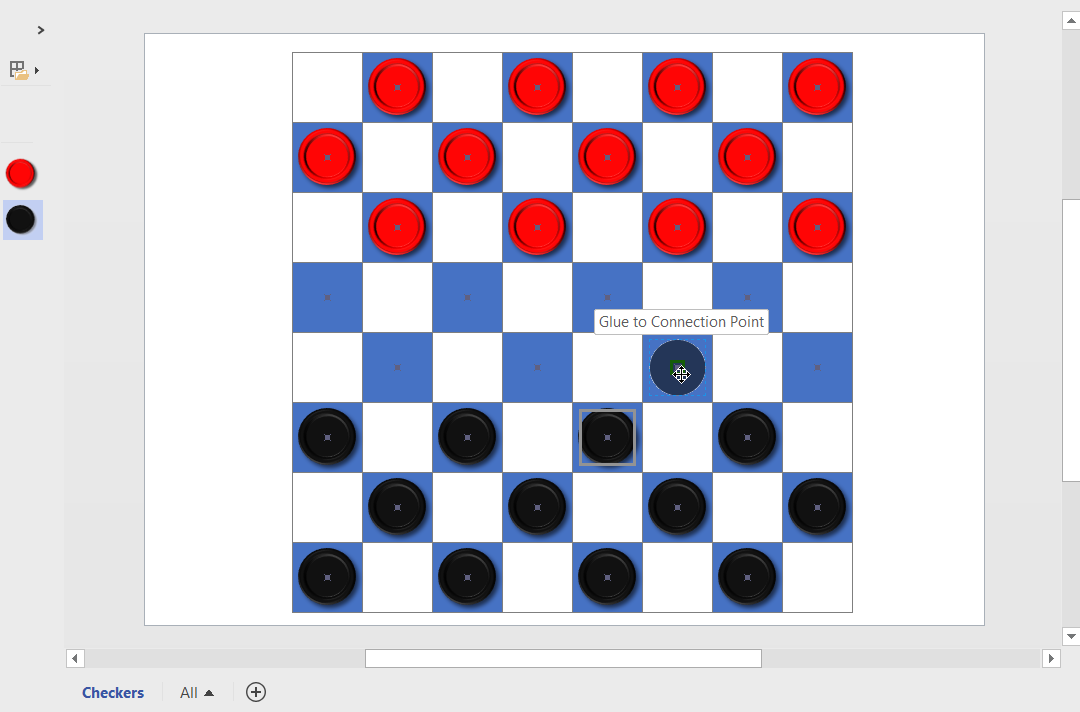
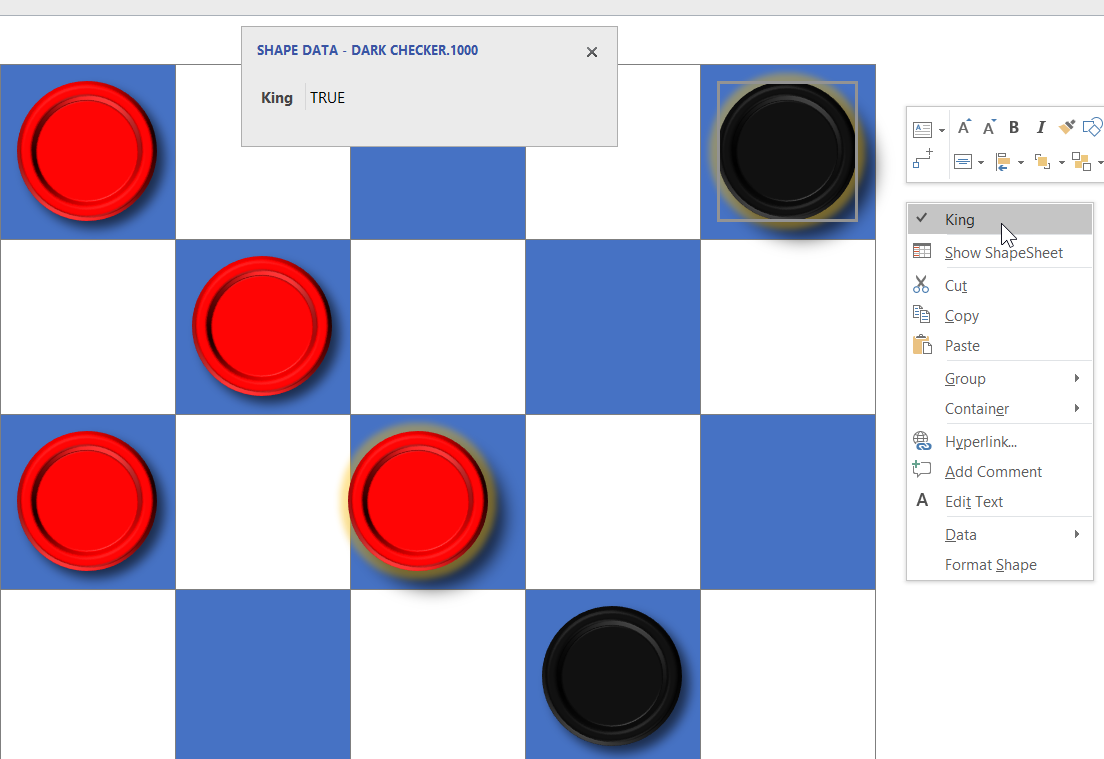
As it is Cyber Monday, I thought I would give away a compelling checkers board for Visio! In the UK, we call it Draughts, but the rules are the same… in my last post, I showed how to create a chess/checkers/draughts board, and in this one I add some checkers that can glue to the dark squares only!
[Read more…] about Cyber Monday free Visio Checkers!Scroll to Capture Visio ShapeSheets with SnagIt
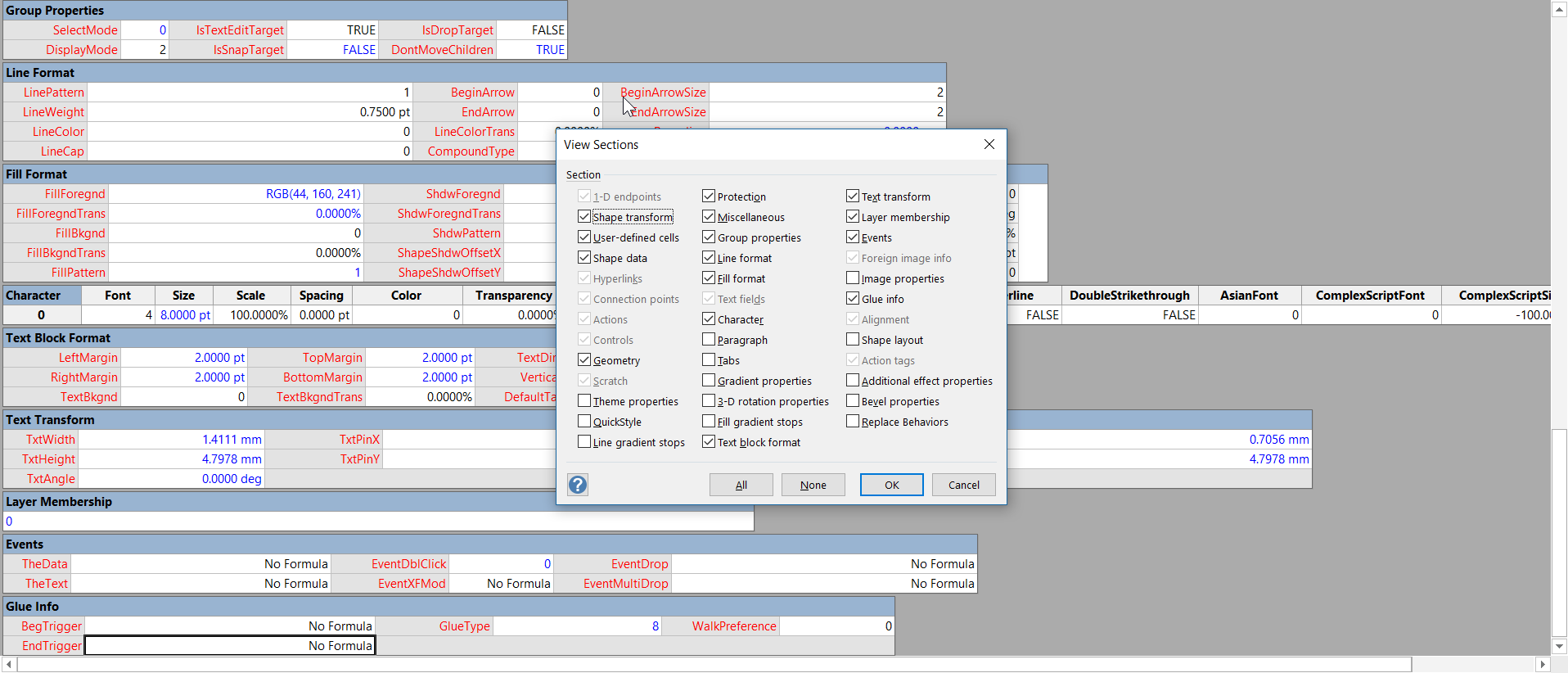
Anyone who develops with Visio faces the problem of viewing the formulas and values in an often difficult to navigate ShapeSheet window. I have been a SnagIt and Camtasia user for many years thanks to the generous free license I get from TechSmith as a Microsoft MVP. I have used both products extensively for my books, articles and videos, though I am not an expert in either product. Now, SnagIt has a panoramic scrolling capture feature that is great with ShapeSheets.
The unique smartness of Visio shapes comes from the ability to program the ShapeSheet behind every single shape. This is like an Excel worksheet divided into sections, and the display can switched between formulas and values. The Visio’s ShapeSheet window does have the ability to toggle the visibility of each section, but that is often not enough to get a complete picture of the formulas involved. The following example is the partial view of the ShapeSheet window for a simple shape.

Anchoring scaled shapes to page corners in Visio
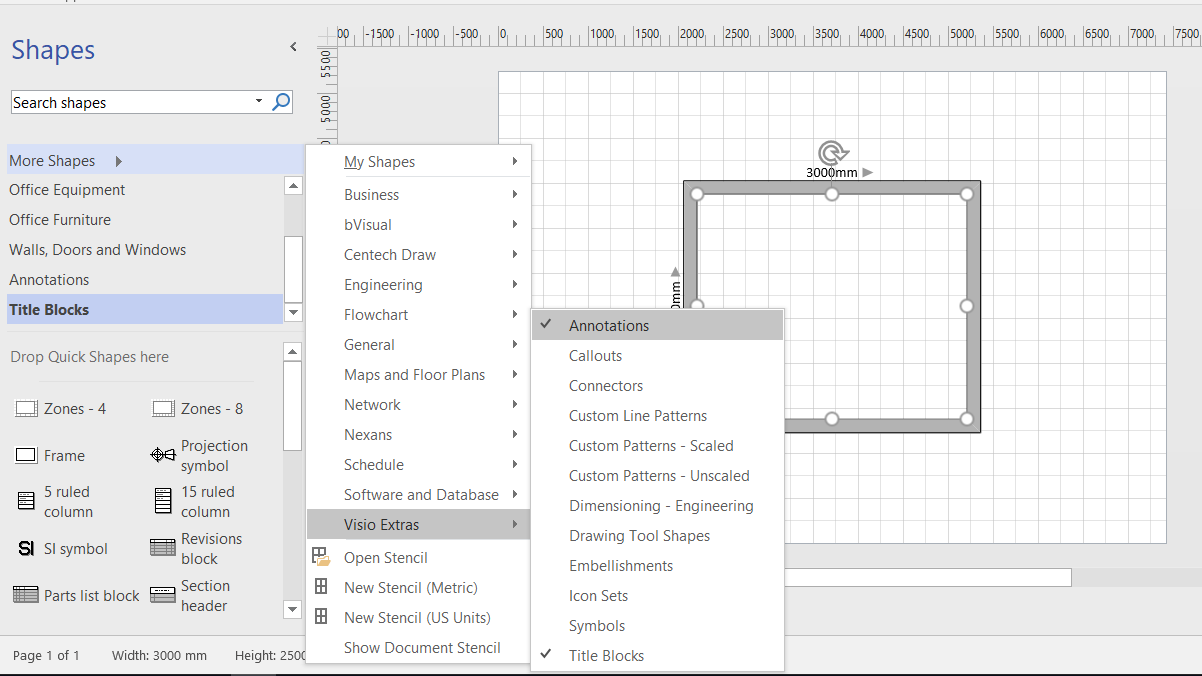
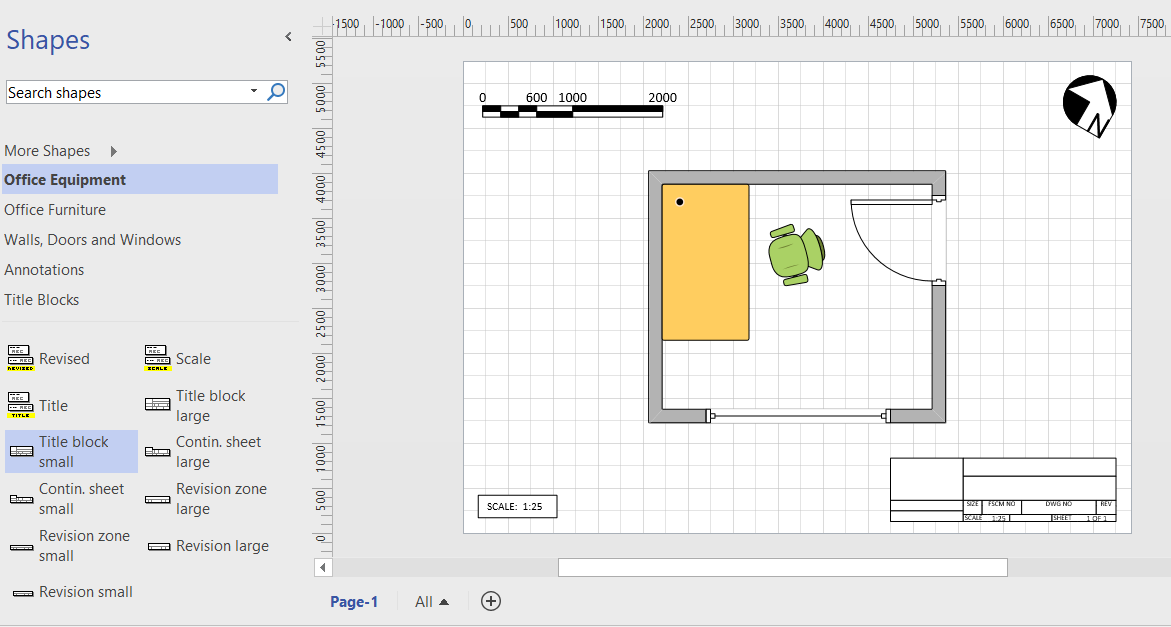
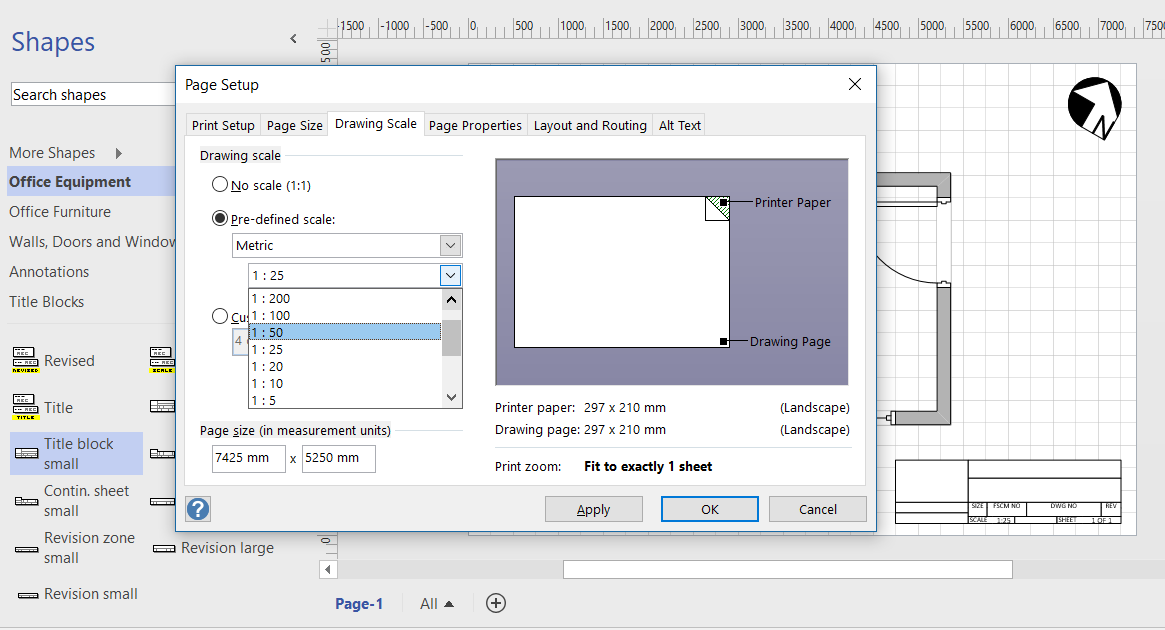
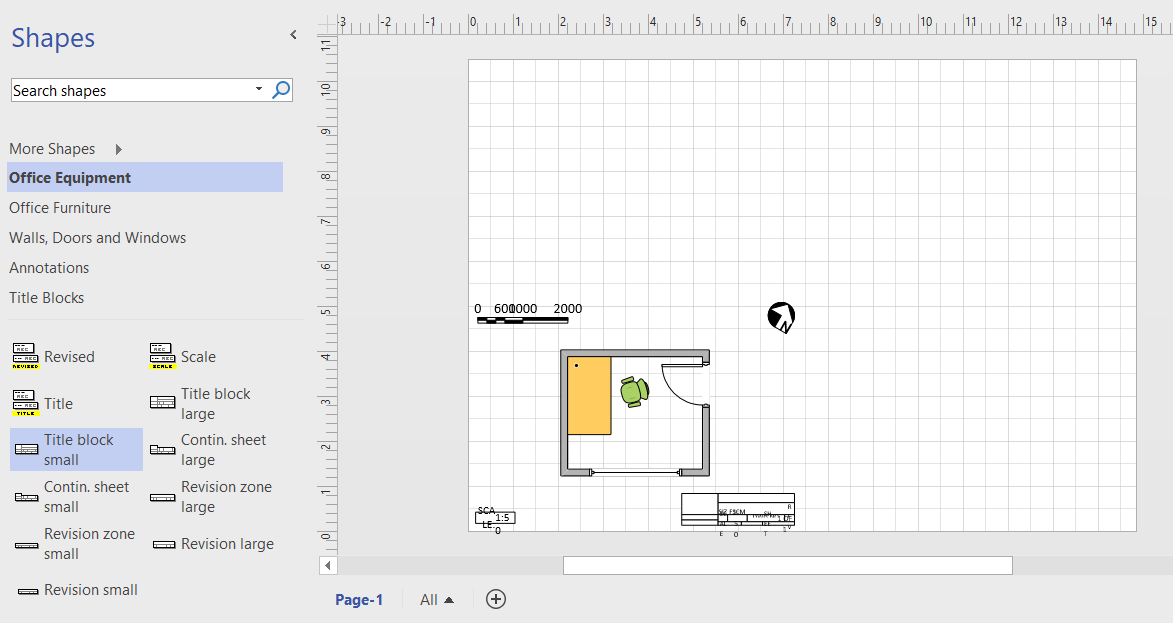
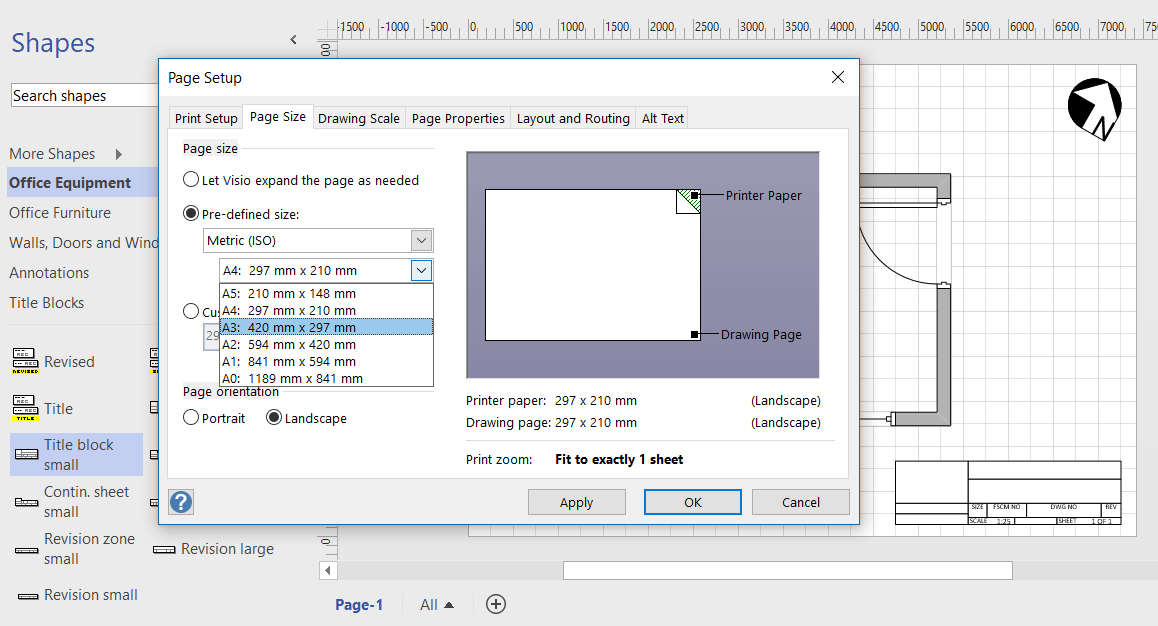
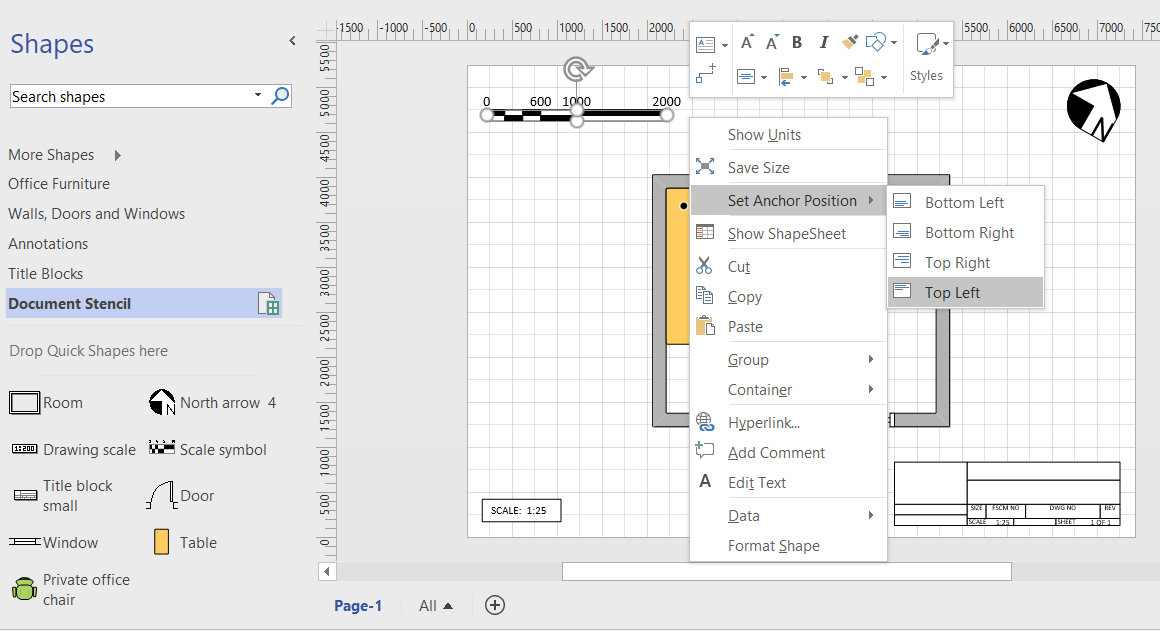
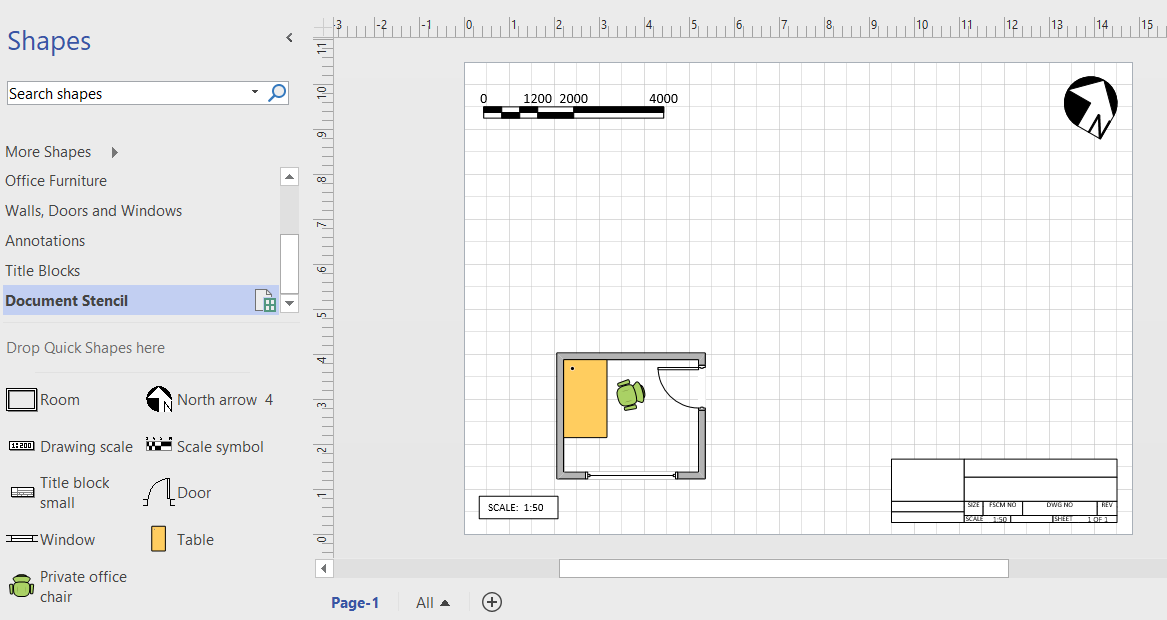
I have read that other users have bemoaned the lack of a anchor to top left, or something similar in Visio, so I thought I would demonstrate the issue, then propose a solution. In particular, there are some master shapes on the Annotations and Title Blocks stencils in the Visio Extras category that you would expect to have this capability, but don’t. Wouldn’t it be useful to have the ability to keep the shape size and anchor position to page bottom left, bottom right, top right or top left? This would mean that the page size or scale could be changed, but the annotations and title blocks could remain anchored.
First, it is important to know that Visio shapes are anchored, by default, to the bottom left of a page (or the shape that they are inside the group of). These values are returned from the formulas in the PinX and PinY cells.
Secondly, the location of the pin within the shape is defined by the formulas in the LocPinX and LocPinY cells, and these are relative to the bottom left corner of the shape.
Then it is just a matter of adding some Actions rows to the ShapeSheet of each master in the Document Stencil. The principle is to utilise the User.AntiScale value to reset the formulas in the Width, Height, PinX or PinY cells. The User.AntiScale row exists in many Master shapes because it is useful for de-scaling values. It has the formula:
Switching Metric and US Units in Visio floor plans
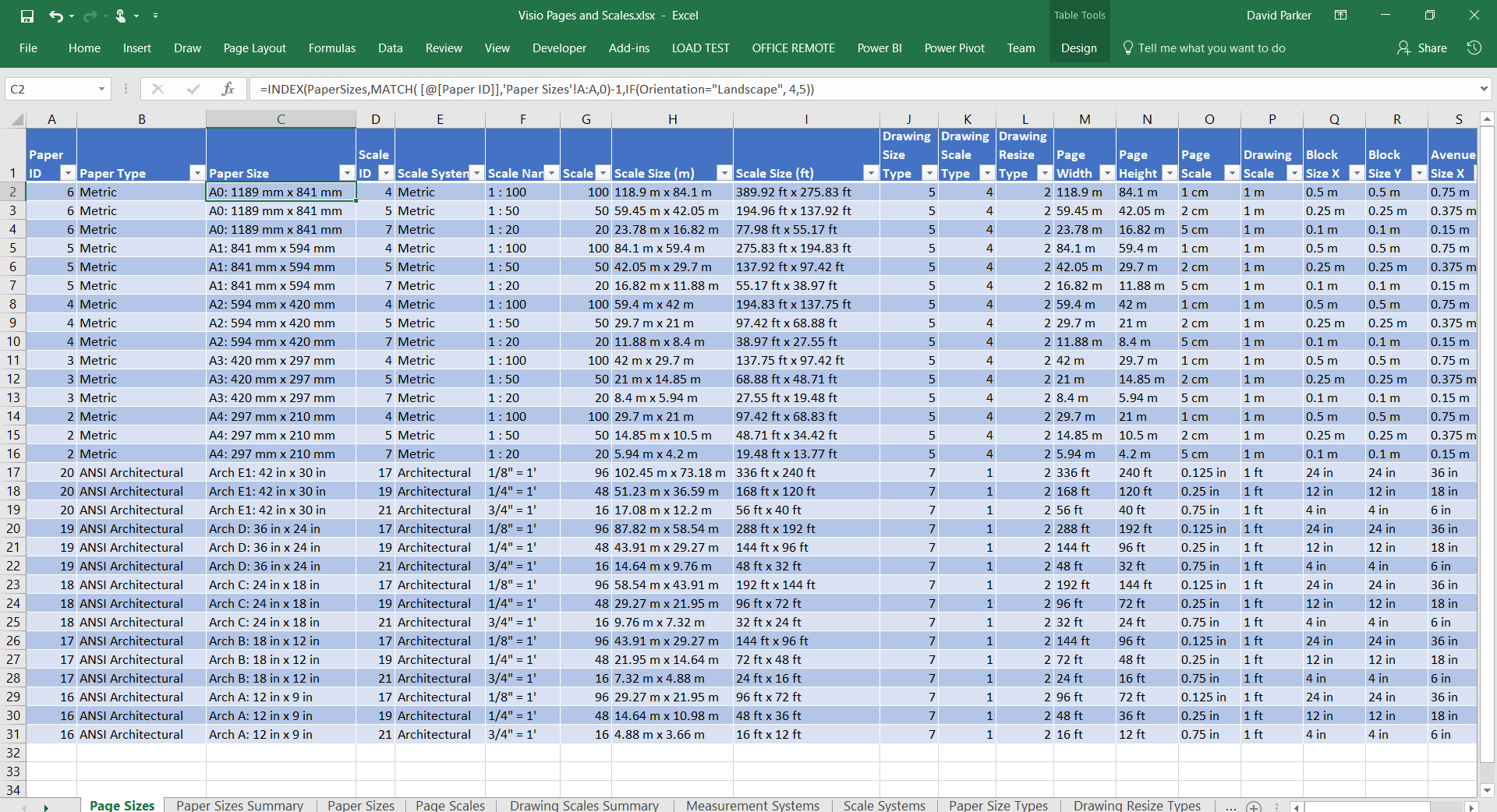
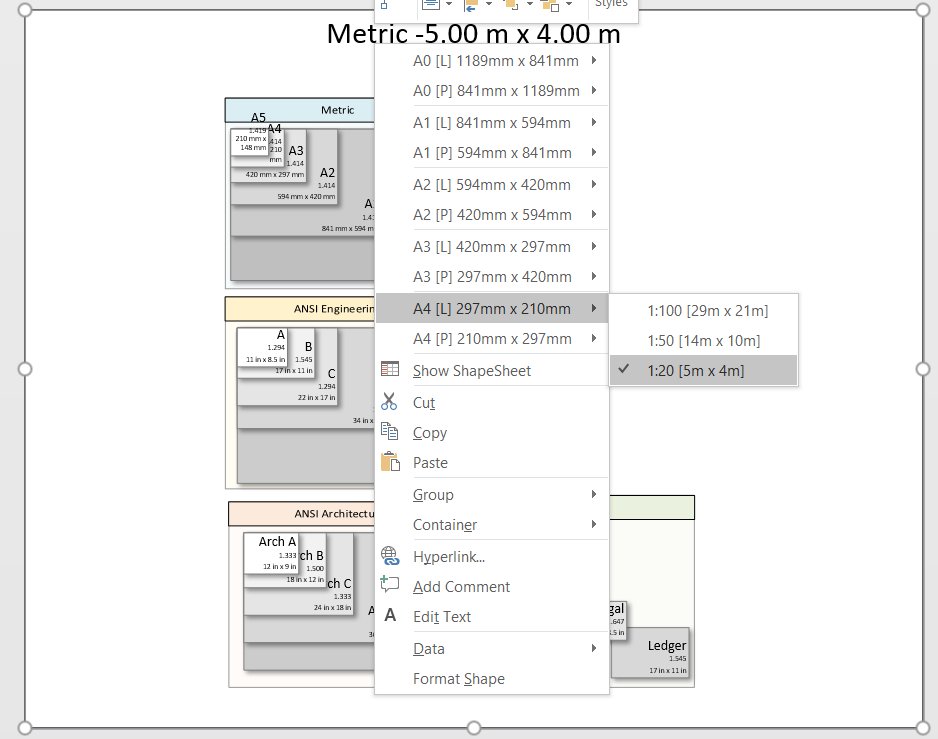
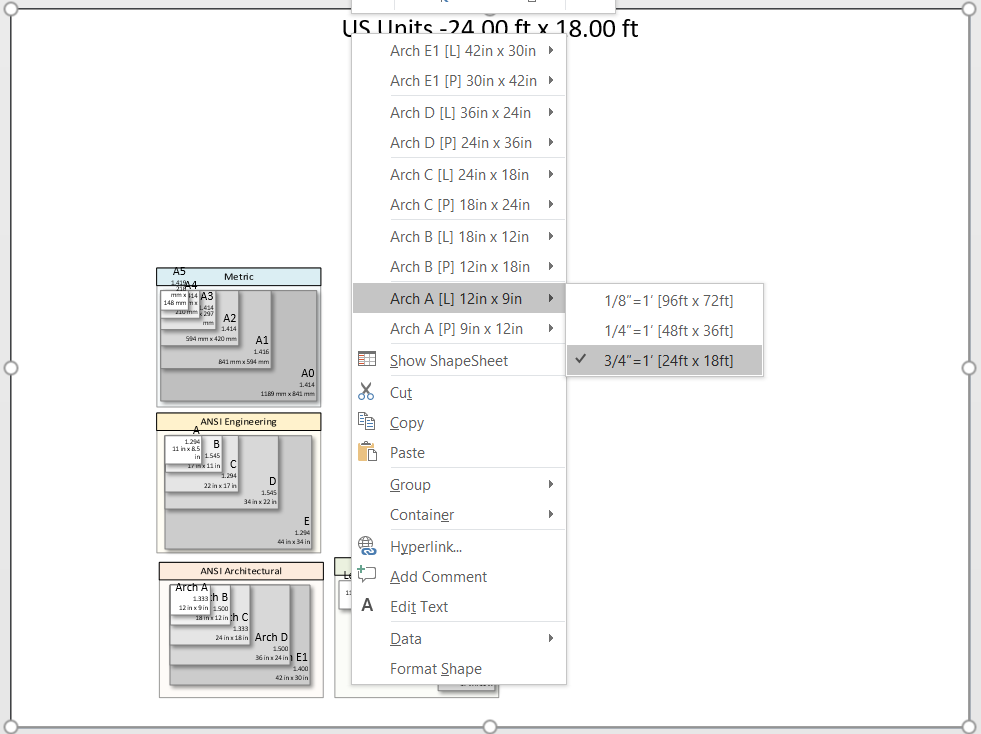
I recently wrote an article comparing Metric and US Units in Visio for floor plans (see Metric vs US Units in Visio floor plans). The intention was always to create right mouse actions on a Visio floor plan border shape to provide many alternative page sizes and scales. I have now done this, with the help of Excel and LinqPad.
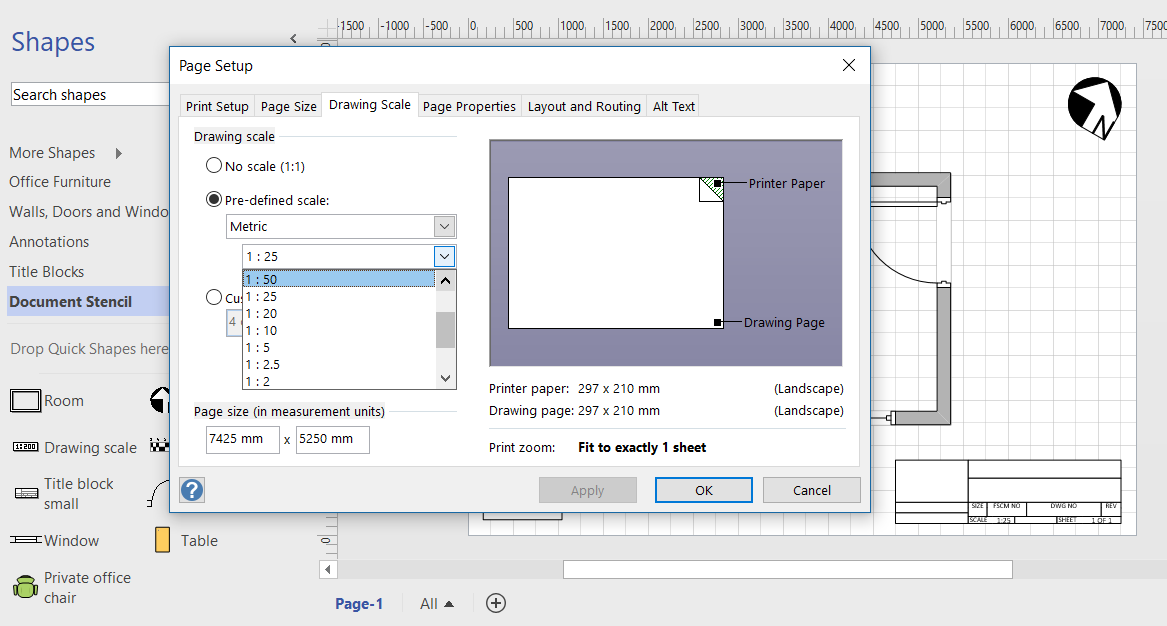
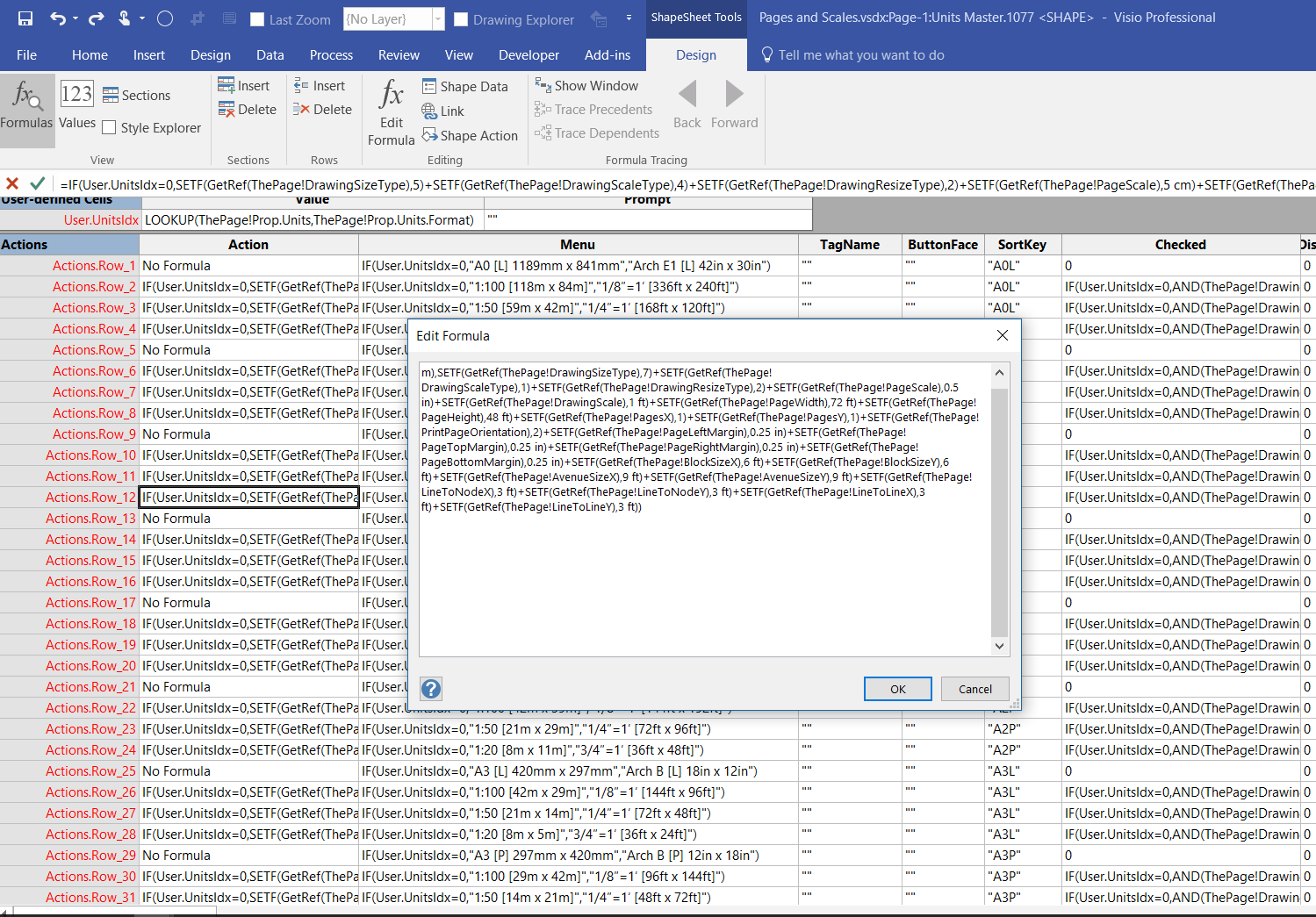
The action formulas in the ShapeSheet all create multiple SETF(..) formulas that emulate the actions performed by the multiple tabs in the Page Setup dialog, but simplified into a single action:
Understanding Visio’s Color Formulas
I was recently exploring the ShapeSheet formulas available in Visio that affect colors, and I decided that I needed to make a shape that I can change the fill color, tint, shade and tone of dynamically. This allows me to copy the formulas from a Shape Data row value for pasting into a ShapeSheet cell.