First of all, I must say that I was unaware of this rule for many years, and that is probably because I started programming Visio in VBA back in the mid ’90s. VBA is built in to Visio like other Microsoft Office applications, and as such, it has a direct uninterrupted access to the Visio Api. It is very chatty by nature, and has immediate access to all the events in the Visio Api. Therefore there is little extra cost in using multiple nested reference to Visio objects, however VSTO Addins do not have this luxury, and the C# code gets access via the .Net Framework. This is an extra layer that calls to the Visio Api need to go through, and these calls need to cross the COM boundary multiple times if the they are chained together with more than 2-dots. So what does that mean in practice? Well, every crossing of this boundary takes time, and it all adds up. So, I asked AI to explain more about the importance of abiding by the 2-dot rule….
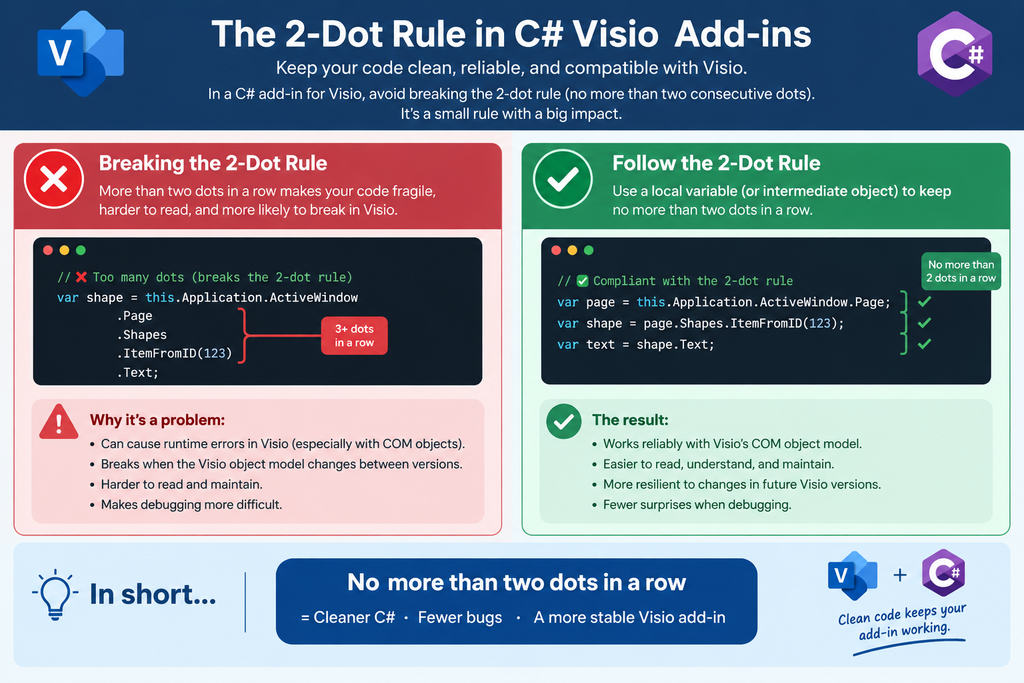
The Visio COM object model is exteremely chatty
Every “dot” in your C# code is a COM call into Visio. COM calls are slow, blocking, and can fire Visio events or trigger recalculation.
- 1 dot → 1 COM call
- 2 dots → 2 COM calls
- 3 dots → 3 COM calls
- …and each call can be expensive
When you’re doing interactive drag‑and‑drop, shape transforms, or MVVM updates, those extra calls add up fast.
More than 2 dots can cause re-entrancy and event storms
Visio fires events for almost everything:
- Shape changed
- Cell changed
- Formula changed
- Text changed
- Selection changed
- Document changed
If your code performs deep property access (3+ dots), Visio may:
- recalc the shape
- fire events
- call your event handlers
- which call Visio again
- which fires more events
- …and you get a feedback loop
This is one of the main causes of:
- UI freezes
- dragging lag
- “random” event ordering
- state corruption in MVVM models
Deep property access can corrupt your internal state model
n MVVM, your ViewModel must stay consistent with Visio’s state. But Visio’s state can change during your property access if you trigger recalculation.
Example:
csharp
var w = shape.CellsU["Width"].ResultIU;      // COM call
var h = shape.CellsU["Height"].ResultIU;     // COM call
var area = shape.CellsU["Width"].ResultIU * shape.CellsU["Height"].ResultIU; // BAD
That last line:
- calls Visio twice
- Visio may recalc between calls
- your ViewModel may now have mismatched width/height values
- your drag‑and‑drop logic becomes inconsistent
- your undo/redo model becomes unstable
This is one of the classic ways developers accidentally corrupt the memory state model.
Visio’s automation layer is not thread safe
Every COM call must happen on the main thread. More dots → more COM calls → more chances of:
- cross‑thread access
- deadlocks
- “RPC_E_CALL_REJECTED” errors
- Visio temporarily refusing calls during drag operations
Keeping to 2 dots dramatically reduces these risks.
Performance during drag and drop depends on it
You asked earlier about “reasonable numbers of events firing during interactive drag‑and‑drop”.
The answer depends heavily on whether you follow the 2‑dot rule.
If you break it:
- each drag event may trigger dozens of COM calls
- Visio throttles or delays events
- your add‑in becomes sluggish
- users see “rubber‑banding” or delayed shape movement
If you follow it:
- each drag event is cheap
- your add‑in stays responsive
- your MVVM model stays consistent
- Visio doesn’t drown in recalculation
Related articles

Introducing a free Visio Report Runner application
AI is changing the world and how we should approach it. So I decided to see if I could get Claude Sonnet 4.6 Agent to completely write an application for me, and I mean completely. The application is written in Python by Claude, and I have not written a single line. The code is available…

Protecting the integrity of custom Visio masters
All of my Visio solutions contain custom masters because this is the best way to create smart shapes that respond to user’s needs. This usually means creating Shape Data, User-defined Cells and Action rows that govern aspects of the shape with formulas designed to provide an efficient user interface. As a developer I sometimes forget…

Migrating from Lucidchart to Visio?
My fellow Visio MVP, Michel Laplane, and I recently converted and transformed 15k Lucidchart documents to Microsoft Visio for a large multi-national organization. This was approximately 4 years after they had moved from Visio to Lucidchart! I do not know the full reason behind these changes in technology, and I do not have a particular…

Installing Visio Templates and Stencils
I was recently on holiday but needed to update an installation of Visio Templates and Stencils for all languages. I use Advanced Installer in Enterprise mode so that I can edit the PublishComponent table like I have described in my earlier article ( see Using Advanced Installer with Visio VSTO Add-Ins – bVisual )Unfortunately I…

Creating a Dynamic connector master automatically
I have been creating Microsoft Visio solutions for 30 years now … my first was in 1996! I have been an advocate for custom Masters from the very start, every since I learnt how editing the Master can automatically update all of its instance shapes can be automatically updated throughout the document. Whenever you drag…
How SVG in Visio can cause a Shape.BoundingBox(…) error
I have used Visio’s Shape.BoundingBox(…) for many, many years and I cannot ever recall it failing, but I have now managed to create some shapes that cause it to error. This caused many hours of confusion, so I nearly abandoned using the method, until I discussed it with my fellow Visio MVP, John Goldsmith (see…
