• Skip to main content
  • Skip to primary sidebar
  • Skip to footer

bVisual

  • Home
  • Services
    • How Visio smartness can help your business
    • Visio visual in Power BI
    • Visio Consulting Services
    • Visio Bureau Services
    • Visio Training and Support Services
  • Products
    • Visio Shape Report Converter
    • SS Plus
    • LayerManager
    • visViewer
    • Metro Icons
    • Rules Tools for Visio
    • The Visio 2010 Sessions App
    • Multi-Language Text for Visio
    • Document Imager for Visio
    • multiSelect for Visio
    • pdSelect for Visio
  • Case Studies
    • Case studies overview
    • Using Visio in Education for GIS
    • Visualizing Construction Project Schedules
    • Visio Online Business Process Mapping
    • Nexans Visio Template
    • CNEE Projects, WorldCom
    • Chase Manhattan Bank
  • News
    • Recent news
    • News archive
  • Resources
    • Articles➡
      • ShapeSheet Functions A-Z
      • Comparing Visio for the Web and Desktop
      • Customising Visio Shapes for the Web App
      • Key differences between the Visio desktop and web apps
      • Using the Visio Data Visualizer in Excel
      • Using Visio in Teams
      • Creating Visio Tabs and Apps for Teams with SharePoint Framework (SPFx)
      • Designing Power Automate Flows with Microsoft Visio
      • Innovative uses of Visio Lists
    • Webcasts ➡
      • Visio in Organizations
      • My session and other Visio sessions at MSIgnite 2019
      • Power up your Visio diagrams
      • Vision up your Visio diagrams
      • The Visio 2010 MVP Sessions
    • Visio Web Learning Resources
    • Books➡
      • Visualize Complex Processes with Microsoft Visio
      • Mastering Data Visualization with Microsoft Visio
      • Microsoft Visio Business Process Diagramming and Validation
      • Visualizing Information with Microsoft Visio
  • Blog
    • Browse blog articles
    • Visio Power BI articles
    • Visio for Web articles
    • A history of messaging and encryption
  • About us
    • About bVisual
    • Testimonials
    • Bio of David Parker
    • Contact Us
    • Website Privacy Policy
    • Website terms and conditions
    • Ariba Network

Shape Design

Published on April 21, 2010 by David Parker

Automating Area and Perimeter Length Shape Data

[UPDATE: Microsoft introduced a new function into Visio 2010 called PATHLENGTH(…), so some of the following is now not required. See Automatic Line and Segment Lengths in Visio )

Another newsgroup question has asked about automating the update of shape area and perimeter lengths.  Now, this is an area (no pun intended) that I am most interested in because I used to do a lot of space planning.  Visio Professional does include Space and Boundary shapes on the Resources stencil that use an add-in to update the area, but does nothing about the perimeter length.  These shapes do highlight some of the issues to be considered though…

  • Visio pages can be scaled, and indeed the various floor plan and site layout templates in Visio are pre-scaled.  Most templates are not scaled, and  therefore default to 1:1 scale.
  • Visio measures everything internally in inches, although you can display in almost whatever units you choose.
  • The Visio Application object has a handy ConvertResult (StringOrNumber, UnitsIn, UnitsOut) method, which can be used for linear and area measurements … and can also be used for date and times.
  • Visio can store decimal numbers to a very high degree of precision (I counted 14 decimal places), but you almost always want to format the display.
  • Visio can call a method in a VBA project when the values in specified cells are changed.
  • It is easy to display Shape Data in a shape, either by using Data Graphics or by Insert Field

[Read more…] about Automating Area and Perimeter Length Shape Data

Filed Under: Scale, ShapeSheet Formulas, VBA, Visio

Published on February 15, 2010 by David Parker

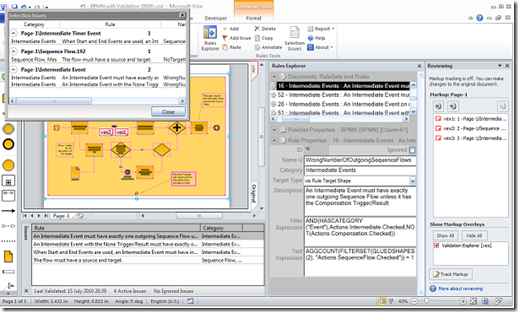
Writing rules to validate diagrams in Visio 2010 – A worked example

Microsoft Visio 2010 Premium Edition introduced an extension to the Visio Type Library called the Validation API. This provides the capability to validate a Visio diagram to ensure that its construction complies with industry-standard or company –wide rules.

Organizations are able to use this new feature to encapsulate business logic as validation rules, grouped within rule sets.

Microsoft Visio 2010 Premium edition contains rule sets for use with Basic and Cross-Functional Flowcharts, BPMN Diagrams and SharePoint Workflow Designer diagrams.

This article describes how you can create your own rule sets and rules.

[Read more…] about Writing rules to validate diagrams in Visio 2010 – A worked example

Filed Under: Connections, Connectors, Containers, Validation, Visio 2010 Tagged With: Validation, Visio Rules

Published on November 29, 2009 by David Parker

Visio 2010 Developer References

By now, some of you will have downloaded the Visio 2010 Beta, and may even have downloaded the Visio Automation Reference and ShapeSheet Reference files. You may the, like me, wondered how to actually view the contents of these two hxs files?  Well, fortunately, Stephanie Horn from the Visio team at Microsoft as able to help, so I thought that I would pass it on to you.  (Remember these files are still beta, but they do contain some useful information).

Once you download and unpack the files, you will end up with two files called Visio2010AutoRef.hxs and Visio2010ShapeSheetRef.hxs. You can view them with any HxS viewer, but the download site suggests replacing the existing versions of these files and viewing them through Visio help. To do this:

1. Rename the files VISIO.DEV.HXS and VISIO.SHAPESHEET.HXS, respectively, and put them in your Office141033 directory (i.e., C:Program FilesMicrosoft OfficeOffice141033).

2. Open Visio, and launched help (F1).

3. Pick “Developer Reference” or “Visio ShapeSheet Help” in the Search pull-down menu.

clip_image001

I suggest turning on “Show Table of Contents” using the book icon in the toolbar, so you can navigate through the help topics.

Filed Under: ShapeSheet Formulas, Visio 2010

Published on September 21, 2009 by David Parker

Visio 2010 Validation Rules (part 2)

In my previous post, I began to explore the new Validation objects in the Visio 2010 Technical Preview, an I used some VBA code to do this.  Well, I have now uploaded the code to OneDrive ( bVisualValidationExplorer.vss ), so that you can use it too!  So, this post is about using this code …

First, download the stencil and save it to you My Shapes folder (if you trust me).  This will make it available to you to use in any Visio 2010 document.

Then, whenever you want to use the code, simply open the stencil from the More Shapes / My Shapes category….

imageThe stencil will be docked with the other shape stencils, but, of course, this stencil does not have any shapes … only VBA code.

[Read more…] about Visio 2010 Validation Rules (part 2)

Filed Under: Validation, Visio 2010

Published on September 16, 2009 by David Parker

Visio 2010 Validation Rules (part 1)

The Microsoft Visio team recently blogged about Creating custom validation rules for Visio 2010 , in which it was suggested that we can use Visual Basic for Applications to interact with the new validation API.  I thought, there’s a challenge … so I will develop a VBA project to do just that.  I will upload the code soon, but, as it is only half developed today, I will demonstrate how to understand why a rule has been broken.

In the following BPMN diagram, I have failed to connect a Task to the End Event.  I have made it obvious here but it could be easy to overlook in a larger diagram.  In fact, I know of one company who were advised by a “consultant” that there must be something wrong when the end of a connector goes red therefore you should move it away from the shape until it goes green!  The result was that the company had over 300 flow diagrams without a single valid connection!  That company is no more!

image
[Read more…] about Visio 2010 Validation Rules (part 1)

Filed Under: Validation, Visio 2010

Published on September 16, 2009 by David Parker

Listing Connections in Visio 2010

One of the best bits of Visio is the connections between shapes, but it has always been difficult to understand these connections in code.  There are connections to and from shapes, which require you to understand where you are and which way to look … at the beginning or the end of a 1D connector. Visio 2010 has added some useful extra methods to the shape object which makes understanding connections much easier.  This post will show you how you can use the new GluedShapes() and ConnectedShapes() methods.

Take, for example, a network diagram where there are connections between servers and routers:

image

You may wish to list the connections at the start and end of each cable.  Previously, this would have meant inspecting the connected cell to see if was at the beginning or end of the line, but now you can use the GluedShapes() method of a shape to retrieve an array of the 2D shapes connected at one end or another with the relevant arguments, visGluedShapesIncoming2D or visGluedShapesOutgoing2D.  The ListGluedConnections macro below displays the following in the immediate window:

Connector     Dynamic connector
>             Router.45     router-02
<             Server        server-01 Connector     Dynamic connector.107 >             Router.45     router-02
<             Server.30     server-02 Connector     Dynamic connector.108 >             Router        router-01
<             Server.75     server-03 Connector     Dynamic connector.109 >             Router.91     router-03
<             Server.30     server-02 Connector     Dynamic connector.110 >             Router.91     router-03
<             Server        server-01
Public Sub ListGluedConnections()
Dim shp As Visio.Shape
Dim connectorShape As Visio.Shape
Dim sourceShape As Visio.Shape
Dim targetShape As Visio.Shape
Dim aryTargetIDs() As Long
Dim arySourceIDs() As Long
Dim targetID As Long
Dim sourceID As Long
Dim i As Integer

For Each shp In Visio.ActivePage.Shapes
    If shp.OneD Then
        Debug.Print "Connector", shp.Name
        arySourceIDs = shp.GluedShapes(visGluedShapesIncoming2D, "")
        For i = 0 To UBound(arySourceIDs)
            Set sourceShape = Visio.ActivePage.Shapes.ItemFromID(arySourceIDs(i))
            If sourceShape.CellExists("Prop.NetworkName", Visio.visExistsAnywhere) Then
                Debug.Print , ">", sourceShape.Name, sourceShape.Cells("Prop.NetworkName").ResultStr("")
            End If
        Next
        aryTargetIDs = shp.GluedShapes(visGluedShapesOutgoing2D, "")
        For i = 0 To UBound(aryTargetIDs)
            Set targetShape = Visio.ActivePage.Shapes.ItemFromID(aryTargetIDs(i))
            If targetShape.CellExists("Prop.NetworkName", Visio.visExistsAnywhere) Then
                Debug.Print , "<", targetShape.Name, targetShape.Cells("Prop.NetworkName").ResultStr("")
            End If
        Next
    End If
Next

End Sub

Similarly, you may want to simply list the next connected 2D shape, effectively ignoring the cable.  In this case, you can use the new ConnectedShapes() method, with the relevant arguments visGluedShapesIncoming2D or visGluedShapesOutgoing2D, to produce an output like the following ( using the ListNextConnections macro below):

Shape         Server        server-01
>             Router.45     router-02
>             Router.91     router-03
Shape         Router        router-01
<             Server.75     server-03 Shape         Server.30     server-02 >             Router.45     router-02
>             Router.91     router-03
Shape         Router.45     router-02
<             Server        server-01
<             Server.30     server-02 Shape         Server.75     server-03 >             Router        router-01
Shape         Router.91     router-03
<             Server        server-01
<             Server.30     server-02
Public Sub ListNextConnections()
Dim shp As Visio.Shape
Dim connectorShape As Visio.Shape
Dim sourceShape As Visio.Shape
Dim targetShape As Visio.Shape
Dim aryTargetIDs() As Long
Dim arySourceIDs() As Long
Dim targetID As Long
Dim sourceID As Long
Dim i As Integer

For Each shp In Visio.ActivePage.Shapes
    If Not shp.OneD Then
        If shp.CellExists("Prop.NetworkName", Visio.visExistsAnywhere) Then
            Debug.Print "Shape", shp.Name, shp.Cells("Prop.NetworkName").ResultStr("")
            arySourceIDs = shp.ConnectedShapes(visConnectedShapesOutgoingNodes, "")
            For i = 0 To UBound(arySourceIDs)
                Set sourceShape = Visio.ActivePage.Shapes.ItemFromID(arySourceIDs(i))
                If sourceShape.CellExists("Prop.NetworkName", Visio.visExistsAnywhere) Then
                    Debug.Print , "<", sourceShape.Name, sourceShape.Cells("Prop.NetworkName").ResultStr("") End If Next aryTargetIDs = shp.ConnectedShapes(visConnectedShapesIncomingNodes, "") For i = 0 To UBound(aryTargetIDs) Set targetShape = Visio.ActivePage.Shapes.ItemFromID(aryTargetIDs(i)) If targetShape.CellExists("Prop.NetworkName", Visio.visExistsAnywhere) Then Debug.Print , ">", targetShape.Name, targetShape.Cells("Prop.NetworkName").ResultStr("")
                End If
            Next
        End If
    End If
Next

End Sub

I think this makes interrogation of connected diagrams, of all flavours, much simpler, though I would love to have similar ShapeSheet functions too!

Filed Under: Connections, Connectors, VBA, Visio 2010

  • « Go to Previous Page
  • Page 1
  • Interim pages omitted …
  • Page 30
  • Page 31
  • Page 32
  • Page 33
  • Page 34
  • Interim pages omitted …
  • Page 36
  • Go to Next Page »

Primary Sidebar

  • LinkedIn
  • Twitter

Recent Posts

  • Docked Stencils in Visio for the Web
  • My Visio Books and Old pre-C# Work
  • Migrating from Lucidchart to Visio?
  • Creating Boolean Context Menus in Visio
  • Installing Visio Templates and Stencils

Categories

Tags

Accessibility Add-Ins AdvancedInstaller Connectors Containers Data Export Data Graphics Data Import Data Visualizer Educational Excel GraphDatabase Hyperlinks Icon Sets JavaScript LayerManager Layers Legend Link Data to Shapes MSIgnite Office365 Org Chart PowerApps PowerBI PowerQuery Processes Setup and Deployment Shape Data Shape Design ShapeSheet ShapeSheet Functions SharePoint 2013 SQL Teams Validation VBA Video Visio Visio 2007 Visio for the desktop Visio for the Web Visio Online Visio Services Visio Viewer Webinar

Footer

bVisual Profile

The UK-based independent Visio consultancy with a worldwide reach. We have over 25 years experience of providing data visualization solutions to companies around the globe.

Learn more about bVisual

  • Amazon
  • E-mail
  • Facebook
  • LinkedIn
  • Twitter
  • YouTube

Search this website

Recent posts

  • Docked Stencils in Visio for the Web
  • My Visio Books and Old pre-C# Work
  • Migrating from Lucidchart to Visio?
  • Creating Boolean Context Menus in Visio
  • Installing Visio Templates and Stencils

Copyright © 2026 · Executive Pro on Genesis Framework · WordPress · Log in