• Skip to main content
  • Skip to primary sidebar
  • Skip to footer

bVisual

  • Home
  • Services
    • How Visio smartness can help your business
    • Visio visual in Power BI
    • Visio Consulting Services
    • Visio Bureau Services
    • Visio Training and Support Services
  • Products
    • Visio Shape Report Converter
    • SS Plus
    • LayerManager
    • visViewer
    • Metro Icons
    • Rules Tools for Visio
    • The Visio 2010 Sessions App
    • Multi-Language Text for Visio
    • Document Imager for Visio
    • multiSelect for Visio
    • pdSelect for Visio
  • Case Studies
    • Case studies overview
    • Using Visio in Education for GIS
    • Visualizing Construction Project Schedules
    • Visio Online Business Process Mapping
    • Nexans Visio Template
    • CNEE Projects, WorldCom
    • Chase Manhattan Bank
  • News
    • Recent news
    • News archive
  • Resources
    • Articles➡
      • ShapeSheet Functions A-Z
      • Comparing Visio for the Web and Desktop
      • Customising Visio Shapes for the Web App
      • Key differences between the Visio desktop and web apps
      • Using the Visio Data Visualizer in Excel
      • Using Visio in Teams
      • Creating Visio Tabs and Apps for Teams with SharePoint Framework (SPFx)
      • Designing Power Automate Flows with Microsoft Visio
      • Innovative uses of Visio Lists
    • Webcasts ➡
      • Visio in Organizations
      • My session and other Visio sessions at MSIgnite 2019
      • Power up your Visio diagrams
      • Vision up your Visio diagrams
      • The Visio 2010 MVP Sessions
    • Visio Web Learning Resources
    • Books➡
      • Visualize Complex Processes with Microsoft Visio
      • Mastering Data Visualization with Microsoft Visio
      • Microsoft Visio Business Process Diagramming and Validation
      • Visualizing Information with Microsoft Visio
  • Blog
    • Browse blog articles
    • Visio Power BI articles
    • Visio for Web articles
    • A history of messaging and encryption
  • About us
    • About bVisual
    • Testimonials
    • Bio of David Parker
    • Contact Us
    • Website Privacy Policy
    • Website terms and conditions
    • Ariba Network

Shape Design

Published on September 7, 2009 by David Parker

Visio 2010 : Containment and Cross-Functional Flowcharts

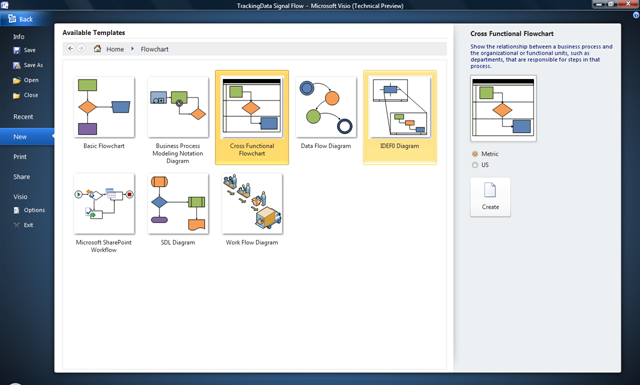
One of the templates to get a revision in Visio 2010 is the Cross Functional Flowchart template because of the new list and containment functionality that has been added into the core application.  I had to write a small bit of code in earlier versions of Visio for each flowchart shape to automatically understand which swimlane and phase it belongs to, but now there are ShapeSheet functions available, so a slight modification of a flowchart master enables it to inherit values from the swimlane that it is in.  This article demonstrates who you can do this to, for example, synchronize the fill color of each flowchart shape to that of the swimlane that it belongs to.

image

[Read more…] about Visio 2010 : Containment and Cross-Functional Flowcharts

Filed Under: Containers, Lists, Process Flows, VBA, Visio 2010

Published on April 29, 2009 by David Parker

Introducing celMaker 2

I was recently asked to provide a  new version of celMaker that works with Visio 2007 and Excel 2007, so I got my old VB6 code out of SourceSafe and upgraded it so that I could run it on my Vista 64 laptop too.  I also decided that I would release this version to the public as freeware because I have added no new features.So, what is celMaker? And where can you download it?

Last one first … you can download it from here : http://www.bvisual.net/products/celMaker/publish.htm (under review)

Most Visio users will have the components, so you can just click the Launch link.

1. Introduction

celMaker is a developer(ish) tool for Visio which allows the most often used sections of a Visio ShapeSheet to be copied into an Excel spreadsheet, or from an Excel spreadsheet onto a Visio master.
This means that the Visio Shape designer can create one master with its Shape Data (nee Custom  Properties), User Cells, Actions, Smart Tags, Controls and Connection Points, and then save this to an Excel spreadsheet for backup, verification, discussions, documentation or transfer to another Master.
The Excel spreadsheet can be created manually or by reverse engineering existing Visio masters.
celMaker is provided as a stand alone executable that requires both Visio and Excel to be running, and can be used for many different types of diagram projects.

[Read more…] about Introducing celMaker 2

Filed Under: ShapeSheet Formulas, Visio

Published on April 17, 2009 by David Parker

Visio in XPS and Interesting Microsoft Office Labs Projects

For the past two years, I have been adding XAML-based projects to my collection, alongside the normal Visio libraries and automation code that I normally produce.  The reason is quite simple : both environments have the ability of linking vector graphics and data together in an exciting, interactive and controllable way.  There is a certain smartness to both with the ability to binding data to graphical appearance.  XAML seems to be present in all of Microsoft’s graphic products, in the form of WPF, Silverlight .and Xps.  Now, we know that there are great things to come viz-a-viz Visio and XAML in the next version, and there is Saveen Reddy,s excellent Visio Export to XAML project on CodePlex ( https://www.openhub.net/p/VisioExportToXAML ), but most people do not realise that Xps is XAML, but compressed.

[Read more…] about Visio in XPS and Interesting Microsoft Office Labs Projects

Filed Under: Save As, Visio

Published on February 24, 2009 by David Parker

Creating an Org Chart without the Org Chart Wizard

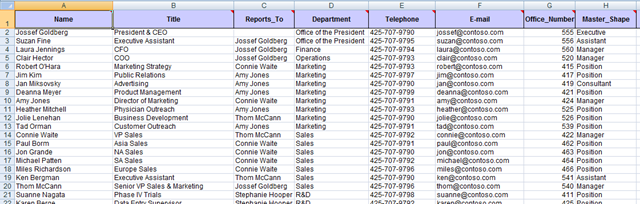
Microsoft Office Visio has had an Org Chart Wizard for as long as I can remember (and I have been using Visio since 1996).  It has gone through several iterations, but basically it provides a simple way to create personnel hierarchies from a variety of data sources.  It even has a command line interface so that the charts can be created with a minimum of user interaction.  This is great, but it is limited.  Firstly, it does not take advantage of the new Link Data to Shapes and Data Graphics in Visio 207 Professional; secondly, it only does direct reports with just one type of layout; and thirdly, you cannot refresh the diagram easily.  Therefore, I thought it would be interesting to overcome some of these obstacles using the new features of Visio 2007 Professional and with a little code.

Visio installs a sample OrgData.xls Excel spreadsheet in the folder <Program Files>Microsoft OfficeOffice12SAMPLES1033 by default, so I have copied this file and slightly amended it.

image
[Read more…] about Creating an Org Chart without the Org Chart Wizard

Filed Under: External Data, Org Charts, Shape Data, Visio

Published on February 2, 2009 by David Parker

Copying Data from one Shape to Another

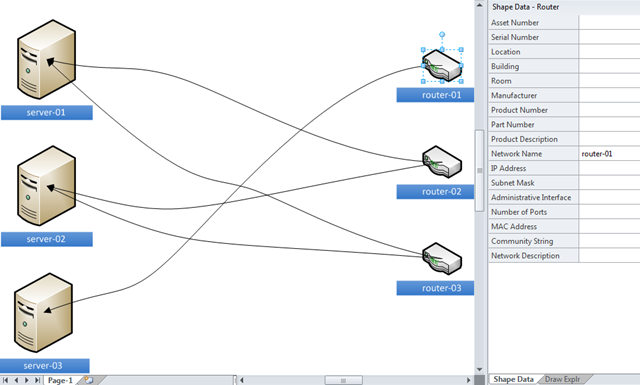
A recent newsgroup question asked for example code to demonstrate how shape data can be copied from one shape to another via a connector between the two.  This is something that others might want to do also, and not just by connecting shapes, but also by selection since you might change your mind about which shape to use, but you have already entered a lot of information on the original shape.  A good example of this might be when diagramming a network and needing to change between one type of server and another.  So, in this blog, I will demonstrate how shape data can be transferred by connection or by selection, and how to limit the transfer to rows that match by name or by label.

Note that Shape Data is the new name for Custom Properties in Visio 2007.

Firstly, I should explain why it may be necessary to match by name or by label:  In the following screenshot, you can see the Shape Data window, Define Shape Data dialog, and the ShapeSheet for a Server shape.  I have ticked “Run in developer mode” in Tools / Options / Advanced, otherwise I would not be able to see the Name, Sort key, Ask on drop or Hidden in the dialog.

image
[Read more…] about Copying Data from one Shape to Another

Filed Under: Shape Data, VBA, Visio

Published on October 17, 2008 by David Parker

Importing KML Files into Visio

In my last blog, I demonstrated how you can import a map image from Maps Live, and calibrate it in preparation for importing any KML files into it (Moving Between Visio and KML).  In this blog, I will complete the import of KML files exported from Maps Live.

I created two base map images in Visio, side by side, so that I can demonstrate that the import can be done to any prepared image, anywhere in Visio. Of course, you could have the two images on top of each other, on different layers, so that you can switch between Road and Aerial view by just changing the visibility of their layers.

image

In my demonstration, I have prepared a KML file with an area (polygons), three paths (linestrings) and three pushpins (points).  You may spot that there are only two shown on each map, well, that is because I have put a filter in the import to only bring in those parts that are within the map image boundary.

image

In addition to the geometry for each shape, I have added Shape Data/Custom Properties and assigned the different types of shapes on to discrete layers in Visio.

image

In order to convert the KML files into Visio, I had to choose how the different types of Placemarks are to be represented:

Getting the Map

Firstly, you need to get the size and position of the selected map shape and read its Shape Data/Custom Properties in order to understand the extents of the earth under consideration.  Then the only difficulty was transforming the geometry from longitudes/latitudes of each Placemark relative to the selected map shape.

If shpMap.CellExists(“Prop.MinLon”, Visio.visExistsAnywhere) = 0 Then
MsgBox “Please select a map shape”
Exit Sub
End If

Dim nod As MSXML2.IXMLDOMNode
Set nod = xdoc.SelectSingleNode(“//kml/Document/Placemark/name”)
If Not nod Is Nothing Then
setProp shpMap, “Name”, “Name”, 0, “””” & nod.Text & “”””
Else
setProp shpMap, “Name”, “Name”, 0, “”
End If
Set nod = xdoc.SelectSingleNode(“//kml/Document/Placemark/description”)
If Not nod Is Nothing Then
setProp shpMap, “Description”, “Description”, 0, “””” & nod.Text & “”””
Else
setProp shpMap, “Description”, “Description”, 0, “”
End If
Dim dWidth As Double
dWidth = shpMap.Cells(“Width”).ResultIU
Dim dHeight As Double
dHeight = shpMap.Cells(“Height”).ResultIU
Dim dLeft As Double
dLeft = shpMap.Cells(“PinX”).ResultIU – shpMap.Cells(“LocPinX”).ResultIU
Dim dBottom As Double
dBottom = shpMap.Cells(“PinY”).ResultIU – shpMap.Cells(“LocPinY”).ResultIU
Dim dMinLon As Double
dMinLon = shpMap.Cells(“Prop.MinLon”).ResultIU
Dim dMinLat As Double
dMinLat = shpMap.Cells(“Prop.MinLat”).ResultIU
Dim dMaxLon As Double
dMaxLon = shpMap.Cells(“Prop.MaxLon”).ResultIU
Dim dMaxLat As Double
dMaxLat = shpMap.Cells(“Prop.MaxLat”).ResultIU

Collecting the Styles, etc

Every Placemark created by the export from Maps Live to KML has a corresponding Style element for its line color, weight and transparency and fill color and transparency.  These values are stored separately within the KML file created by Maps Live (note that this is not necessary in the KML specification, and some tools do export the style information within the Placemark element).

Dim i As Integer
Dim j As Integer

Dim styles As MSXML2.IXMLDOMNodeList
Dim style As MSXML2.IXMLDOMElement
Dim dicStyles As New Dictionary
‘Collect the styles into a dictionary
Set styles = xdoc.getElementsByTagName(“Style”)
For i = 1 To styles.Length
Set style = styles.Item(i – 1)
setStyle style, dicStyles
Next i
Dim name As String
Dim description As String
Dim styleUrl As String
Dim aStyle(2) As String
Dim lineStyleColor As String
Dim lineStyleWidth As String
Dim polyStyleColor As String

Dim placemark As MSXML2.IXMLDOMElement
Dim vertexes As Variant
Dim shpNew As Visio.Shape
Dim xyArray() As Double

Areas (Polygons)

The choice of geometry type was pretty straight forward because Visio has a DrawPolyline(…) method for a Page object, so, after converting from lonlats to Visio geometry, the ShapeSheet looks something like this:

image

The partial code that achieves this is shown below:

Dim polygons As MSXML2.IXMLDOMNodeList
Dim polygon As MSXML2.IXMLDOMElement


    'Loop thru the polygons
Set polygons = xdoc.getElementsByTagName("Polygon")
addLayer shpMap.ContainingPage, "Polygon"
For i = 1 To polygons.Length
Set polygon = polygons.Item(i - 1)
setCoords polygon, vertexes
For j = 0 To UBound(vertexes, 2)
ReDim Preserve xyArray(1 To ((j + 1) * 2))
xyArray(((j + 1) * 2) - 1) = dLeft + ((CDbl(vertexes(0, j) - dMinLon) / (dMaxLon - dMinLon)) * dWidth)
xyArray((j + 1) * 2) = dBottom + ((CDbl(vertexes(1, j) - dMinLat) / (dMaxLat - dMinLat)) * dHeight)
Next j


        'Ensure that the shape starts or ends within the map shape
If shpMap.HitTest(xyArray(1), xyArray(2), 0) > 0 _
And shpMap.HitTest(xyArray(UBound(xyArray) - 3), xyArray(UBound(xyArray) - 2), 0) > 0 Then
Set placemark = polygon.ParentNode
setAttribs placemark, name, description, styleUrl
lineStyleColor = dicStyles(Mid(styleUrl, 2))(0)
lineStyleWidth = dicStyles(Mid(styleUrl, 2))(1)
polyStyleColor = dicStyles(Mid(styleUrl, 2))(2)
Set shpNew = shpMap.ContainingPage.DrawPolyline(xyArray, 0)
shpNew.Cells("LineColor").FormulaU = "=RGB(" & HexToDecimal(Mid(lineStyleColor, 7, 2)) & _
"," & HexToDecimal(Mid(lineStyleColor, 5, 2)) & "," & HexToDecimal(Mid(lineStyleColor, 3, 2)) & ")"
shpNew.Cells("LineColorTrans").FormulaU = "=" & CInt(HexToDecimal(Mid(lineStyleColor, 1, 2)) * 100 / 255) & " %"
shpNew.Cells("LineWeight").FormulaU = "=" & lineStyleWidth & " pt"
shpNew.Cells("FillForegnd").FormulaU = "=RGB(" & HexToDecimal(Mid(polyStyleColor, 7, 2)) & _
"," & HexToDecimal(Mid(polyStyleColor, 5, 2)) & "," & HexToDecimal(Mid(polyStyleColor, 3, 2)) & ")"
shpNew.Cells("FillForegndTrans").FormulaU = "=" & CInt(HexToDecimal(Mid(polyStyleColor, 1, 2)) * 100 / 255) & " %"
shpNew.name = "Polygon_" & Format(i, "000")
setProp shpNew, "Name", "Name", 0, """" & name & """"
setProp shpNew, "Description", "Description", 0, """" & description & """"
shpMap.ContainingPage.Layers("Polygon").Add shpNew, 0
End If
Next i

Paths (LineStrings)

I decided to use the DrawPolyline method for LineStrings too, however, I discovered there is a bug in Visio that means that a Polyline with NoFill set to True cannot be found by SpatialNeighbors.  This is important because I plan to use the SpatialNeighbors function later for exporting Kml.  However, I found a workaround, which is to set the NoFill to False, but to set the FillPattern to 0 (None).

image

Dim linestrings As MSXML2.IXMLDOMNodeList
Dim linestring As MSXML2.IXMLDOMElement


    Set linestrings = xdoc.getElementsByTagName("LineString")
addLayer shpMap.ContainingPage, "LineString"
For i = 1 To linestrings.Length
Set linestring = linestrings.Item(i - 1)
setCoords linestring, vertexes
For j = 0 To UBound(vertexes, 2)
ReDim Preserve xyArray(1 To ((j + 1) * 2))
xyArray(((j + 1) * 2) - 1) = dLeft + ((CDbl(vertexes(0, j) - dMinLon) / (dMaxLon - dMinLon)) * dWidth)
xyArray((j + 1) * 2) = dBottom + ((CDbl(vertexes(1, j) - dMinLat) / (dMaxLat - dMinLat)) * dHeight)
Next j


        'Ensure that the shape starts or ends within the map shape
If shpMap.HitTest(xyArray(1), xyArray(2), 0) > 0 _
And shpMap.HitTest(xyArray(UBound(xyArray) - 1), xyArray(UBound(xyArray)), 0) > 0 Then
Set placemark = linestring.ParentNode
setAttribs placemark, name, description, styleUrl
'Exclude the MDL shape, if present
If Not name = MDDLName Then
lineStyleColor = dicStyles(Mid(styleUrl, 2))(0)
lineStyleWidth = dicStyles(Mid(styleUrl, 2))(1)
Set shpNew = shpMap.ContainingPage.DrawPolyline(xyArray, 0)
shpNew.Cells("LineColor").FormulaU = "=RGB(" & HexToDecimal(Mid(lineStyleColor, 7, 2)) & _
"," & HexToDecimal(Mid(lineStyleColor, 5, 2)) & "," & HexToDecimal(Mid(lineStyleColor, 3, 2)) & ")"
shpNew.Cells("LineColorTrans").FormulaU = "=" & CInt(HexToDecimal(Mid(lineStyleColor, 1, 2)) * 100 / 255) & " %"
shpNew.Cells("LineWeight").FormulaU = "=" & lineStyleWidth & " pt"
shpNew.name = "Linestring_" & Format(i, "000")
setProp shpNew, "Name", "Name", 0, """" & name & """"
setProp shpNew, "Description", "Description", 0, """" & description & """"
'A Polyline with NoFill set to True cannot be found by SpatialNeighbors
shpNew.Cells("Geometry1.NoFill").FormulaU = False
shpNew.Cells("FillPattern").FormulaU = 0
shpMap.ContainingPage.Layers("LineString").Add shpNew, 0
End If
End If
Next i

PushPins (Points)

I could have considered translating a pushpin as an instance of a Visio master, but I thought that I would keep it simple (for now) and use the DrawEllipse function.  Of course, you need to do a little displacement to account for PinX/Y of the ellipse being in the centre of the shape.

image

Dim pins As MSXML2.IXMLDOMNodeList
Dim pin As MSXML2.IXMLDOMElement
Const PinRadius As Double = 0.1
Set pins = xdoc.getElementsByTagName(“Point”)
addLayer shpMap.ContainingPage, “Point”
For i = 1 To pins.Length
Set pin = pins.Item(i – 1)
setCoords pin, vertexes
For j = 0 To UBound(vertexes, 2)
ReDim Preserve xyArray(1 To ((j + 1) * 2))
xyArray(((j + 1) * 2) – 1) = dLeft + ((CDbl(vertexes(0, j) – dMinLon) / (dMaxLon – dMinLon)) * dWidth)
xyArray((j + 1) * 2) = dBottom + ((CDbl(vertexes(1, j) – dMinLat) / (dMaxLat – dMinLat)) * dHeight)
Next j

        ‘Ensure that the shape is within the map
If shpMap.HitTest(xyArray(1), xyArray(2), 0) > 0 Then
Set placemark = pin.ParentNode
setAttribs placemark, name, description, styleUrl
Set shpNew = shpMap.ContainingPage.DrawOval(xyArray(1) – PinRadius, xyArray(2) + PinRadius, _
xyArray(1) + PinRadius, xyArray(2) – PinRadius)
shpNew.Cells(“LineColor”).FormulaU = “=RGB(255,0,0)”
shpNew.Cells(“FillForegnd”).FormulaU = “=RGB(255,0,0)”
shpNew.name = “Point_” & Format(i, “000”)
setProp shpNew, “Name”, “Name”, 0, “””” & name & “”””
setProp shpNew, “Description”, “Description”, 0, “””” & description & “”””
shpMap.ContainingPage.Layers(“Point”).Add shpNew, 0
End If
Next i

Finally

Just to finish off neatly, I returned the selection to the original target map shape

Visio.ActiveWindow.DeselectAll
Visio.ActiveWindow.Select shpMap, Visio.VisSelectArgs.visSelect

Well, that completes my demonstration of how you can import KML files into Visio, although there are some refinements and additions that one can make.  For example, it would be fairly trivial to create hyperlinks on each shape for any moreInfoUrl or photoUrl elements that are found.

I have uploaded the Visio file and sample KML file for downloading from : VisioKML.zip

I have started looking at creating KML files from Visio now…..

Filed Under: Geographic, ShapeSheet Formulas, VBA, Visio

  • « Go to Previous Page
  • Page 1
  • Interim pages omitted …
  • Page 31
  • Page 32
  • Page 33
  • Page 34
  • Page 35
  • Page 36
  • Go to Next Page »

Primary Sidebar

  • LinkedIn
  • Twitter

Recent Posts

  • My Visio Books and Old pre-C# Work
  • Migrating from Lucidchart to Visio?
  • Creating Boolean Context Menus in Visio
  • Installing Visio Templates and Stencils
  • Creating a Dynamic connector master automatically

Categories

Tags

Accessibility Add-Ins AdvancedInstaller Connectors Containers Data Export Data Graphics Data Import Data Visualizer Educational Excel GraphDatabase Hyperlinks Icon Sets JavaScript LayerManager Layers Legend Link Data to Shapes MSIgnite Office365 Org Chart PowerApps PowerBI PowerQuery Processes Setup and Deployment Shape Data Shape Design ShapeSheet ShapeSheet Functions SharePoint 2013 SQL Teams Validation VBA Video Visio Visio 2007 Visio for the desktop Visio for the Web Visio Online Visio Services Visio Viewer Webinar

Footer

bVisual Profile

The UK-based independent Visio consultancy with a worldwide reach. We have over 25 years experience of providing data visualization solutions to companies around the globe.

Learn more about bVisual

  • Amazon
  • E-mail
  • Facebook
  • LinkedIn
  • Twitter
  • YouTube

Search this website

Recent posts

  • My Visio Books and Old pre-C# Work
  • Migrating from Lucidchart to Visio?
  • Creating Boolean Context Menus in Visio
  • Installing Visio Templates and Stencils
  • Creating a Dynamic connector master automatically

Copyright © 2026 · Executive Pro on Genesis Framework · WordPress · Log in