• Skip to main content
  • Skip to primary sidebar
  • Skip to footer

bVisual

  • Home
  • Services
    • How Visio smartness can help your business
    • Visio visual in Power BI
    • Visio Consulting Services
    • Visio Bureau Services
    • Visio Training and Support Services
  • Products
    • Visio Shape Report Converter
    • SS Plus
    • LayerManager
    • visViewer
    • Metro Icons
    • Rules Tools for Visio
    • The Visio 2010 Sessions App
    • Multi-Language Text for Visio
    • Document Imager for Visio
    • multiSelect for Visio
    • pdSelect for Visio
  • Case Studies
    • Case studies overview
    • Using Visio in Education for GIS
    • Visualizing Construction Project Schedules
    • Visio Online Business Process Mapping
    • Nexans Visio Template
    • CNEE Projects, WorldCom
    • Chase Manhattan Bank
  • News
    • Recent news
    • News archive
  • Resources
    • Articles➡
      • ShapeSheet Functions A-Z
      • Comparing Visio for the Web and Desktop
      • Customising Visio Shapes for the Web App
      • Key differences between the Visio desktop and web apps
      • Using the Visio Data Visualizer in Excel
      • Using Visio in Teams
      • Creating Visio Tabs and Apps for Teams with SharePoint Framework (SPFx)
      • Designing Power Automate Flows with Microsoft Visio
      • Innovative uses of Visio Lists
    • Webcasts ➡
      • Visio in Organizations
      • My session and other Visio sessions at MSIgnite 2019
      • Power up your Visio diagrams
      • Vision up your Visio diagrams
      • The Visio 2010 MVP Sessions
    • Visio Web Learning Resources
    • Books➡
      • Visualize Complex Processes with Microsoft Visio
      • Mastering Data Visualization with Microsoft Visio
      • Microsoft Visio Business Process Diagramming and Validation
      • Visualizing Information with Microsoft Visio
  • Blog
    • Browse blog articles
    • Visio Power BI articles
    • Visio for Web articles
    • A history of messaging and encryption
  • About us
    • About bVisual
    • Testimonials
    • Bio of David Parker
    • Contact Us
    • Website Privacy Policy
    • Website terms and conditions
    • Ariba Network

ShapeSheet

Published on November 27, 2017 by David Parker

Cyber Monday giveaway free Visio Chess

Earlier today, I gave away checkers for Visio (see Cyber Monday free #Visio Checkers! ) , and now this article completes my Cyber Monday freebies with a downloadable chess set for Visio!
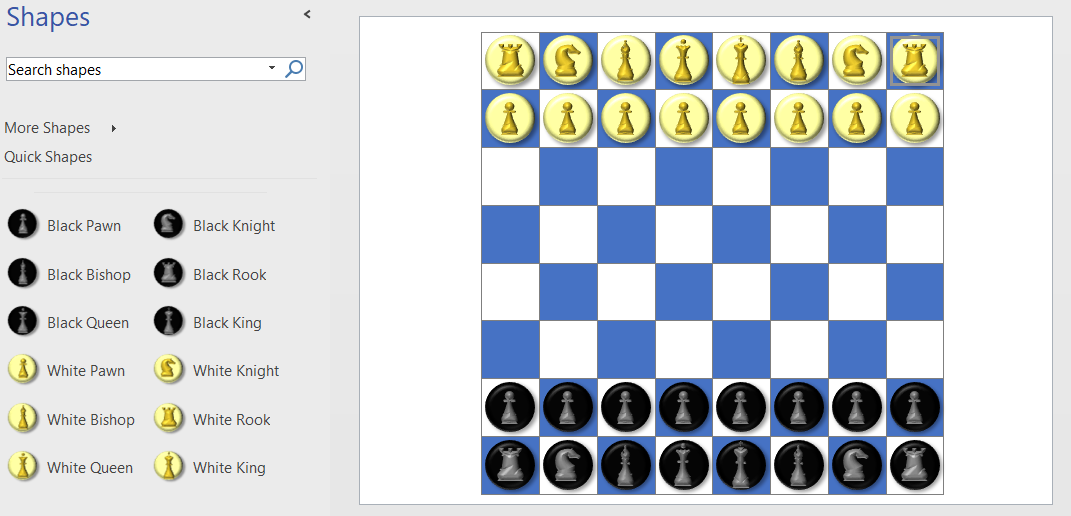
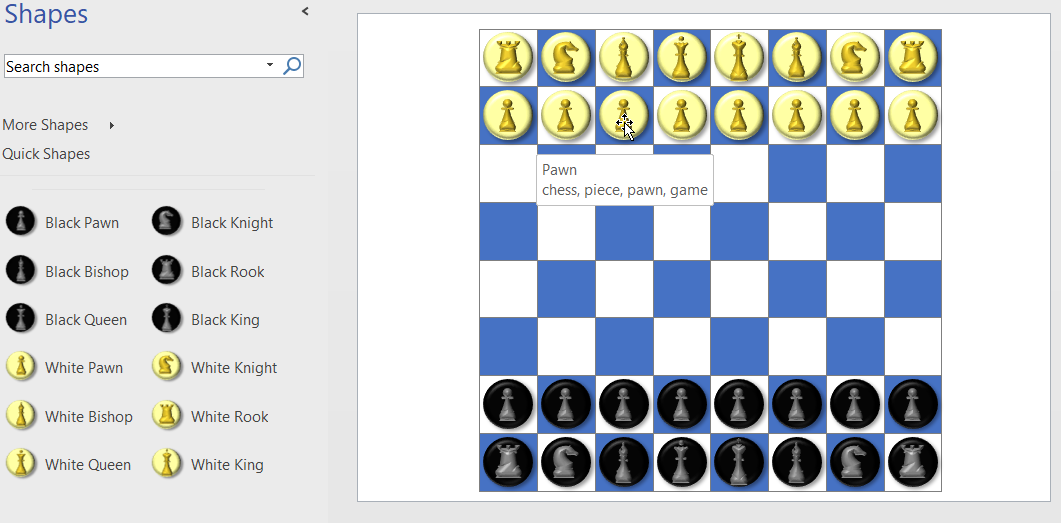
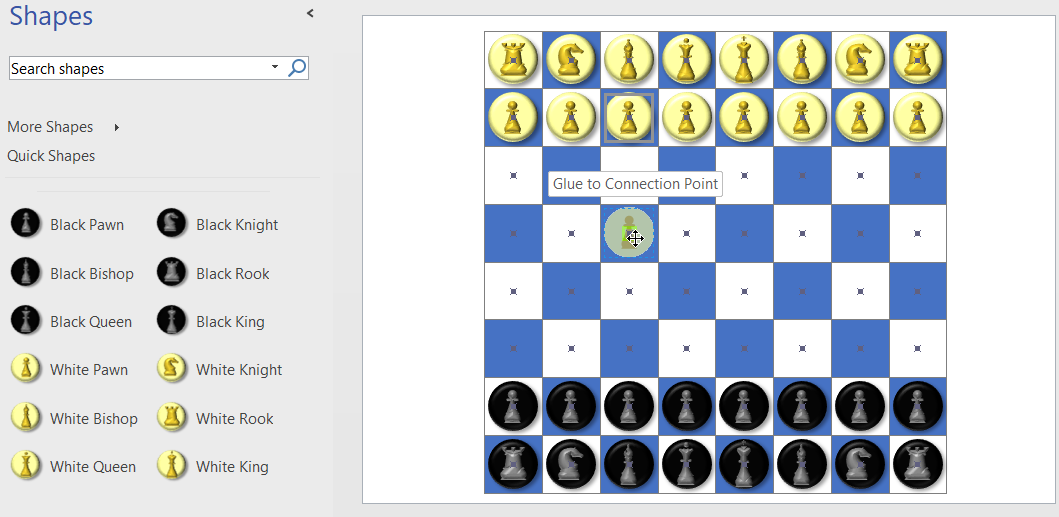
This version of the chess/checker board requires connection points (Type = 2 – Inward/Outward) on each of the 64 squares, an, as before, I have styled the pieces with Bevel and Shadow. However, this time I have used my own tool for converting the XAML from Syncfusion’s Metro Studio library into true Visio shapes. This library is great ( see Metro Studio ) but it does not create true Visio shapes. In addition, I have enabled many different configuration options within Visio, such as background shape choice.

[Read more…] about Cyber Monday giveaway free Visio Chess

Filed Under: Games, Metro Icons, Visio, Visio 2016 Tagged With: Shape Design, ShapeSheet

Published on November 27, 2017 by David Parker

Cyber Monday free Visio Checkers!

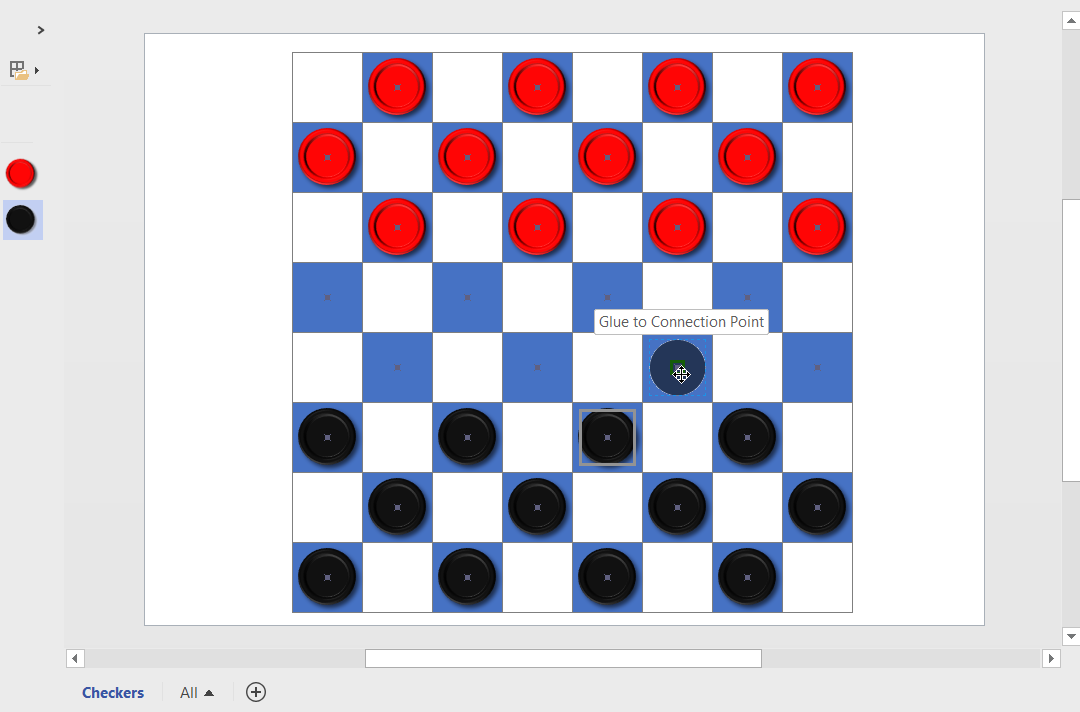
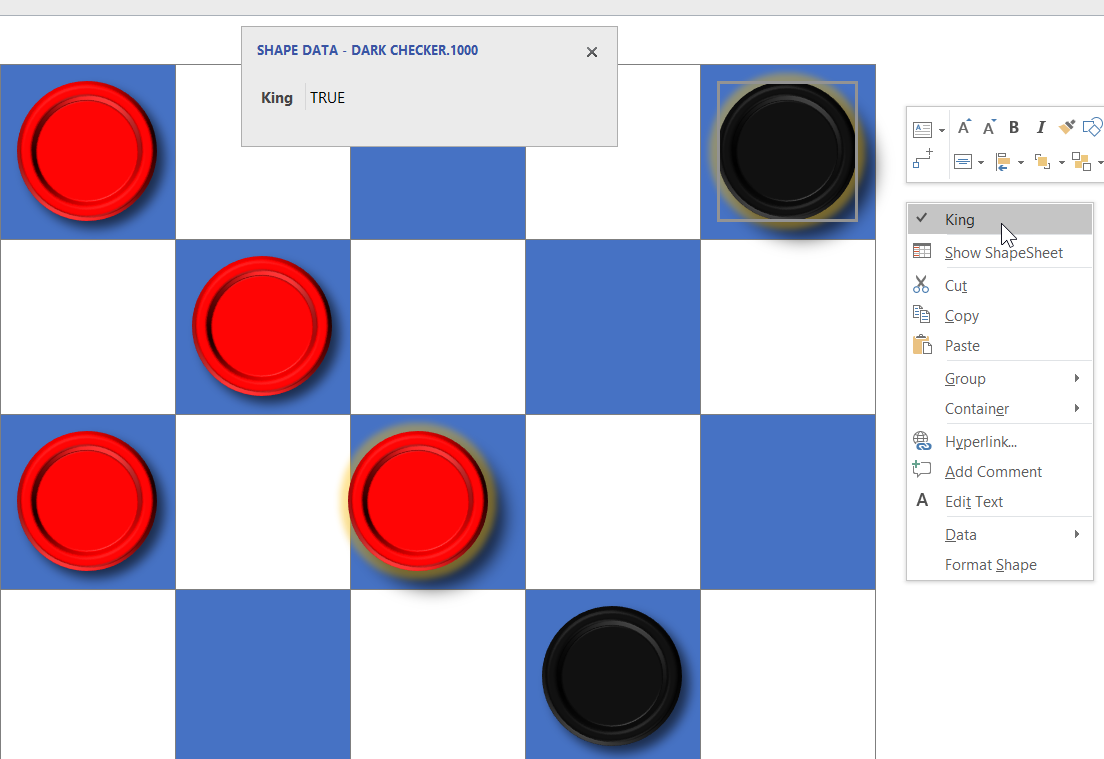
As it is Cyber Monday, I thought I would give away a compelling checkers board for Visio! In the UK, we call it Draughts, but the rules are the same… in my last post, I showed how to create a chess/checkers/draughts board, and in this one I add some checkers that can glue to the dark squares only!

[Read more…] about Cyber Monday free Visio Checkers!
Filed Under: Connections, Games, ShapeSheet Formulas, Visio, Visio 2016 Tagged With: ShapeSheet

Published on November 27, 2017 by David Parker

What is the minimum number of rectangles in a Visio chessboard?

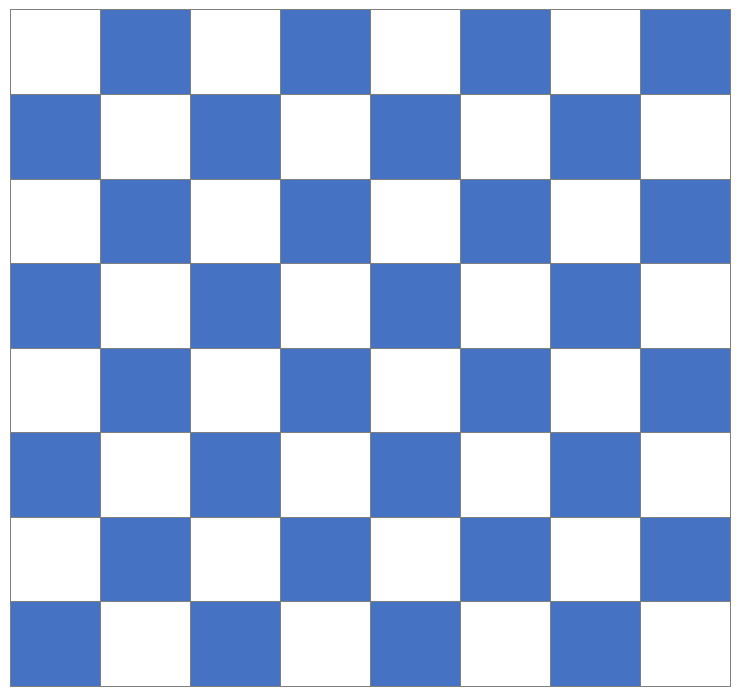
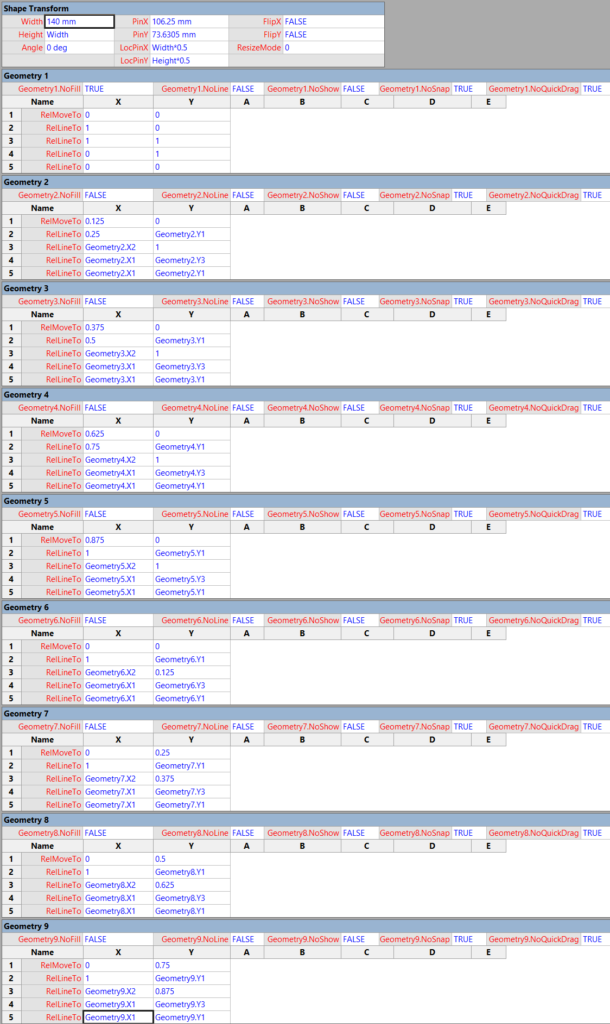
This may sound like a simple question with a definite answer, but I think it is worthy of further explanation. I wanted to make a chessboard shape with as few lines as possible, because it makes the shape more efficient and easy to work with. Some might consider grouping 64 squares together, but that would be a very heavy shape. A chessboard needs to appear to have 64 squares, but the following shape only has 9 rectangles … How is this possible?

[Read more…] about What is the minimum number of rectangles in a Visio chessboard?
Filed Under: Games, Visio, Visio 2016 Tagged With: ShapeSheet

Published on November 22, 2017 by David Parker

Scroll to Capture Visio ShapeSheets with SnagIt

Anyone who develops with Visio faces the problem of viewing the formulas and values in an often difficult to navigate ShapeSheet window. I have been a SnagIt and Camtasia user for many years thanks to the generous free license I get from TechSmith as a Microsoft MVP. I have used both products extensively for my books, articles and videos, though I am not an expert in either product. Now, SnagIt has a panoramic scrolling capture feature that is great with ShapeSheets.
The unique smartness of Visio shapes comes from the ability to program the ShapeSheet behind every single shape. This is like an Excel worksheet divided into sections, and the display can switched between formulas and values. The Visio’s ShapeSheet window does have the ability to toggle the visibility of each section, but that is often not enough to get a complete picture of the formulas involved. The following example is the partial view of the ShapeSheet window for a simple shape.
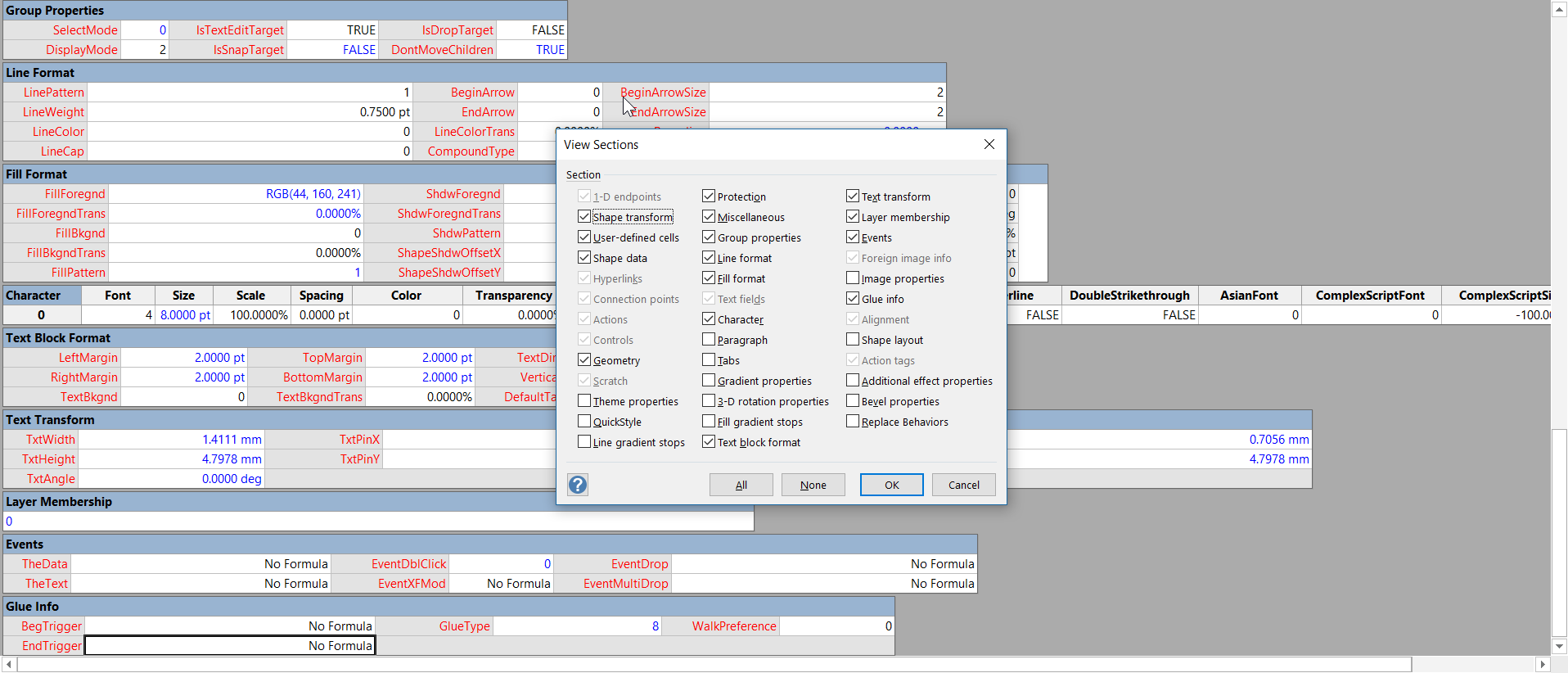
ViewSections
[Read more…] about Scroll to Capture Visio ShapeSheets with SnagIt

Filed Under: Images, ShapeSheet Formulas, Visio, Visio 2016 Tagged With: ShapeSheet, SnagIt

Published on August 9, 2017 by David Parker

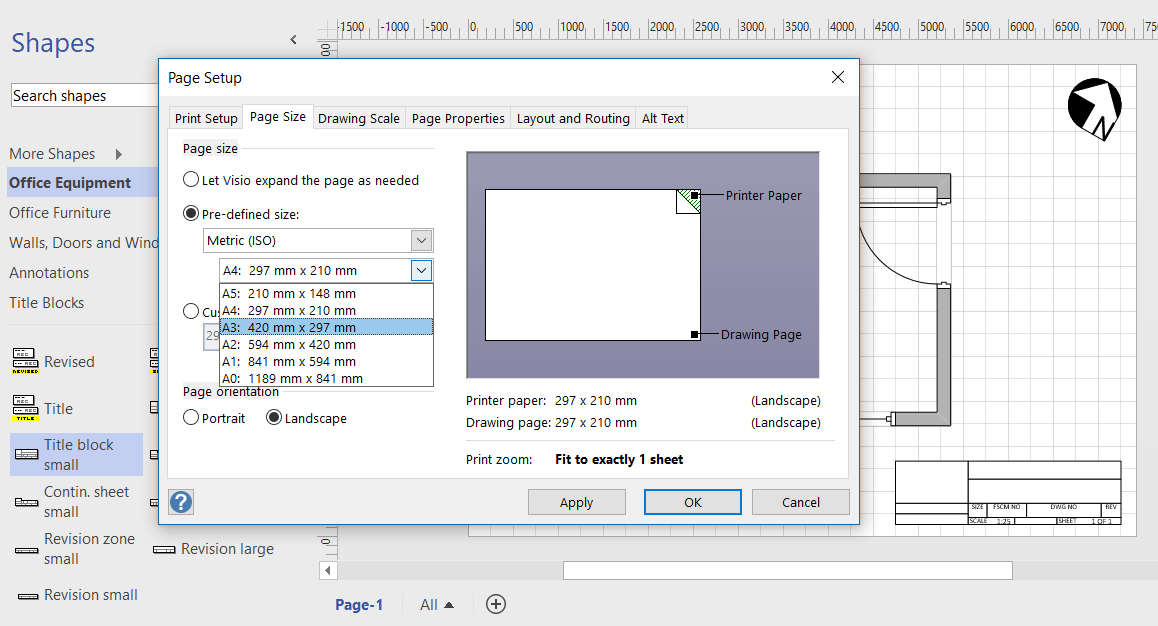
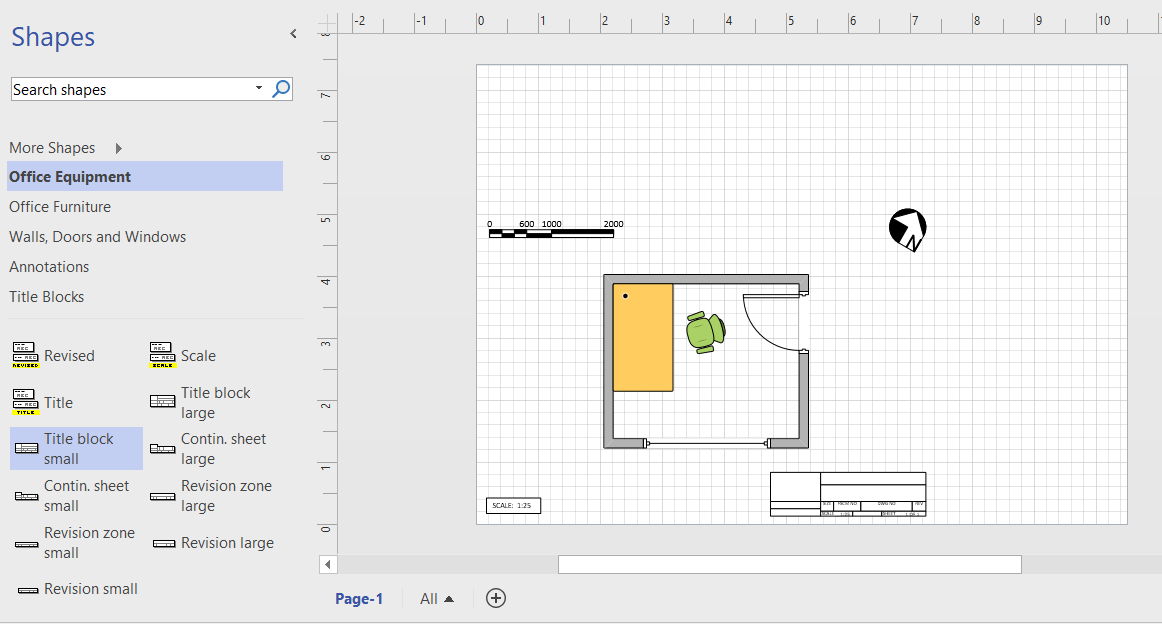
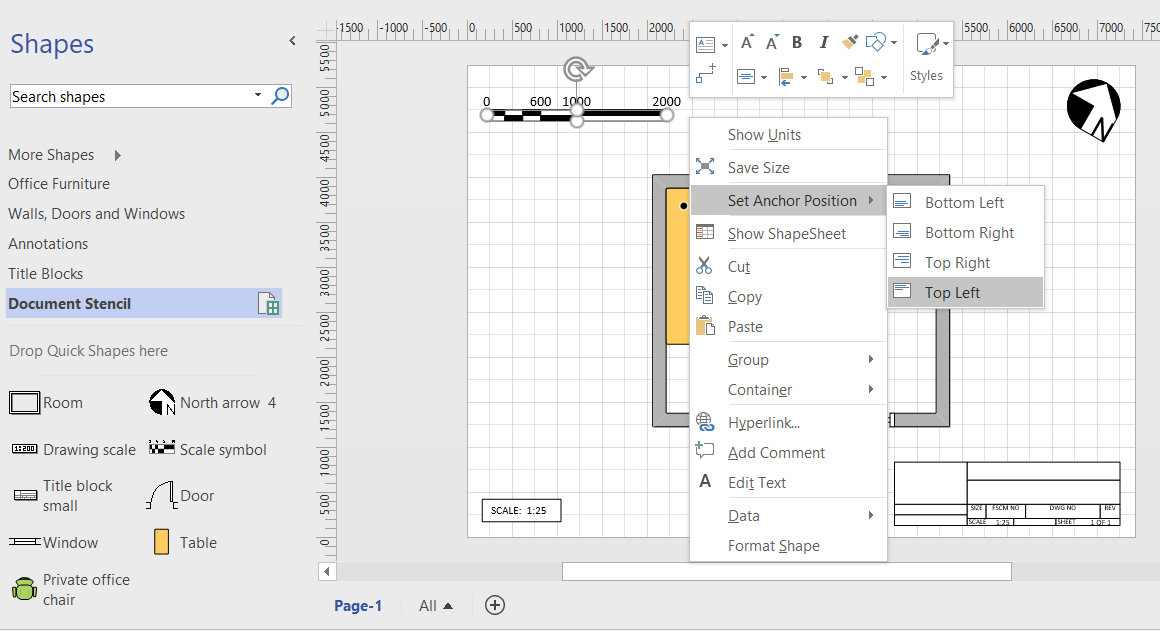
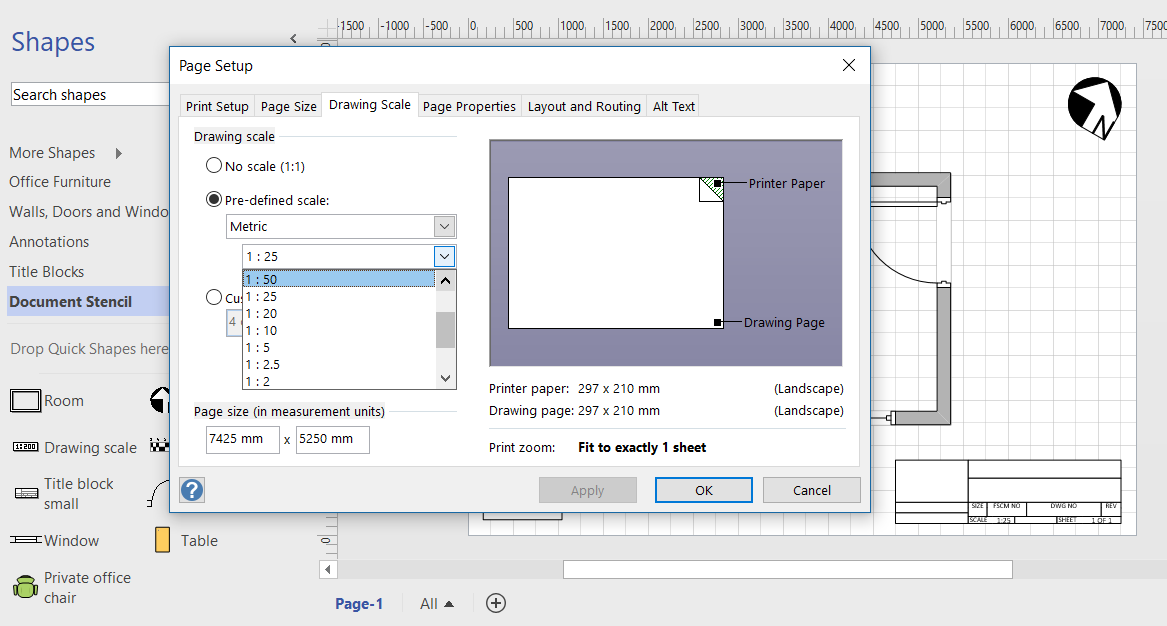
Anchoring scaled shapes to page corners in Visio

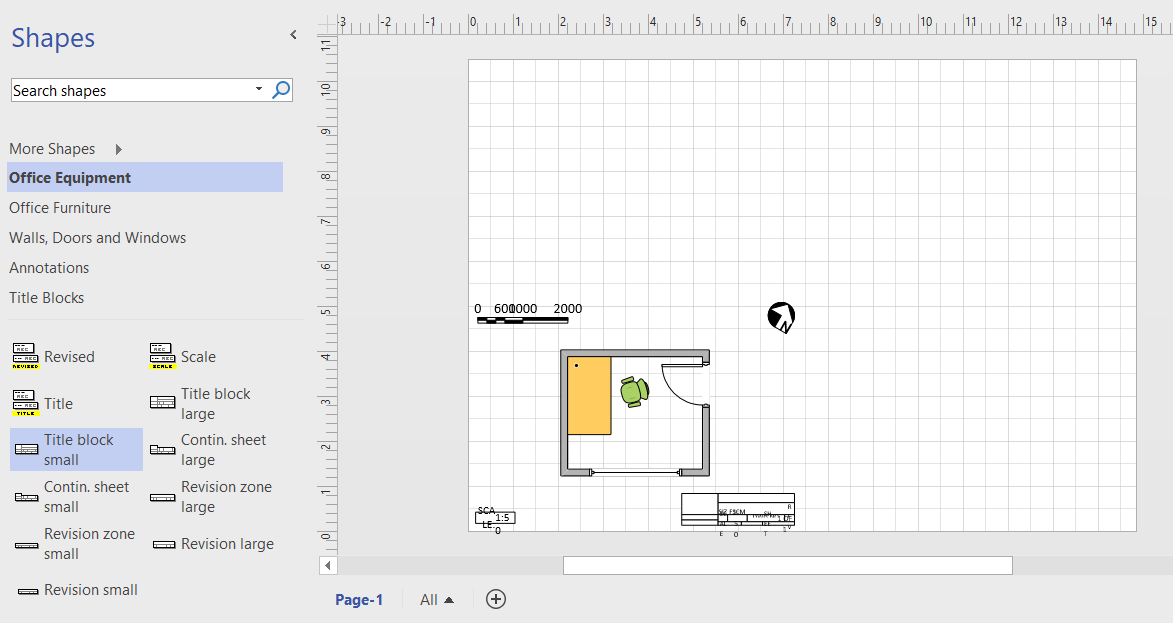
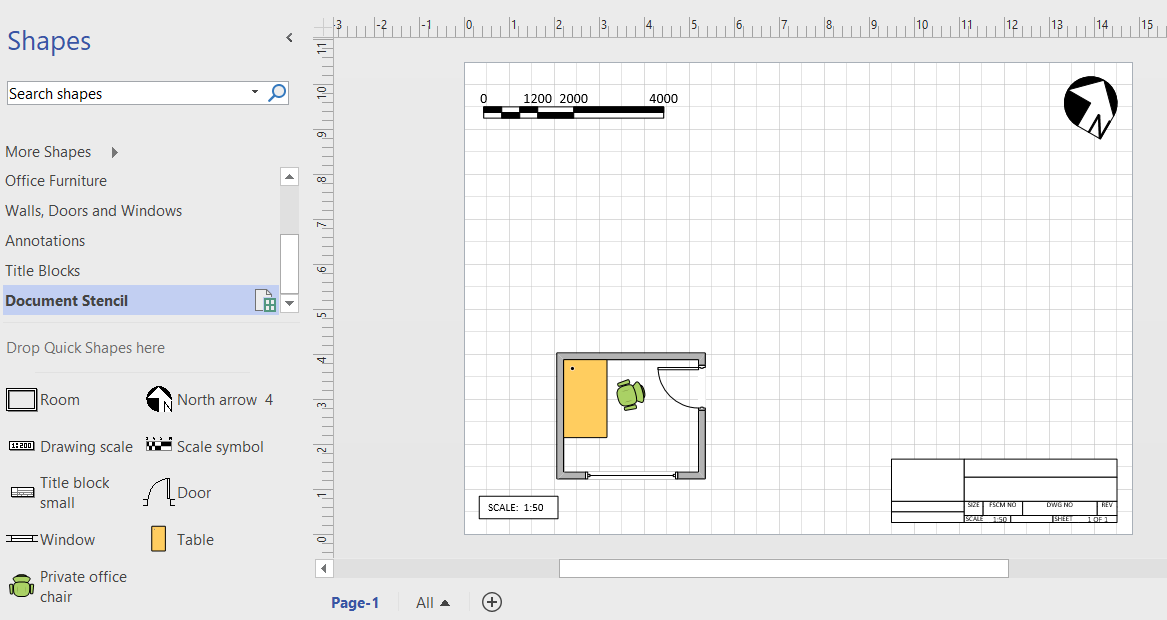
I have read that other users have bemoaned the lack of a anchor to top left, or something similar in Visio, so I thought I would demonstrate the issue, then propose a solution. In particular, there are some master shapes on the Annotations and Title Blocks stencils in the Visio Extras category that you would expect to have this capability, but don’t. Wouldn’t it be useful to have the ability to keep the shape size and anchor position to page bottom left, bottom right, top right or top left? This would mean that the page size or scale could be changed, but the annotations and title blocks could remain anchored.
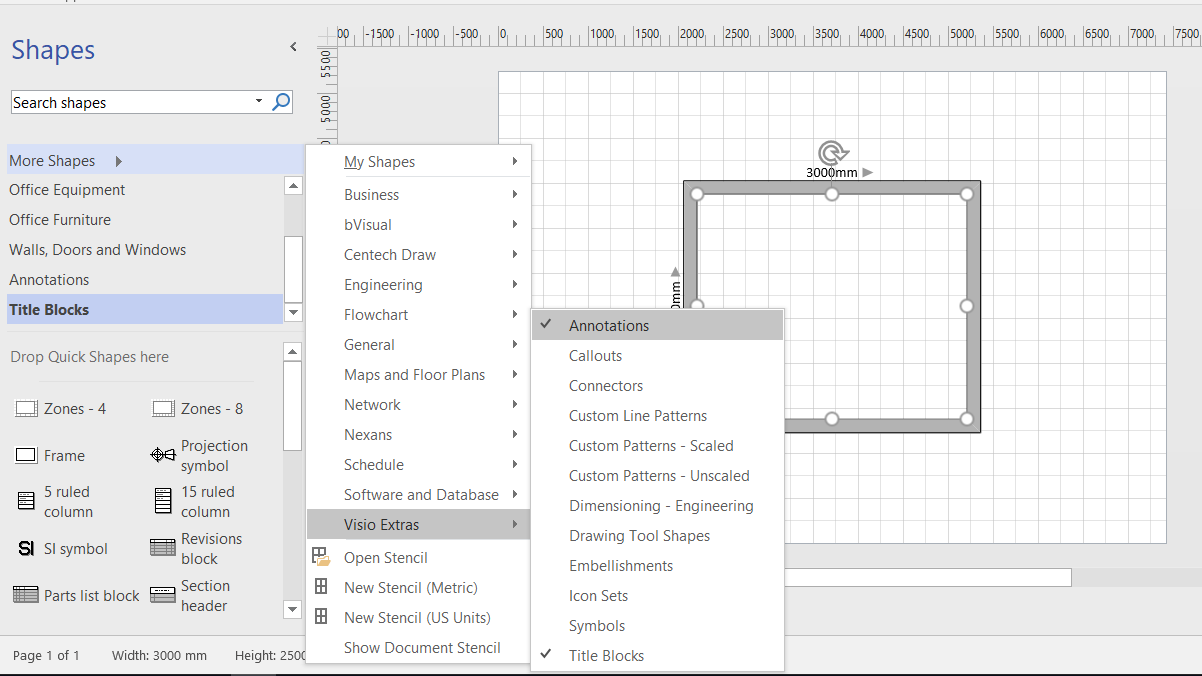
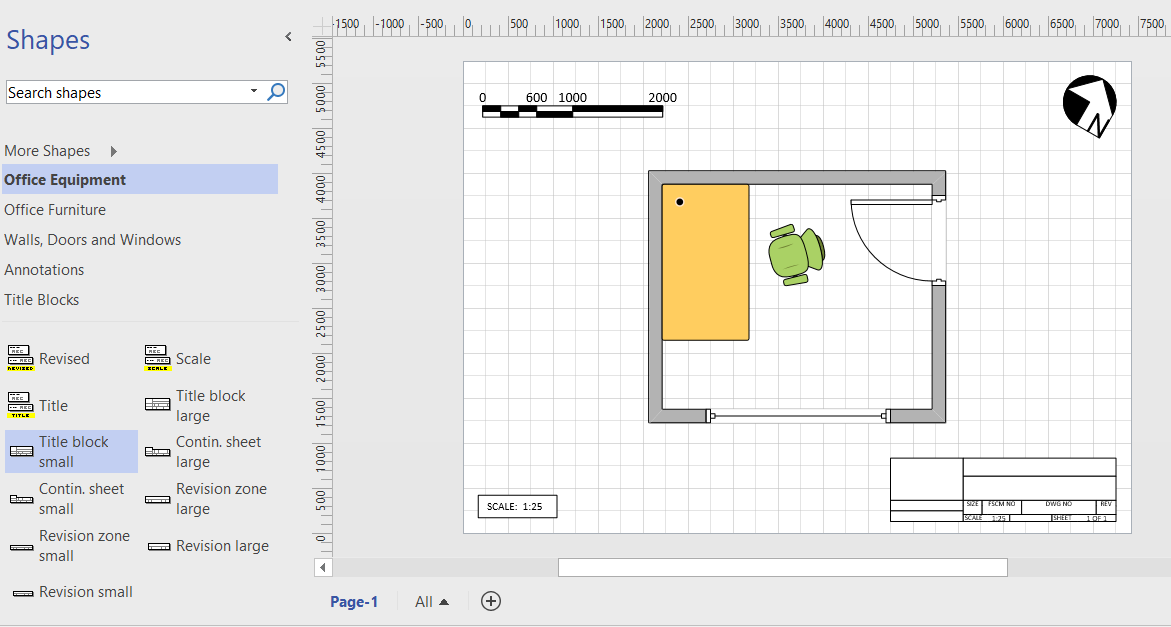
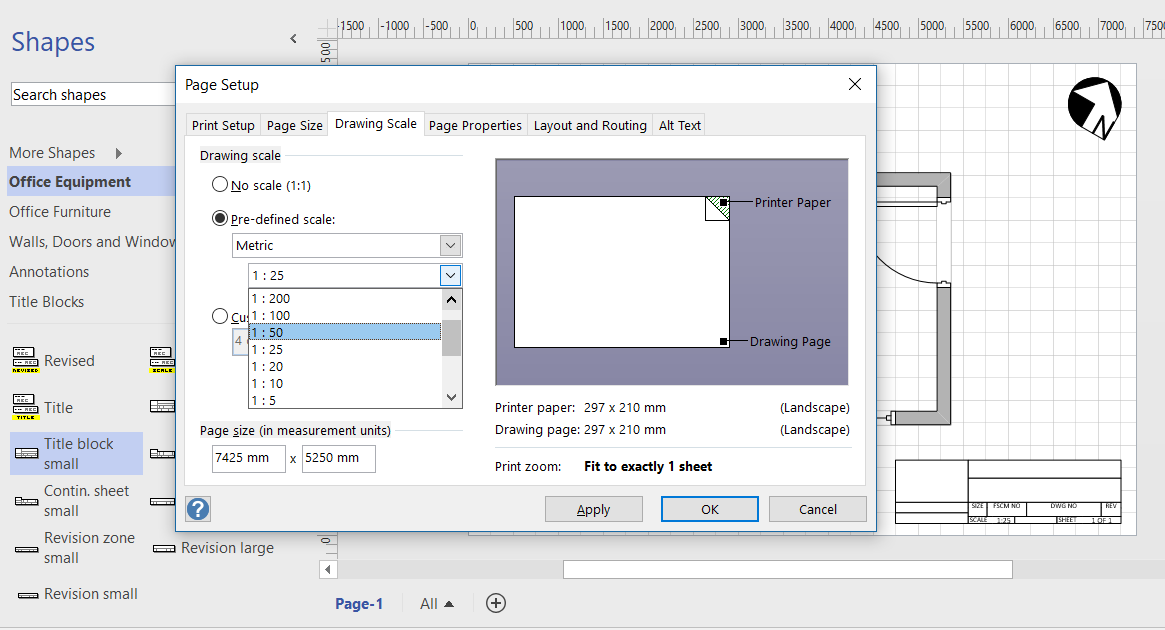
First, it is important to know that Visio shapes are anchored, by default, to the bottom left of a page (or the shape that they are inside the group of). These values are returned from the formulas in the PinX and PinY cells.
Secondly, the location of the pin within the shape is defined by the formulas in the LocPinX and LocPinY cells, and these are relative to the bottom left corner of the shape.
Then it is just a matter of adding some Actions rows to the ShapeSheet of each master in the Document Stencil. The principle is to utilise the User.AntiScale value to reset the formulas in the Width,  Height, PinX or PinY cells. The User.AntiScale row exists in many Master shapes because it is useful for de-scaling values. It has the formula:

[Read more…] about Anchoring scaled shapes to page corners in Visio

Filed Under: Scale, ShapeSheet Formulas, TimeTable, Visio, Visio 2016 Tagged With: Paper Sizes, Scales, ShapeSheet

Published on June 26, 2017 by David Parker

Switching Metric and US Units in Visio floor plans

I recently wrote an article comparing Metric and US Units in Visio for floor plans (see Metric vs US Units in Visio floor plans). The intention was always to create right mouse actions on a Visio floor plan border shape to provide many alternative page sizes and scales. I have now done this, with the help of Excel and LinqPad.


The action formulas in the ShapeSheet all create multiple SETF(..) formulas that emulate the actions performed by the multiple tabs in the Page Setup dialog, but simplified into a single action:

[Read more…] about Switching Metric and US Units in Visio floor plans

Filed Under: Floor Plans, Scale, ShapeSheet Formulas, Visio Tagged With: Scales, ShapeSheet

  • « Go to Previous Page
  • Page 1
  • Interim pages omitted …
  • Page 5
  • Page 6
  • Page 7
  • Page 8
  • Go to Next Page »

Primary Sidebar

  • LinkedIn
  • Twitter

Recent Posts

  • Migrating from Lucidchart to Visio?
  • Creating Boolean Context Menus in Visio
  • Installing Visio Templates and Stencils
  • Creating a Dynamic connector master automatically
  • A visual exploration of Penrose Tiling in Visio

Categories

Tags

Accessibility Add-Ins AdvancedInstaller Connectors Containers Data Export Data Graphics Data Import Data Visualizer Educational Excel GraphDatabase Hyperlinks Icon Sets JavaScript LayerManager Layers Legend Link Data to Shapes MSIgnite Office365 Org Chart PowerApps PowerBI PowerQuery Processes Setup and Deployment Shape Data Shape Design ShapeSheet ShapeSheet Functions SharePoint 2013 SQL Teams Validation VBA Video Visio Visio 2007 Visio for the desktop Visio for the Web Visio Online Visio Services Visio Viewer Webinar

Footer

bVisual Profile

The UK-based independent Visio consultancy with a worldwide reach. We have over 25 years experience of providing data visualization solutions to companies around the globe.

Learn more about bVisual

  • Amazon
  • E-mail
  • Facebook
  • LinkedIn
  • Twitter
  • YouTube

Search this website

Recent posts

  • Migrating from Lucidchart to Visio?
  • Creating Boolean Context Menus in Visio
  • Installing Visio Templates and Stencils
  • Creating a Dynamic connector master automatically
  • A visual exploration of Penrose Tiling in Visio

Copyright © 2026 · Executive Pro on Genesis Framework · WordPress · Log in