• Skip to main content
  • Skip to primary sidebar
  • Skip to footer

bVisual

  • Home
  • Services
    • How Visio smartness can help your business
    • Visio visual in Power BI
    • Visio Consulting Services
    • Visio Bureau Services
    • Visio Training and Support Services
  • Products
    • Visio Shape Report Converter
    • SS Plus
    • LayerManager
    • visViewer
    • Metro Icons
    • Rules Tools for Visio
    • The Visio 2010 Sessions App
    • Multi-Language Text for Visio
    • Document Imager for Visio
    • multiSelect for Visio
    • pdSelect for Visio
  • Case Studies
    • Case studies overview
    • Using Visio in Education for GIS
    • Visualizing Construction Project Schedules
    • Visio Online Business Process Mapping
    • Nexans Visio Template
    • CNEE Projects, WorldCom
    • Chase Manhattan Bank
  • News
    • Recent news
    • News archive
  • Resources
    • Articles➡
      • ShapeSheet Functions A-Z
      • Comparing Visio for the Web and Desktop
      • Customising Visio Shapes for the Web App
      • Key differences between the Visio desktop and web apps
      • Using the Visio Data Visualizer in Excel
      • Using Visio in Teams
      • Creating Visio Tabs and Apps for Teams with SharePoint Framework (SPFx)
      • Designing Power Automate Flows with Microsoft Visio
      • Innovative uses of Visio Lists
    • Webcasts ➡
      • Visio in Organizations
      • My session and other Visio sessions at MSIgnite 2019
      • Power up your Visio diagrams
      • Vision up your Visio diagrams
      • The Visio 2010 MVP Sessions
    • Visio Web Learning Resources
    • Books➡
      • Visualize Complex Processes with Microsoft Visio
      • Mastering Data Visualization with Microsoft Visio
      • Microsoft Visio Business Process Diagramming and Validation
      • Visualizing Information with Microsoft Visio
  • Blog
    • Browse blog articles
    • Visio Power BI articles
    • Visio for Web articles
    • A history of messaging and encryption
  • About us
    • About bVisual
    • Testimonials
    • Bio of David Parker
    • Contact Us
    • Website Privacy Policy
    • Website terms and conditions
    • Ariba Network

bVisual Blog by David Parker

Published on September 16, 2009 by David Parker

Listing Connections in Visio 2010

One of the best bits of Visio is the connections between shapes, but it has always been difficult to understand these connections in code.  There are connections to and from shapes, which require you to understand where you are and which way to look … at the beginning or the end of a 1D connector. Visio 2010 has added some useful extra methods to the shape object which makes understanding connections much easier.  This post will show you how you can use the new GluedShapes() and ConnectedShapes() methods.

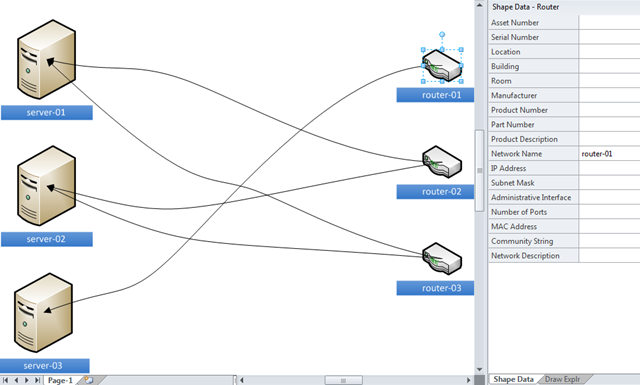
Take, for example, a network diagram where there are connections between servers and routers:

image

You may wish to list the connections at the start and end of each cable.  Previously, this would have meant inspecting the connected cell to see if was at the beginning or end of the line, but now you can use the GluedShapes() method of a shape to retrieve an array of the 2D shapes connected at one end or another with the relevant arguments, visGluedShapesIncoming2D or visGluedShapesOutgoing2D.  The ListGluedConnections macro below displays the following in the immediate window:

Connector     Dynamic connector
>             Router.45     router-02
<             Server        server-01 Connector     Dynamic connector.107 >             Router.45     router-02
<             Server.30     server-02 Connector     Dynamic connector.108 >             Router        router-01
<             Server.75     server-03 Connector     Dynamic connector.109 >             Router.91     router-03
<             Server.30     server-02 Connector     Dynamic connector.110 >             Router.91     router-03
<             Server        server-01
Public Sub ListGluedConnections()
Dim shp As Visio.Shape
Dim connectorShape As Visio.Shape
Dim sourceShape As Visio.Shape
Dim targetShape As Visio.Shape
Dim aryTargetIDs() As Long
Dim arySourceIDs() As Long
Dim targetID As Long
Dim sourceID As Long
Dim i As Integer

For Each shp In Visio.ActivePage.Shapes
    If shp.OneD Then
        Debug.Print "Connector", shp.Name
        arySourceIDs = shp.GluedShapes(visGluedShapesIncoming2D, "")
        For i = 0 To UBound(arySourceIDs)
            Set sourceShape = Visio.ActivePage.Shapes.ItemFromID(arySourceIDs(i))
            If sourceShape.CellExists("Prop.NetworkName", Visio.visExistsAnywhere) Then
                Debug.Print , ">", sourceShape.Name, sourceShape.Cells("Prop.NetworkName").ResultStr("")
            End If
        Next
        aryTargetIDs = shp.GluedShapes(visGluedShapesOutgoing2D, "")
        For i = 0 To UBound(aryTargetIDs)
            Set targetShape = Visio.ActivePage.Shapes.ItemFromID(aryTargetIDs(i))
            If targetShape.CellExists("Prop.NetworkName", Visio.visExistsAnywhere) Then
                Debug.Print , "<", targetShape.Name, targetShape.Cells("Prop.NetworkName").ResultStr("")
            End If
        Next
    End If
Next

End Sub

Similarly, you may want to simply list the next connected 2D shape, effectively ignoring the cable.  In this case, you can use the new ConnectedShapes() method, with the relevant arguments visGluedShapesIncoming2D or visGluedShapesOutgoing2D, to produce an output like the following ( using the ListNextConnections macro below):

Shape         Server        server-01
>             Router.45     router-02
>             Router.91     router-03
Shape         Router        router-01
<             Server.75     server-03 Shape         Server.30     server-02 >             Router.45     router-02
>             Router.91     router-03
Shape         Router.45     router-02
<             Server        server-01
<             Server.30     server-02 Shape         Server.75     server-03 >             Router        router-01
Shape         Router.91     router-03
<             Server        server-01
<             Server.30     server-02
Public Sub ListNextConnections()
Dim shp As Visio.Shape
Dim connectorShape As Visio.Shape
Dim sourceShape As Visio.Shape
Dim targetShape As Visio.Shape
Dim aryTargetIDs() As Long
Dim arySourceIDs() As Long
Dim targetID As Long
Dim sourceID As Long
Dim i As Integer

For Each shp In Visio.ActivePage.Shapes
    If Not shp.OneD Then
        If shp.CellExists("Prop.NetworkName", Visio.visExistsAnywhere) Then
            Debug.Print "Shape", shp.Name, shp.Cells("Prop.NetworkName").ResultStr("")
            arySourceIDs = shp.ConnectedShapes(visConnectedShapesOutgoingNodes, "")
            For i = 0 To UBound(arySourceIDs)
                Set sourceShape = Visio.ActivePage.Shapes.ItemFromID(arySourceIDs(i))
                If sourceShape.CellExists("Prop.NetworkName", Visio.visExistsAnywhere) Then
                    Debug.Print , "<", sourceShape.Name, sourceShape.Cells("Prop.NetworkName").ResultStr("") End If Next aryTargetIDs = shp.ConnectedShapes(visConnectedShapesIncomingNodes, "") For i = 0 To UBound(aryTargetIDs) Set targetShape = Visio.ActivePage.Shapes.ItemFromID(aryTargetIDs(i)) If targetShape.CellExists("Prop.NetworkName", Visio.visExistsAnywhere) Then Debug.Print , ">", targetShape.Name, targetShape.Cells("Prop.NetworkName").ResultStr("")
                End If
            Next
        End If
    End If
Next

End Sub

I think this makes interrogation of connected diagrams, of all flavours, much simpler, though I would love to have similar ShapeSheet functions too!

Filed Under: Connections, Connectors, VBA, Visio 2010

Published on September 10, 2009 by David Parker

Mr. Clarity helps you diagram more clearly

Microsoft have begun publishing a series of short videos, based around Mr. Clarity, a gumshoe-like character who inhabits your desktop, to promote the use of Visio in the workplace.  It will be interesting to see how the plot develops over time … Will Facilities, IT and HR every get along with each other? Will all the loose connections come together in the end?  Will VisioGuy make a guest appearance?  Enjoy!

Episode 1: Create an Office Layout diagram using Visio

( http://www.youtube.com/watch?v=CtgYTWRdTSU )

image


Episode 2: Create an Organization chart using Visio

( http://www.youtube.com/watch?v=NGtE5RdME-Q )

image

Watch out for more, and also see the related videos that appear in YouTube.

Filed Under: Visio

Published on September 7, 2009 by David Parker

Visio 2010 : Containment and Cross-Functional Flowcharts

One of the templates to get a revision in Visio 2010 is the Cross Functional Flowchart template because of the new list and containment functionality that has been added into the core application.  I had to write a small bit of code in earlier versions of Visio for each flowchart shape to automatically understand which swimlane and phase it belongs to, but now there are ShapeSheet functions available, so a slight modification of a flowchart master enables it to inherit values from the swimlane that it is in.  This article demonstrates who you can do this to, for example, synchronize the fill color of each flowchart shape to that of the swimlane that it belongs to.

image

[Read more…] about Visio 2010 : Containment and Cross-Functional Flowcharts

Filed Under: Containers, Lists, Process Flows, VBA, Visio 2010

Published on August 3, 2009 by David Parker

Displaying the Master and Stencil Name of Shape

A recent newsgroup question asked if it is possible to display the master name and the stencil that a shape originally came from.   Following on from my last post ( Re-opening Default Stencils ), I realised that this is possible  Here’s how (once you have created a reference to the Microsoft Scripting Runtime):

[Read more…] about Displaying the Master and Stencil Name of Shape

Filed Under: Visio

Published on August 3, 2009 by David Parker

Re-opening Default Stencils

A recent newsgroup question asked if it is possible to re-open the default stencils that were originally docked when the drawing was created.    At first, this may seem impossible, but, if the original template is present, then it can be silently opened, the docked stencils noted, then opened docked if they are not already docked.  Here’s how (once you have created a reference to the Microsoft Scripting Runtime):

Public Sub OpenDefaultStencils()

Dim srcDoc As Visio.Document
    Set srcDoc = Visio.ActiveDocument
Dim tmplt As String
    tmplt = srcDoc.Template
    If Len(tmplt) = 0 Then
        Exit Sub
    End If

Dim fs As FileSystemObject
    Set fs = New FileSystemObject
    If fs.FileExists(tmplt) = False Then
        Exit Sub
    End If
Dim doc As Visio.Document
    Set doc = Visio.Application.Documents.OpenEx(tmplt, Visio.visOpenCopy + Visio.visOpenHidden + Visio.visOpenDontList)

Dim aryStens() As String
Dim win As Visio.Window
Dim arySrcStens() As String
Dim winSrc As Visio.Window
    For Each win In Visio.Windows
        If win.Document Is doc Then
            win.DockedStencils aryStens
        ElseIf win.Document Is srcDoc Then
            Set winSrc = win
            winSrc.DockedStencils arySrcStens
        End If
    Next
    ‘Close the template document
    doc.Close

Dim sten As String
Dim i As Integer
    For i = 0 To UBound(aryStens)
        If aryContains(arySrcStens, aryStens(i)) = False Then
            Visio.Application.Documents.OpenEx aryStens(i), Visio.visOpenRO + Visio.visOpenDocked
        End If
    Next
End Sub

Private Function aryContains(ByVal objSten As Variant, ByVal sten As String) As Boolean
Dim aryStens() As String
    aryStens = objSten
Dim i As Integer
    For i = 0 To UBound(aryStens)
        If aryStens(i) = sten Then
            aryContains = True
            Exit Function
        End If
    Next i
    aryContains = False
End Function

Filed Under: Visio

Published on August 3, 2009 by David Parker

Oasis at Wembley

The demise of Michael Jackson had an unforeseen benefit for myself.  When his London concert dates were announced I had joined the thousands of others to the web to order tickets because I knew how much my wife would like to see him.  Due to their ticket ordering website crashing, I ended up with twice as many tickets as I wanted.  After his death, the ticket agency (SeeTickets) were very good at setting up the refund process, however I declined their kind offer to receive the holographic ticket in lieu of my money.  So, I decided to see what other concerts were on offer, and one struck me as being quite interesting … Oasis at Wembley!  Oasis have been one of my (and my wife’s) favourite bands for years, and I had never been to the new Wembley stadium.  Despite my misgiving about being miles from the stage, I decided that this would be a good experience … and I could even take my post-school, pre-Uni son.  Oasis are cool for all generations!  Deep Zoom in Silverlight make it even cooler.

We arrived in the sunshine to see the warm-up acts Reverend and the Makers, The Enemy and Kasabian.

HelloWembleyBeenaKryshAwaitOasis
Hello WembleyBeena and Krysh await Oasis


Being early, we had plenty of time to admire the new Wembley Stadium!

image

Here is the Deep Zoom version : Pre-Oasis Concert

As each act came on, the sound quality got better … maybe it was the extra bodies, but maybe it was because the best amps are reserved for the top of the bill. 

image

Here is the Deep Zoom version : Oasis Concert

Well, it was a long way from the far goal mouth … but at least there were huge screens either side of the stage so we could be assured it really was the brothers Gallagher down there!

Liam Gallagher giving it largeGoodbyeWembley

Liam Gallagher gives it large

Goodbye Wembley


I am the egg man, I am the walrus ….. just thought … Michael Jackson’s estate owns the rights to the Oasis encore.  So, we must have contributed something to Michael Jackson’s kids!  Seeing the Gallaghers live was better than having a hologram of Jacko though.

Filed Under: Silverlight

  • « Go to Previous Page
  • Page 1
  • Interim pages omitted …
  • Page 66
  • Page 67
  • Page 68
  • Page 69
  • Page 70
  • Interim pages omitted …
  • Page 75
  • Go to Next Page »

Primary Sidebar

  • LinkedIn
  • Twitter

Recent Posts

  • Migrating from Lucidchart to Visio?
  • Creating Boolean Context Menus in Visio
  • Installing Visio Templates and Stencils
  • Creating a Dynamic connector master automatically
  • A visual exploration of Penrose Tiling in Visio

Categories

Tags

Accessibility Add-Ins AdvancedInstaller Connectors Containers Data Export Data Graphics Data Import Data Visualizer Educational Excel GraphDatabase Hyperlinks Icon Sets JavaScript LayerManager Layers Legend Link Data to Shapes MSIgnite Office365 Org Chart PowerApps PowerBI PowerQuery Processes Setup and Deployment Shape Data Shape Design ShapeSheet ShapeSheet Functions SharePoint 2013 SQL Teams Validation VBA Video Visio Visio 2007 Visio for the desktop Visio for the Web Visio Online Visio Services Visio Viewer Webinar

Footer

bVisual Profile

The UK-based independent Visio consultancy with a worldwide reach. We have over 25 years experience of providing data visualization solutions to companies around the globe.

Learn more about bVisual

  • Amazon
  • E-mail
  • Facebook
  • LinkedIn
  • Twitter
  • YouTube

Search this website

Recent posts

  • Migrating from Lucidchart to Visio?
  • Creating Boolean Context Menus in Visio
  • Installing Visio Templates and Stencils
  • Creating a Dynamic connector master automatically
  • A visual exploration of Penrose Tiling in Visio

Copyright © 2026 · Executive Pro on Genesis Framework · WordPress · Log in