All of my Visio solutions contain custom masters because this is the best way to create smart shapes that respond to user’s needs. This usually means creating Shape Data, User-defined Cells and Action rows that govern aspects of the shape with formulas designed to provide an efficient user interface. As a developer I sometimes forget that other users may not perform the same actions as I do, and can accidently undo all my intended behaviour. For example, in recent testing of a visual stream mapping system that I am working on, my carefully constructed master-shape relationship was being broken by grouping some of them together, thus changing their behavior and hiding them from some of the custom functions. The reason given was to that they want to create copies and this seemed like a reasonable way to do it. Now, I have known that this is bad ever since my original Visio developer training back in 1996, so I always avoid doing this, and erroneously thought that other would know this too. I was wrong to be so myopic, so I explored how I can best prevent this and other user actions that could break the intended master-shape relationship.

Why is the master-shape instance relationship important?
The first reason is file size because a shape instance of a master only needs to store the differences between it and the master. In these days of large disk sizes and cloud storage, that reason may not seem as necessary as it used to be but it is wasteful and can lead to unnecessary formula calculations, thus slowing down processing. Also, we should expect our Visio documents to be consumed in the web and desktop editions.
A second reason is maintenance because a developer can make a change to the local master and this will be inherited by all of the shape instances of it. Actually, this is almost always true, but there are some changes that may require formulas in the instances to be triggered by asking them to re-apply the formula from the master. This can be done by just entering the formula “=” in the instance cell. I sometimes do this with a little bit of code that loops through all of the instances of the master. Sometimes I create ShapeSheet formulas that do this for me without recourse to external code.
A third reason is selection because Visio has a method to make selections of all instances of a specified master (Visio.Page.CreateSelection). This is not only useful for maintenance but also for providing the user with useful selection features within a custom application.
Microsoft introduced special container shapes back in 2007 to provide a “grouping” capability, without actually grouping shapes together. There are built-in examples of these containers via Insert | Diagram Parts | Container in the desktop edition or Insert | Container in the web edition, but developers can create their own custom ones. There is also a specialised List container, that is not available from the ribbon, but some built-in stencils have masters that display this capability, such as the List Box in the Controls stencil that is opened with the Wire-Frame Diagram template.
How to prevent shapes from being ungrouped
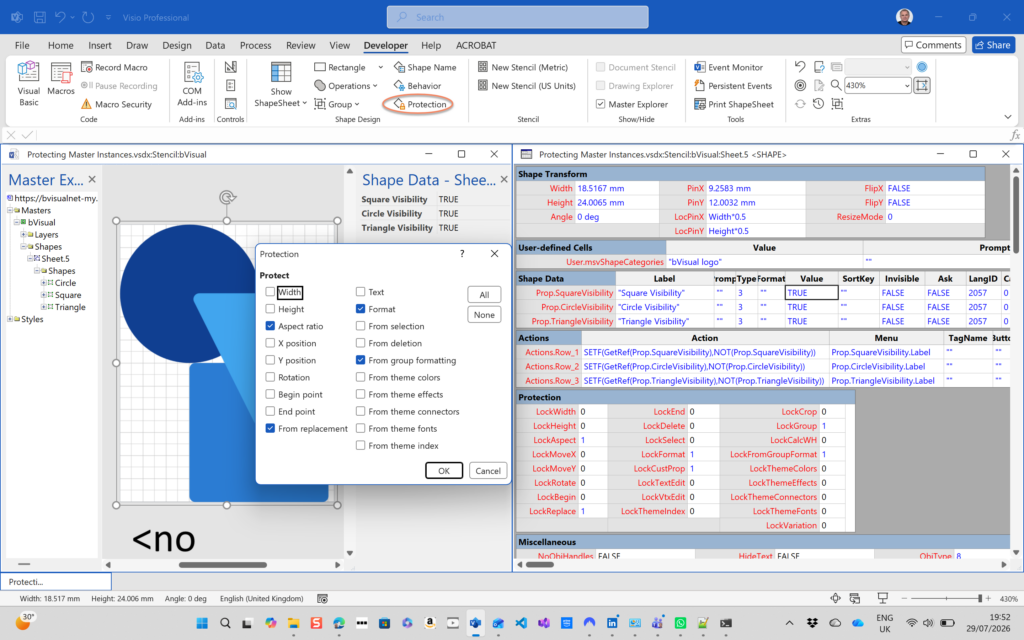
Ungrouping is really bad, because it it destroys the shape, but fortunately there is a LockGroup cell in the Protection section of the ShapeSheet. Just set this to 1 / True to prevent accidental ungrouping or deletion of any sub-shapes. This can be set via the Developer | Shape Design | Protection dialog or directly in the ShapeSheet.
How to prevent a shape from being replaced
Replacing a selected shape with another using the Change Shape ribbon button can quite obviously wreck your custom shape, and fortunately there is the LockReplace ShapeSheet cell in the Protection section to prevent this. However, if you want to allow controlled replacement with only certain masters, then use Selection.ReplaceShapes(…) in code. This can also be set via the Developer | Shape Design | Protection dialog or directly in the ShapeSheet.
How to prevent shapes from being grouped
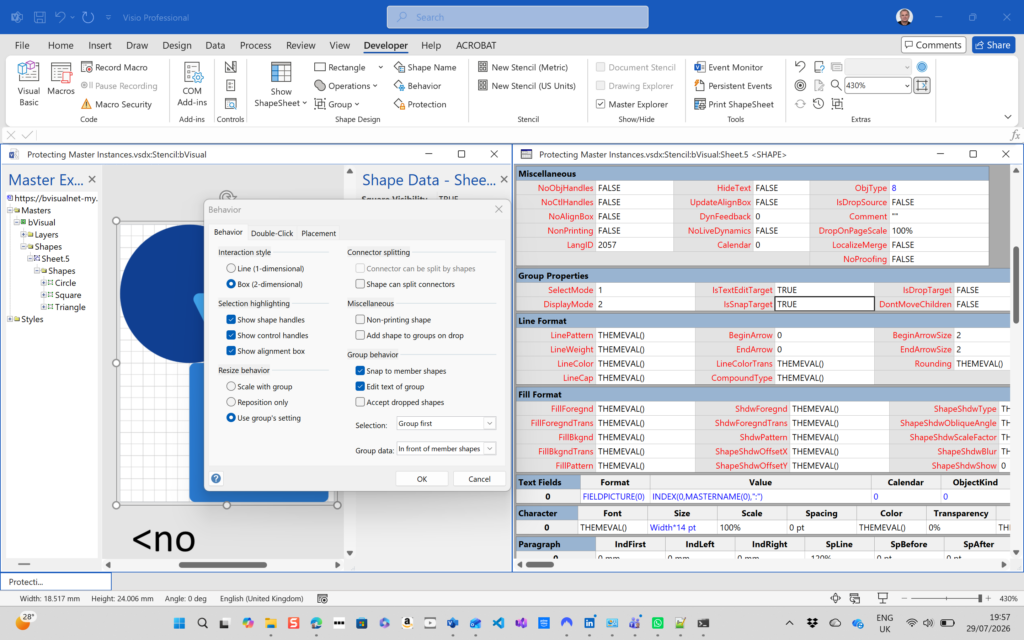
Grouping shapes causes them to become sub-shapes, so creating connections to them becomes problematical because the default behaviour is to try to connect to the enclosing rectangle of the group. Any behaviours that the custom shapes had now becomes subservient to that of the group. Also, it is no longer possible to create a selection in code using Page.CreateSelection(…), which can totally mess-up any macros and add-ins that use these methods.
So, how can you stop shapes from being accidently grouped? Unfortunately there is no ShapeSheet cell for this but there is a an application event QueryCancelGroup (Visio.VisEventCodes.visEvtCodeQueryCancelSelGroup) that can be used in code to reject a grouping operation. So, all that is needed is to test each shape in the selection to check if they should be excluded, and return true if that is the case. Optionally, you can throw up a message box to inform the user why this grouping was rejected.
How to prevent Shape Data rows from being removed or added to
This can be done by setting the LockCustProp cell in the Protection section to 1. This disables the Define Shape Data… command in Visio so Shape Data rows cannot be accidently messed with. This can only be set directly in the ShapeSheet only, as there is no other UI for this.
Related articles
Introducing a free Visio Report Runner application
AI is changing the world and how we should approach it. So I decided to see if I could get Claude Sonnet 4.6 Agent to completely write an application for me, and I mean completely. The application is written in Python by Claude, and I have not written a single line. The code is available…

Migrating from Lucidchart to Visio?
My fellow Visio MVP, Michel Laplane, and I recently converted and transformed 15k Lucidchart documents to Microsoft Visio for a large multi-national organization. This was approximately 4 years after they had moved from Visio to Lucidchart! I do not know the full reason behind these changes in technology, and I do not have a particular…

Creating Boolean Context Menus in Visio
Over the many, many years that I have been creating Microsoft Visio solutions, I have had to create numerous right-mouse context menus for shapes to control their Shape Data values. Over that time, patterns emerge, so this article is highlighting three different appearances for simple Boolean values, otherwise known as True/False or Yes/No values, and…

Creating a Dynamic connector master automatically
I have been creating Microsoft Visio solutions for 30 years now … my first was in 1996! I have been an advocate for custom Masters from the very start, every since I learnt how editing the Master can automatically update all of its instance shapes can be automatically updated throughout the document. Whenever you drag…
A visual exploration of Penrose Tiling in Visio
Maybe it is because I used to be a building architect, but I have always been fascinated by the relationship between numbers and visualisations. Perhaps the most famous one is the Golden Ratio which has been used as the basis of many building designs and art pieces. It is often recognised to create a harmony…
How SVG in Visio can cause a Shape.BoundingBox(…) error
I have used Visio’s Shape.BoundingBox(…) for many, many years and I cannot ever recall it failing, but I have now managed to create some shapes that cause it to error. This caused many hours of confusion, so I nearly abandoned using the method, until I discussed it with my fellow Visio MVP, John Goldsmith (see…
