Over a year ago, I wrote a blog about Page Grids and Off Page References ( see http://blog.bvisual.net/2011/09/02/page-grids-and-off-page-references/ ), and I promised to accommodate page margins. In addition, a user commented that a matching printable grid would be useful …. so here is an update. In this blog I provide an updated Off-page reference master, along with new GridLines and GridLabel masters.
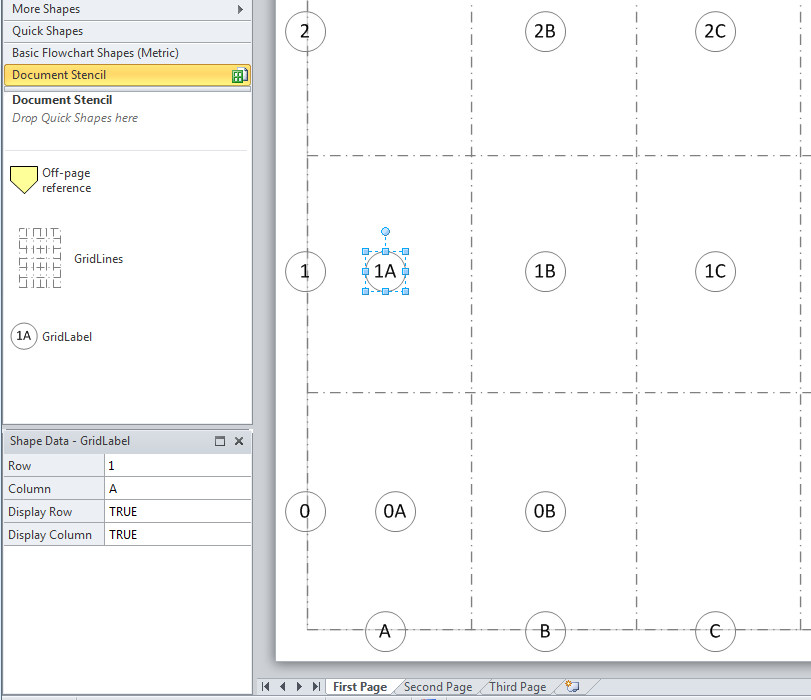
The GridLines master uses the same page Shape Data rows that were described in the previous blog. and automatically displays the correct number of column and row lines (maximum 26 each), leaving out the page print margins.
The GridLabel master calculates the Row and Column that it is within, and you can choose whether to display the Row and/or Column labels. I have made the GridLabel shape to be separate from the GridLines shape, so that you can place them wherever you like.
The formula for Prop.Row is:
=GUARD(INDEX(IF(ThePage!Prop.BottomToTop,INT((PinY-ThePage!PageBottomMargin)/((ThePage!PageHeight-ThePage!PageBottomMargin-ThePage!PageTopMargin)/ThePage!Prop.NumberOfRows)),ThePage!Prop.NumberOfRows-1-INT((PinY-ThePage!PageBottomMargin)/((ThePage!PageHeight-ThePage!PageBottomMargin-ThePage!PageTopMargin)/ThePage!Prop.NumberOfRows))),ThePage!Prop.RowHeaders))
And Prop.Column is:
=GUARD(INDEX(IF(ThePage!Prop.LeftToRight,INT((PinX-ThePage!PageLeftMargin)/((ThePage!PageWidth-ThePage!PageLeftMargin-ThePage!PageRightMargin)/ThePage!Prop.NumberOfColumns)),ThePage!Prop.NumberOfColumns-1-INT((PinX-ThePage!PageLeftMargin)/((ThePage!PageWidth-ThePage!PageLeftMargin-ThePage!PageRightMargin)/ThePage!Prop.NumberOfColumns))),ThePage!Prop.ColumnHeaders))
You can download PageGridWithMargins.vsd

Protecting the integrity of custom Visio masters
All of my Visio solutions contain custom masters because this is the best way to create smart shapes that respond to user’s needs. This usually means creating Shape Data, User-defined Cells and Action rows that govern aspects of the shape with formulas designed to provide an efficient user interface. As a developer I sometimes forget…

Creating Boolean Context Menus in Visio
Over the many, many years that I have been creating Microsoft Visio solutions, I have had to create numerous right-mouse context menus for shapes to control their Shape Data values. Over that time, patterns emerge, so this article is highlighting three different appearances for simple Boolean values, otherwise known as True/False or Yes/No values, and…
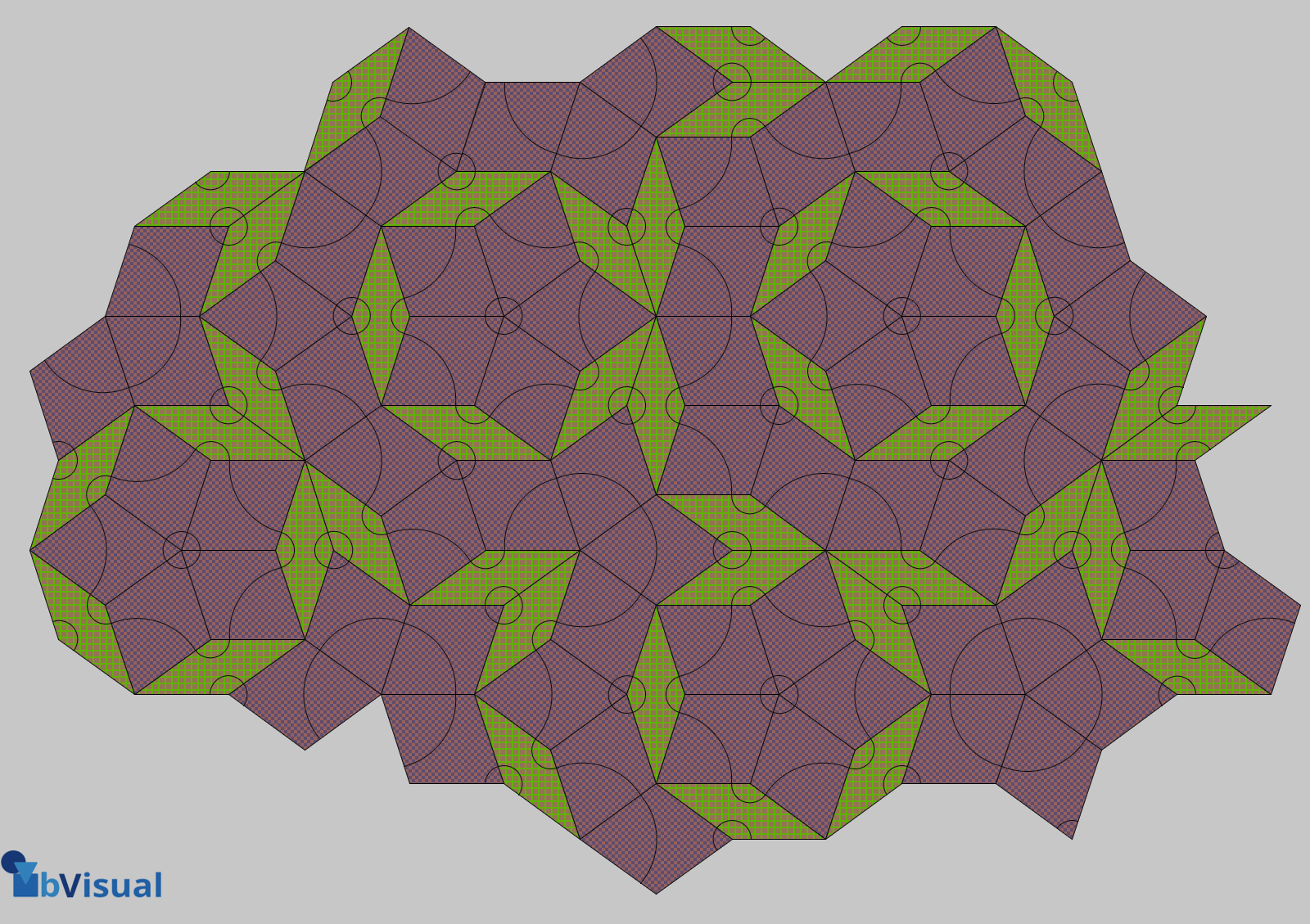
A visual exploration of Penrose Tiling in Visio
Maybe it is because I used to be a building architect, but I have always been fascinated by the relationship between numbers and visualisations. Perhaps the most famous one is the Golden Ratio which has been used as the basis of many building designs and art pieces. It is often recognised to create a harmony…
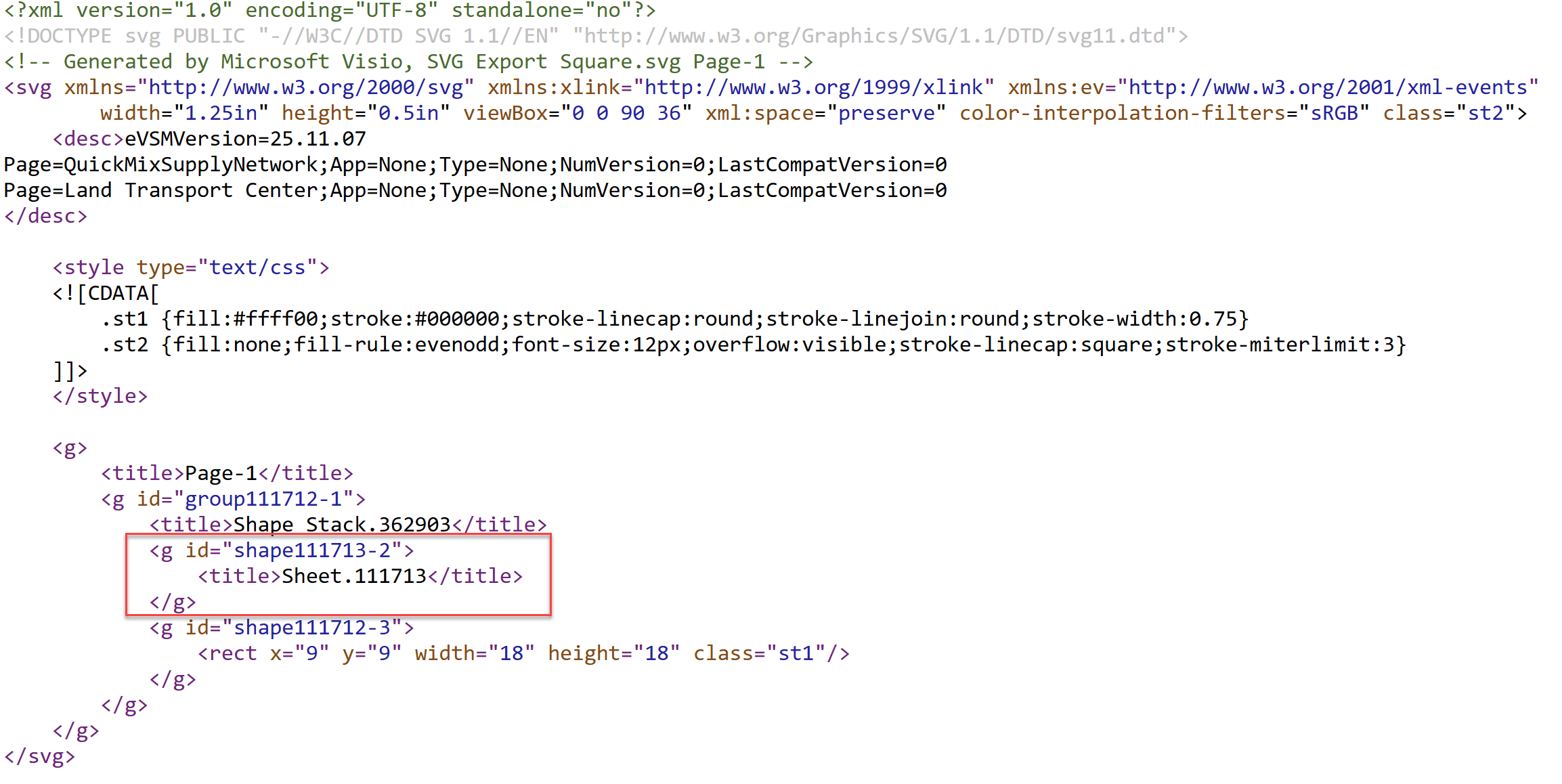
How SVG in Visio can cause a Shape.BoundingBox(…) error
I have used Visio’s Shape.BoundingBox(…) for many, many years and I cannot ever recall it failing, but I have now managed to create some shapes that cause it to error. This caused many hours of confusion, so I nearly abandoned using the method, until I discussed it with my fellow Visio MVP, John Goldsmith (see…

Jumping between Shapes in Visio
Many Visio diagrams get quite large, and sometimes it is useful to provide the ability to jump to another shape quickly in the same document, either on a different page or on the same one. Although there is an add-on provided in desktop Visio that is used by the Off-Page Reference shape provided in the…
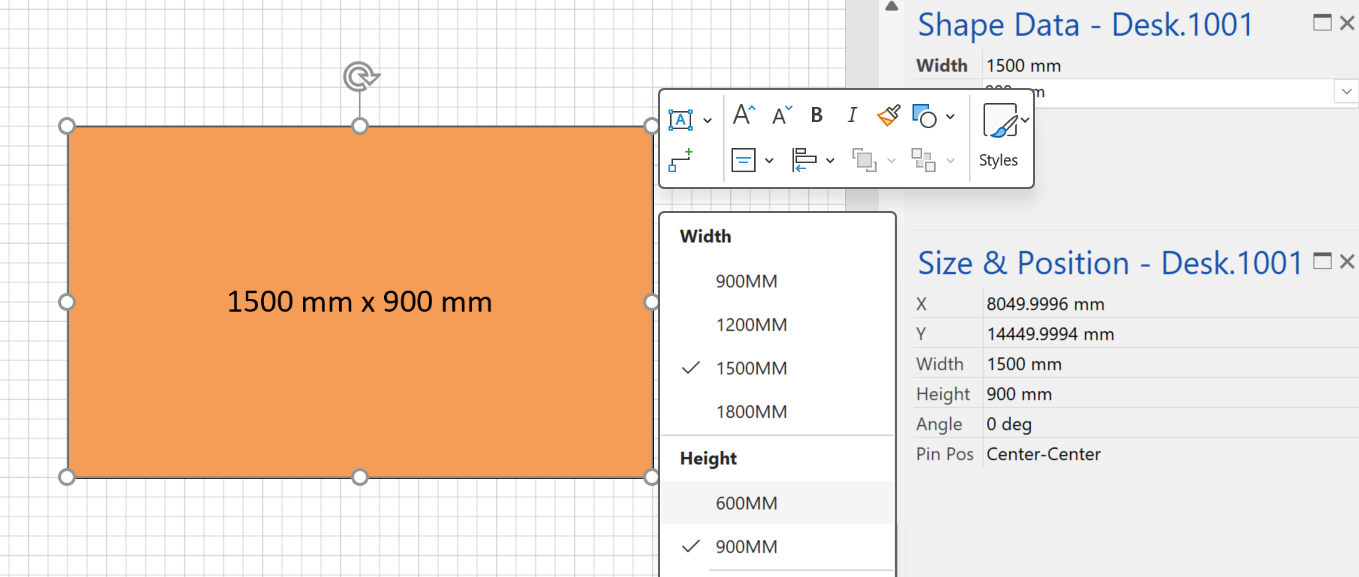
Fixing dimensions of 2D shapes
I am often asked what makes Visio unique and makes it stand out from the crowd, especially in today’s online world. Well, I think there are many reasons, but one of them is the ability to create scaled drawings with parametric components of specific dimensions. This was crucial for my adoption of Visio back in…

Leave a Reply
You must be logged in to post a comment.