I have been creating Microsoft Visio solutions for 30 years now … my first was in 1996! I have been an advocate for custom Masters from the very start, every since I learnt how editing the Master can automatically update all of its instance shapes can be automatically updated throughout the document. Whenever you drag and drop a Master from a Stencil into a document for the first time, it copies that Master to the Document Stencil, and from then on it will use the local Master in the Document Stencil to create new shape instances that reference the local Master. If you need to customise the local Master, then you should ensure that the Match master by name on drop is checked. All of the provided stencils contain Masters where this property is not checked. The main exception to this is the Dynamic connector Master. Not only is this Master provided with this property checked, it is also automatically created when you do certain actions. This article explains when this is done in the UI and in code.


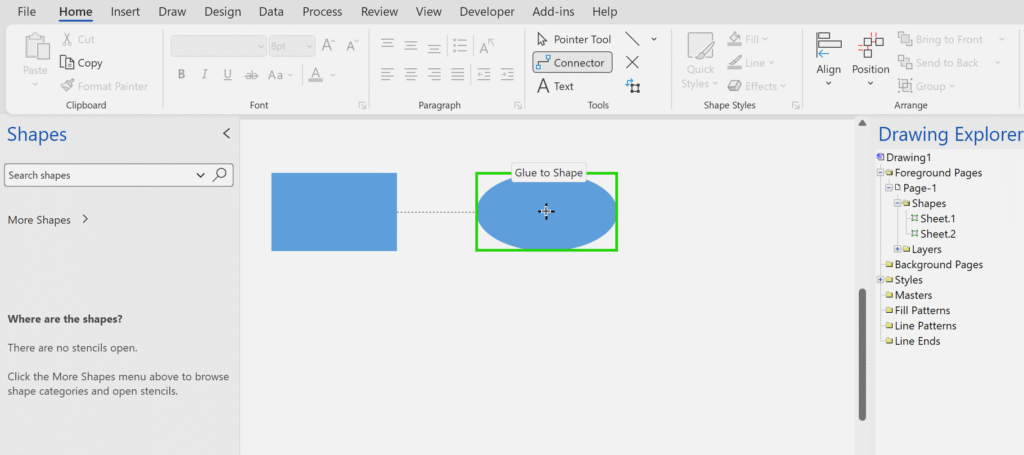
The above screenshots show that using the Tools menu will only add shapes that do not have a Master. Notice how the Rectangle and Ellipse command add shapes to the Drawing Explorer with names Sheet.xx. Similarly, the Line tool adds a Sheet.xx shape, but does not connect glue, by default, to either shape.
The best way to connect two shapes is to use the Connector tool, which does not only glue dynamically to both shapes, but automatically adds the Dynamic connector to the local Document Stencil, and creates a instance shape of it. In the next screenshots, I have undone the Line shape….


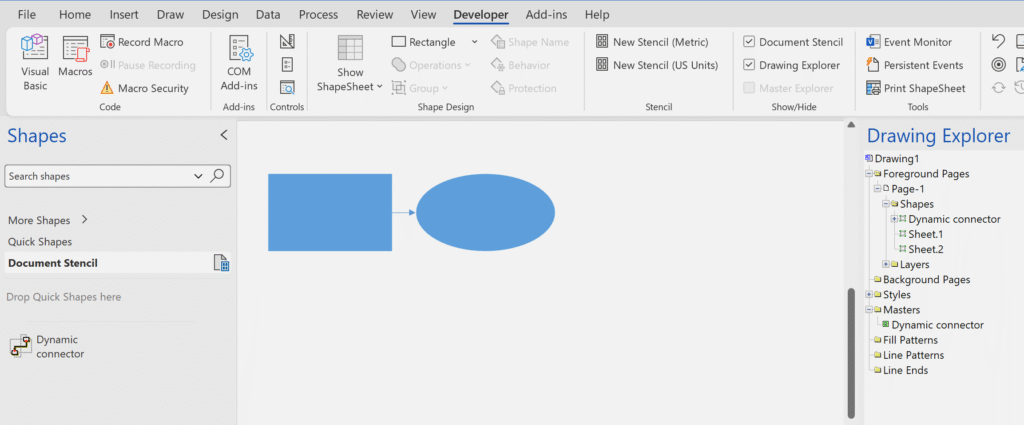
So, the Dynamic connector Master now exists in the Document Stencil and can be customised, and will already have the Match master by name on drop property checked.

For developers, the Dynamic connector Master can be created using the Shape.AutoConnect(…) method. This has arguments for the placement direction, and an optional third argument for an alternative Master to use. If this last argument is not present, then the Dynamic connector is created, if necessary.
If the placement direction is anything but visAutoConnectDirNone, then the spacing option is applied when the shapes are connected.

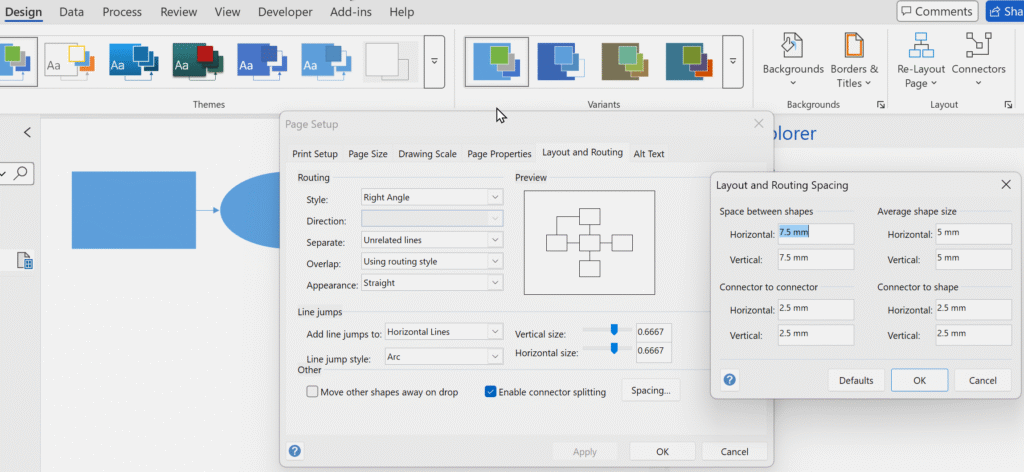


So, the Dynamic connector Master can be used via automation, even if it does not already exist. However, many of the Microsoft supplied templates are supplied with customised versions of the Dynamic connector already.
By the way, the only other Master that gets automatically created if it doesn’t exist is the Rectangle one used by Data Visualiser that is created when manually creating data-linked shapes without selecting a suitable Master .
Related articles
Optimize Visio Flowcharts: Swimlane Reordering Tips
Microsoft Visio desktop Plan 2 and Professional editions provides the ability to create and synchronize cross-functional flowcharts between the diagram and an Excel table. This is great, and widely used for many types of processes. The Excel table normally has a Function / Swimlane column that contains text that becomes labels on the swimlane containers,…
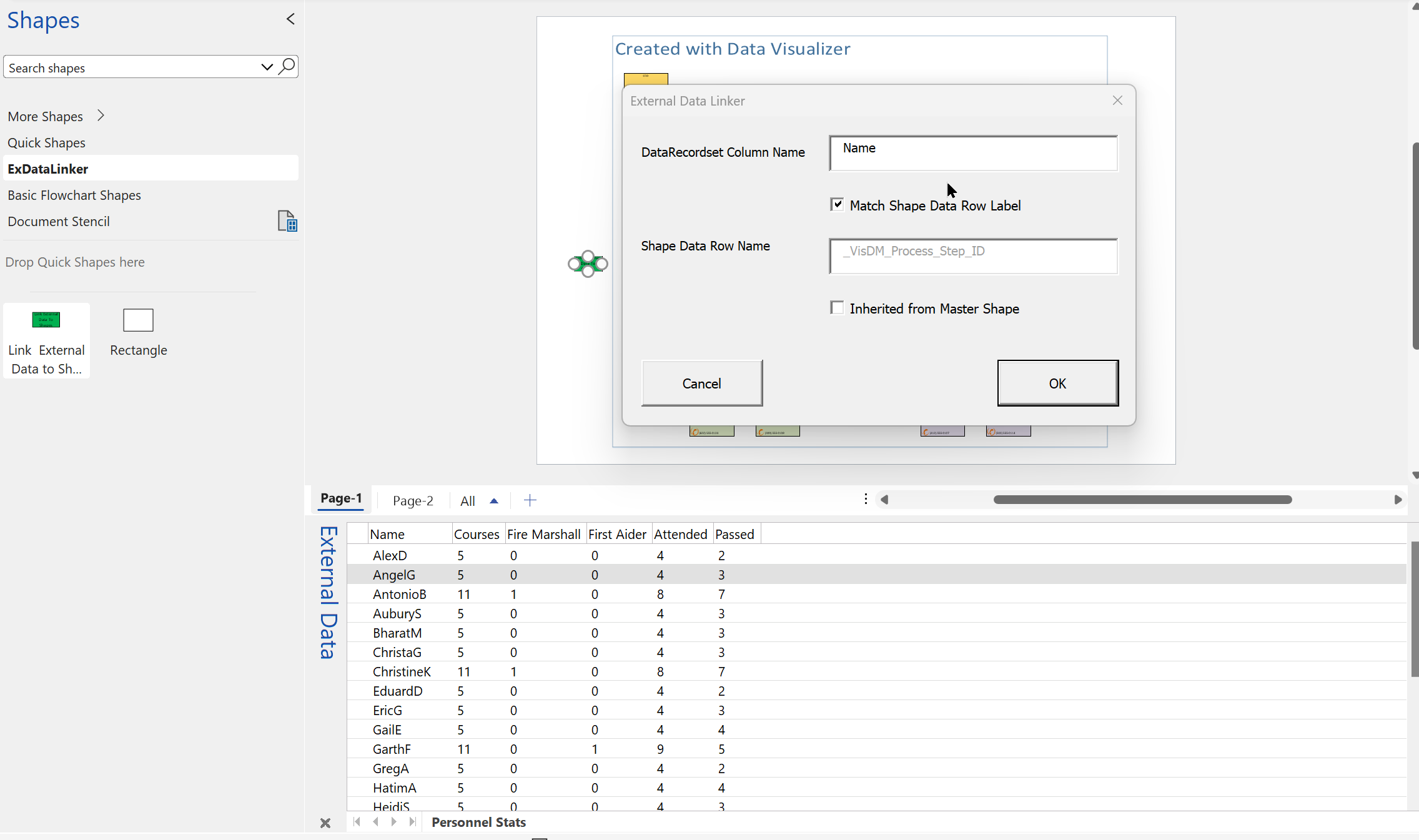
Linking Data to Shapes in Visio after using Data Visualizer
Data Visualizer (DV) in Visio Plan 2 (Data | Create from Data | Create ) is great because it provides a way of automatically creating a diagram from data, but it also prevents some of the other data-linking features in Visio from being used. This is because DV wants to take control of the data…
New Requirement for VBA Digital Signatures in Visio
Like most developers, I have to buy a new digital certificate every 3 years to sign my Visio add-ins and VBA projects. Usually that means verifying my bone fides, paying the fee and downloading the certificate, but security has been increased, and now, like everyone else, I have to use a USB key with it…
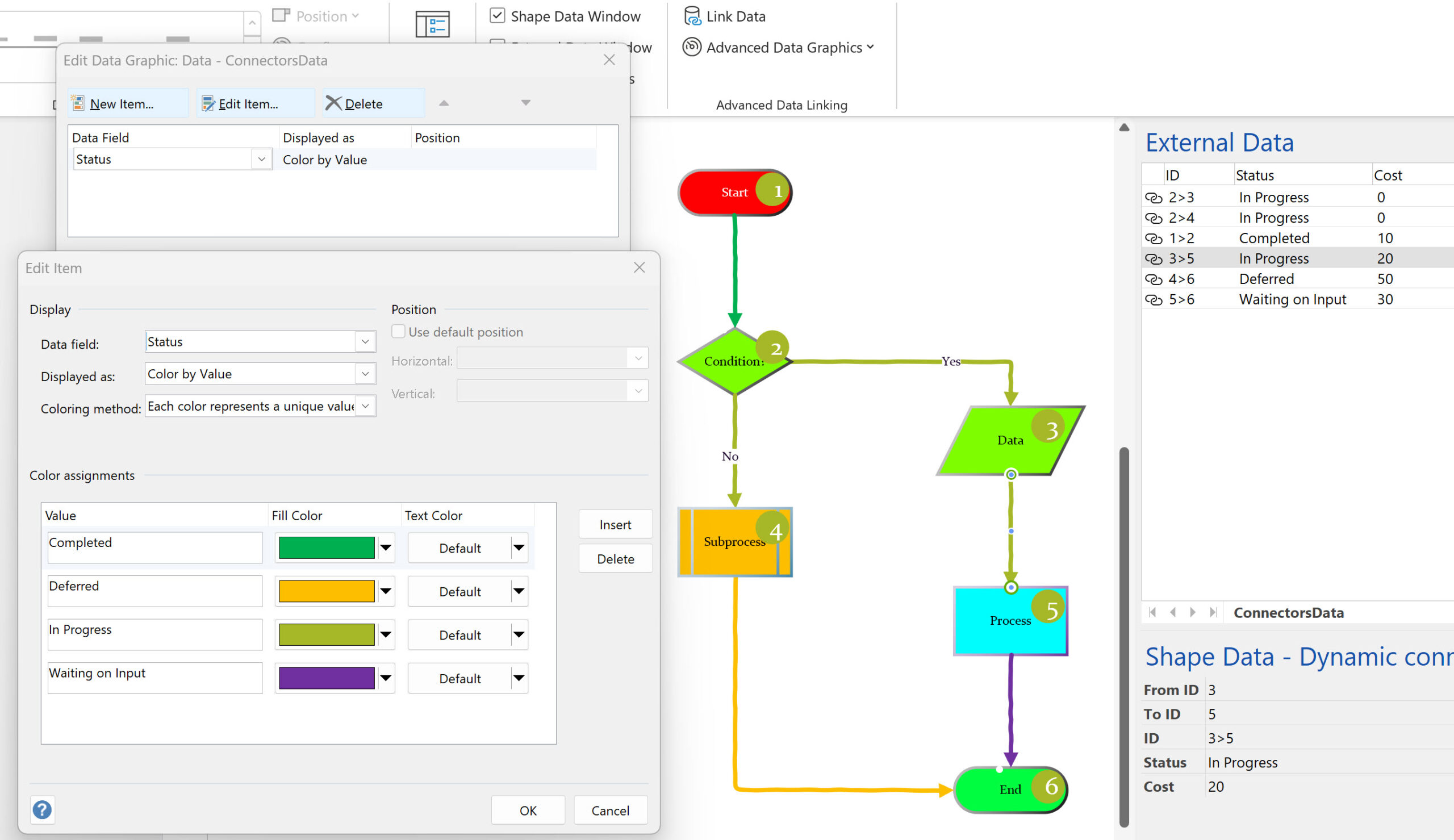
Using Visio Color by Value on Connectors
Data Graphics in Visio Plan 2 and Visio Professional is great, but it only enables us to use them with 2D shapes in Visio, i.e. not on connectors. So, what if you want to change the line colour of the connectors between the 2D shapes because of the data flowing between them? Well, it is…
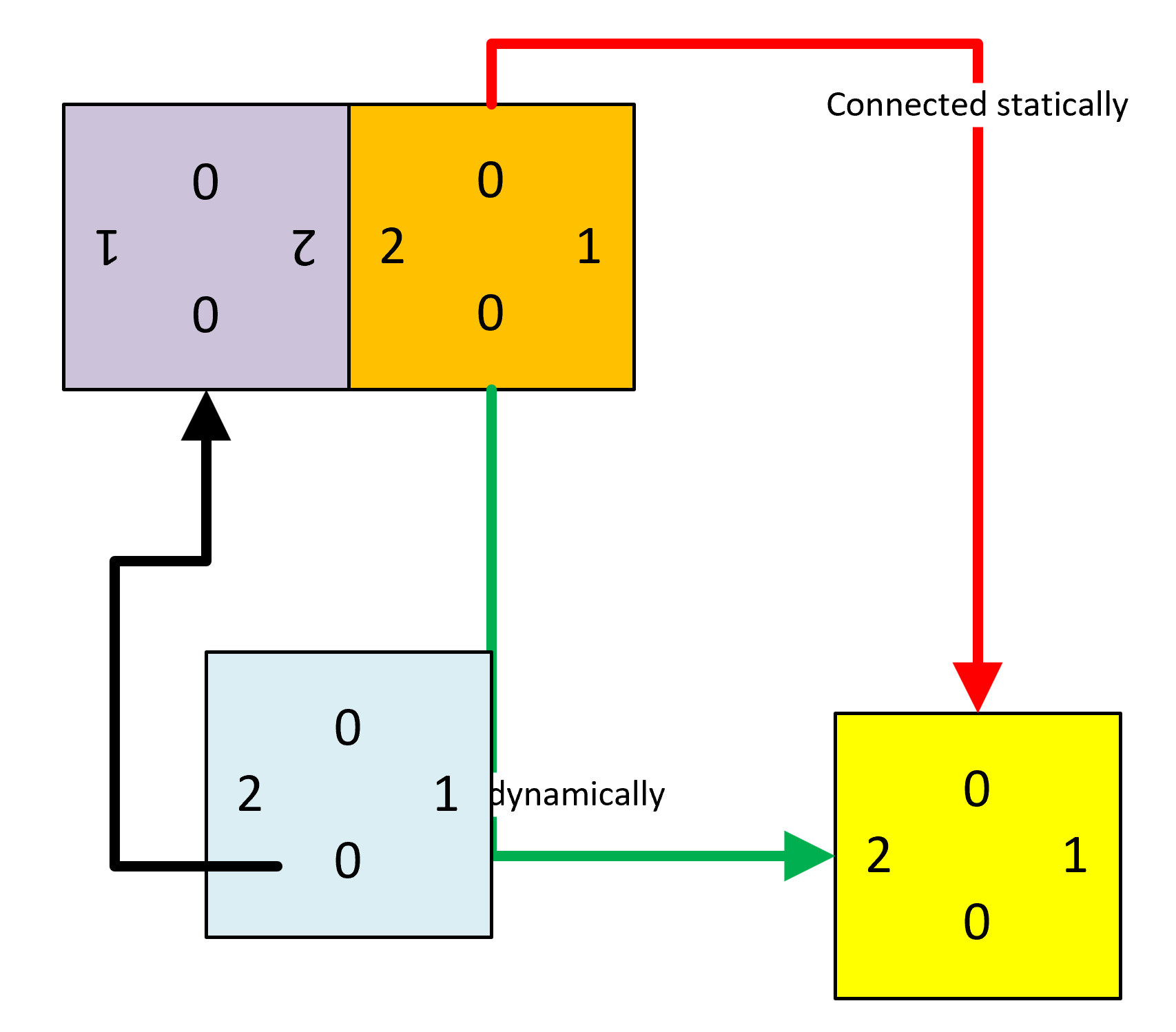
Counting glued and connected shapes in Visio
I got a surprise in one of my projects when I counted the shapes glued together using the Shape.GluedShapes(…) method … the sum of the filtered glued shapes just didn’t add up to the unfiltered count. So, I thought I should check the Shape.ConnectedShapes(…) method too … and there is a scenario where that has…
Pushing Data Visualizer in Visio beyond its limits
My last post was about some of the lessons learnt when trying to push Data Visualizer to its limits, but this one has some ways of overcoming these limitations. The main lesson learnt is that DV binds the shapes within the DV container shape, CFF Data Visualizer, and controls some of the ShapeSheet cells that…
