I recently (re-)discovered that there is a limit to the number of Actions section rows that will be evaluated for display on the right mouse menu of a Visio shape. I have not hit a limit (yet) for the number of rows that can be added to the Actions section … so why is there a limitation to the number that will be displayed on the right mouse menu? In Visio for desktop, any rows over this limit will simply not be displayed, but in Visio for web it prevents any Actions from being displayed at all on the shape.
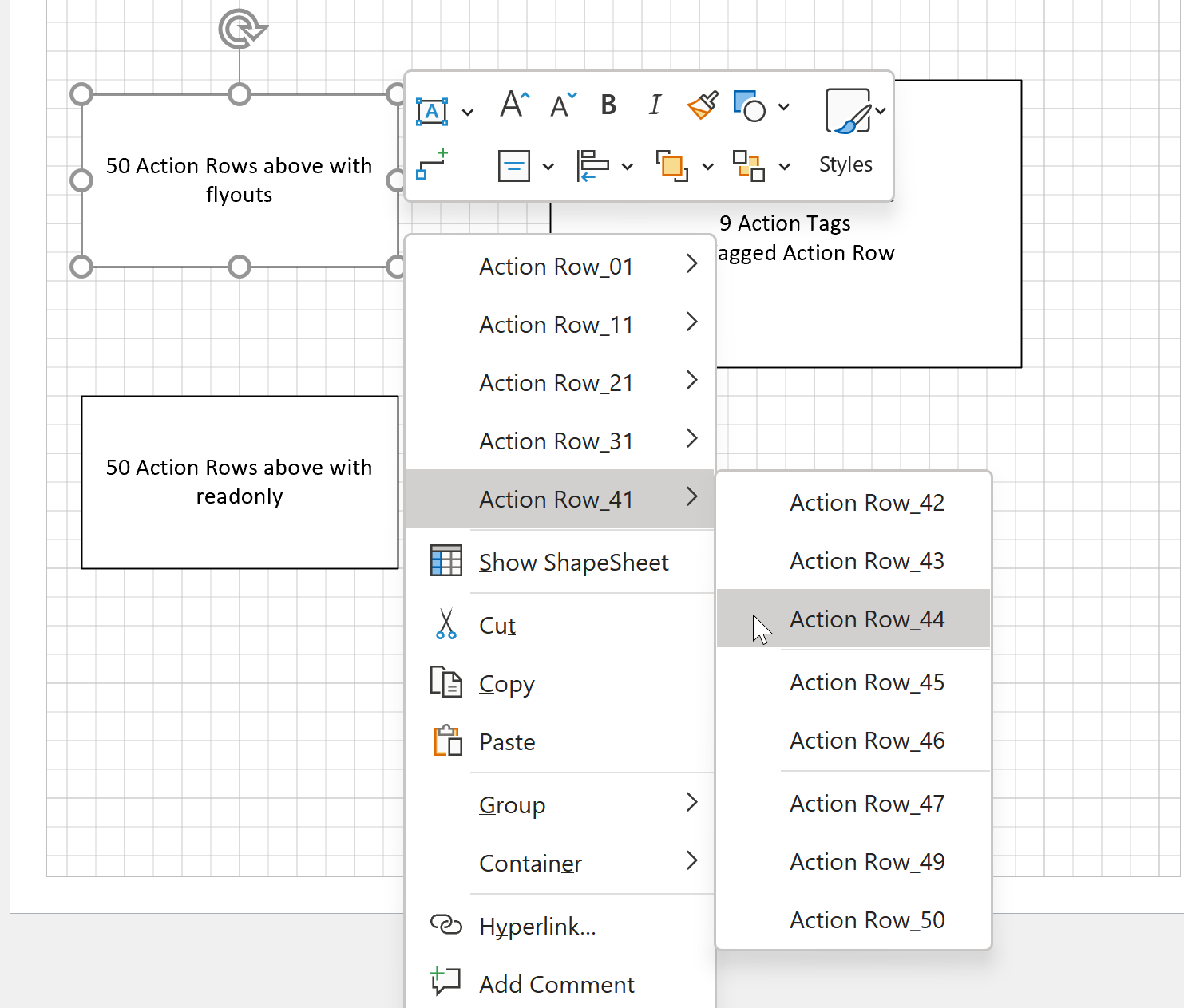
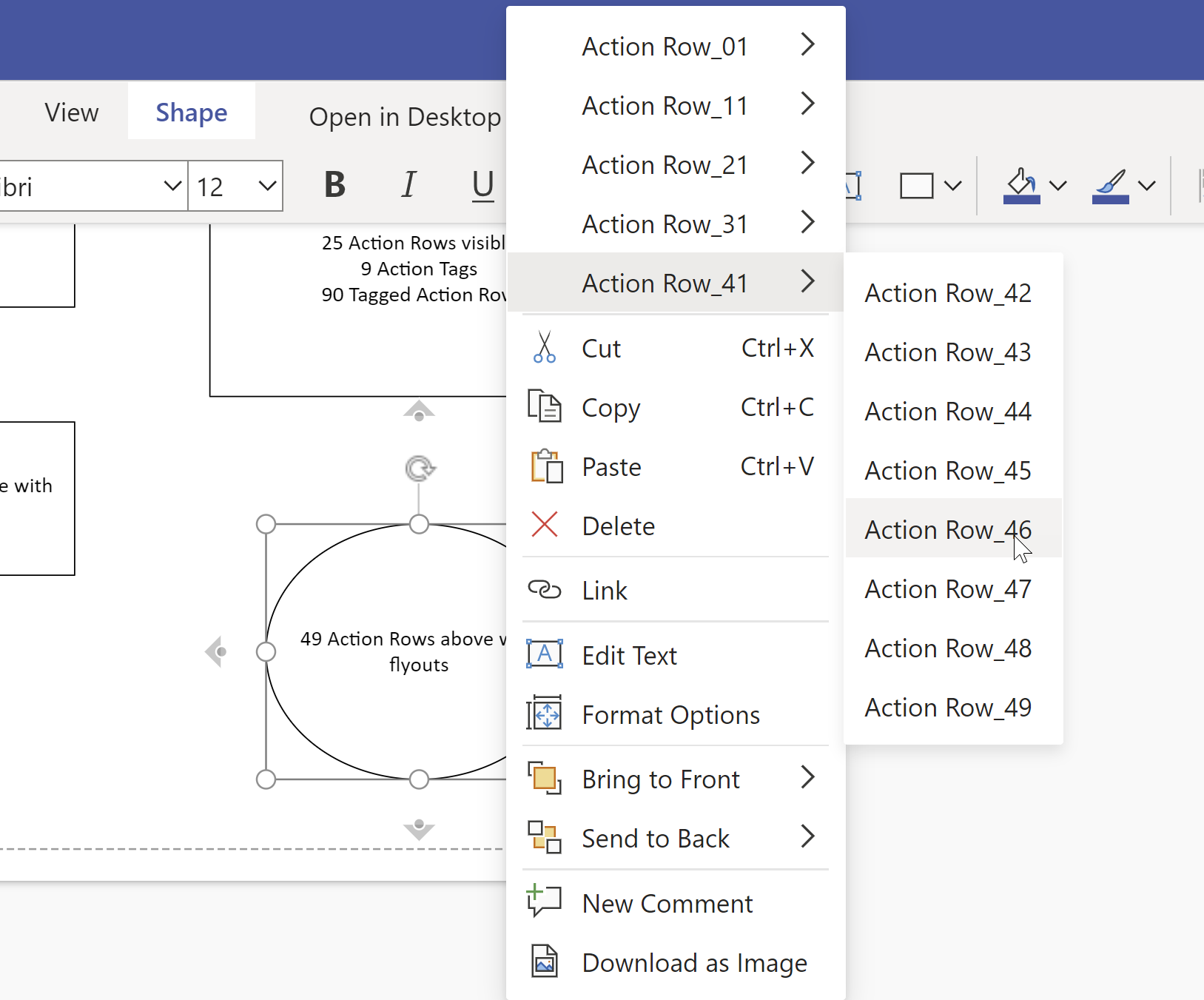
Well, this limit is 50 in the desktop, and 49 in the web … which you may think is too many anyway, but the Visio ShapeSheet provides the ability to each row above or below the built-in menu, be invisible, be disabled, be read-only, and to group them in sub-menus or with spacers, so, given that a single Visio smart shape can incorporate many different options within it, then this limit can be reached unknowingly when creating custom Visio masters.
I often use the right-mouse menu to provide a quick way of changing Shape Data values that are available in a fixed-list. There can be many fixed-lists in a single shape, so there could be many synchronized Actions providing configuration options. Even the Microsoft provided BPMN shapes have 28 Actions rows currently, and I think I remember that there were more in earlier versions of Visio.
So, if your custom master shapes will be used in Visio for web, then you must never have more than 49 rows in the Actions section. It is acceptable to delete rows to keep to this maximum number.
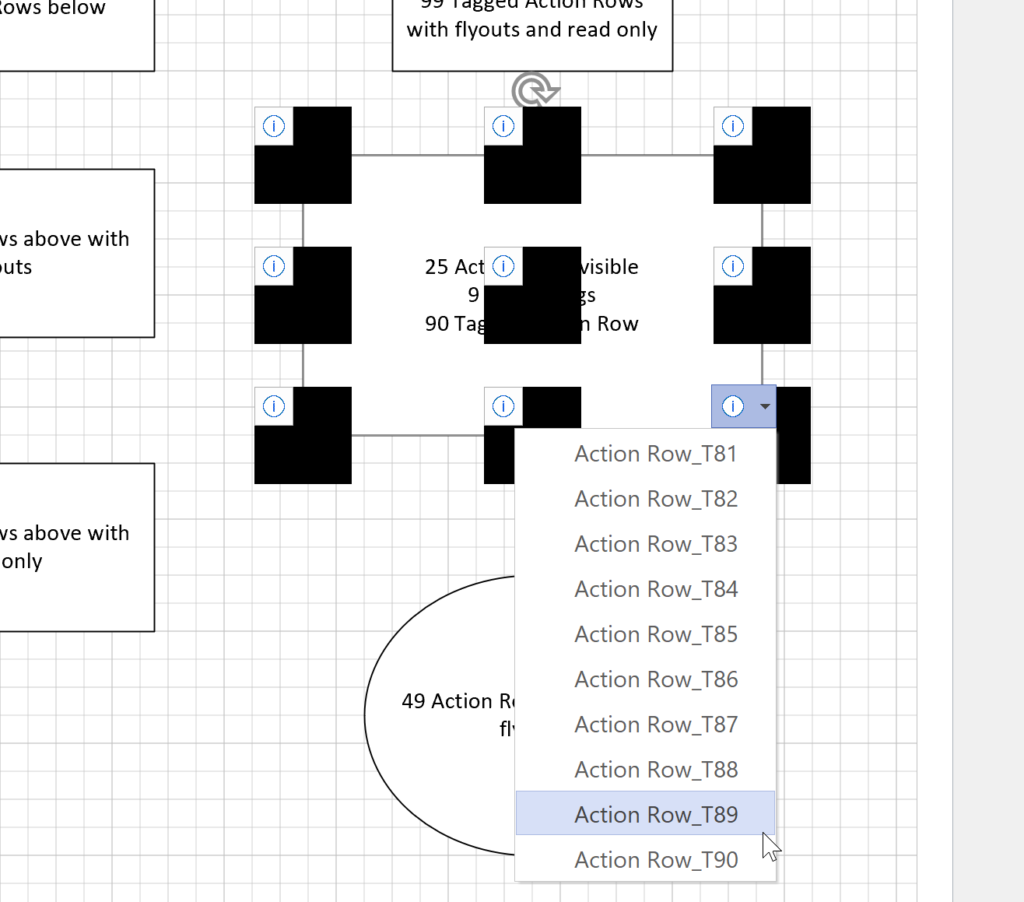
If your custom master shapes will be used in Visio for desktop, then only the first 50 rows will ever be evaluated for display. You can have more than 50 rows in the Actions section but only use rows above 50 for use as menu rows for Action Tags. There appears to be no limit to the number of Actions rows that can be displayed under Action Tags which can be displayed in a many positions around a shape. However, these are a Visio for desktop only feature, and their display can be ugly on some graphics cards…
A visual exploration of Penrose Tiling in Visio
Maybe it is because I used to be a building architect, but I have always been fascinated by the relationship between numbers and visualisations. Perhaps the most famous one is the Golden Ratio which has been used as the basis of many building designs and art pieces. It is often recognised to create a harmony…
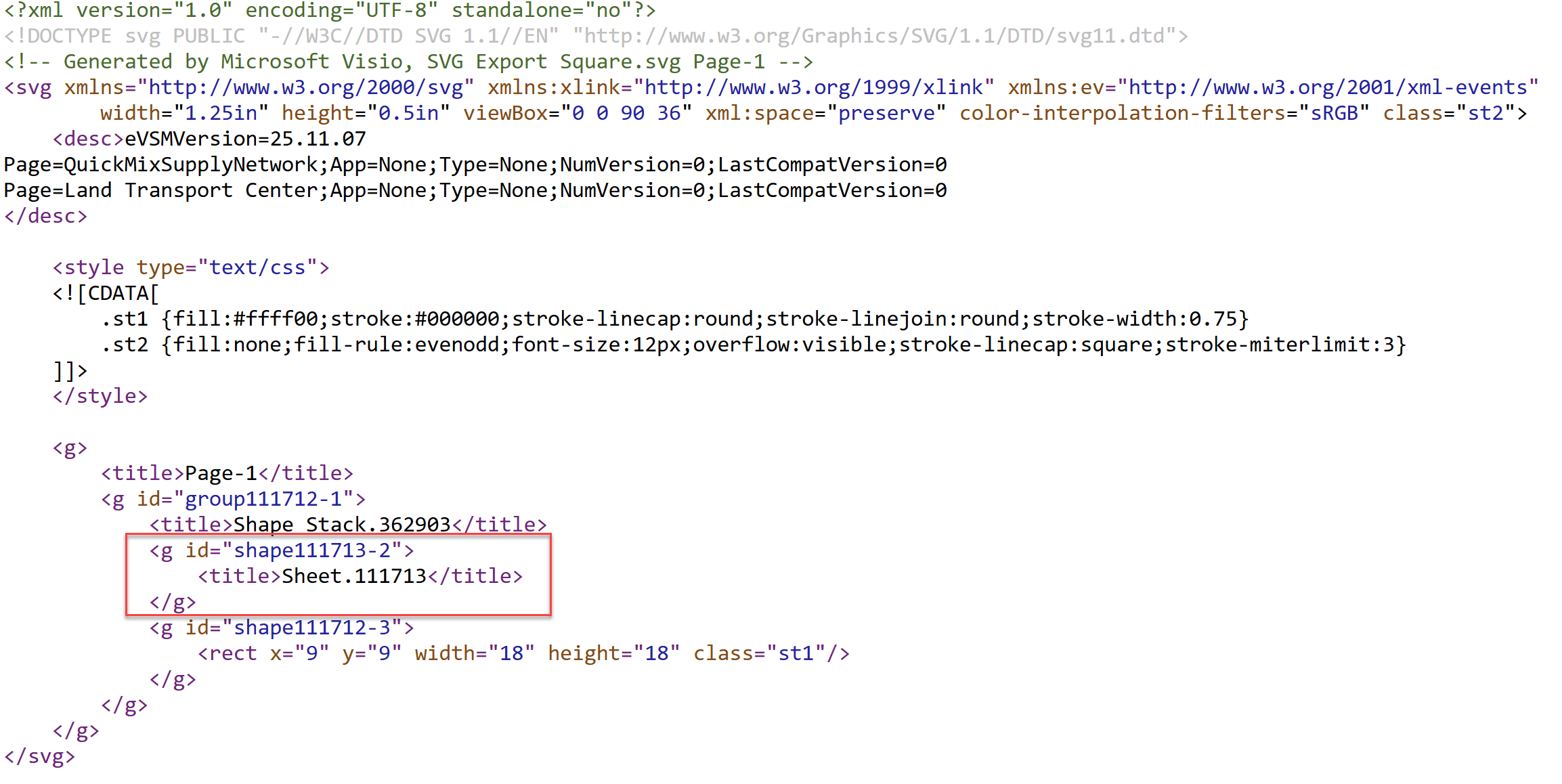
How SVG in Visio can cause a Shape.BoundingBox(…) error
I have used Visio’s Shape.BoundingBox(…) for many, many years and I cannot ever recall it failing, but I have now managed to create some shapes that cause it to error. This caused many hours of confusion, so I nearly abandoned using the method, until I discussed it with my fellow Visio MVP, John Goldsmith (see…

Jumping between Shapes in Visio
Many Visio diagrams get quite large, and sometimes it is useful to provide the ability to jump to another shape quickly in the same document, either on a different page or on the same one. Although there is an add-on provided in desktop Visio that is used by the Off-Page Reference shape provided in the…
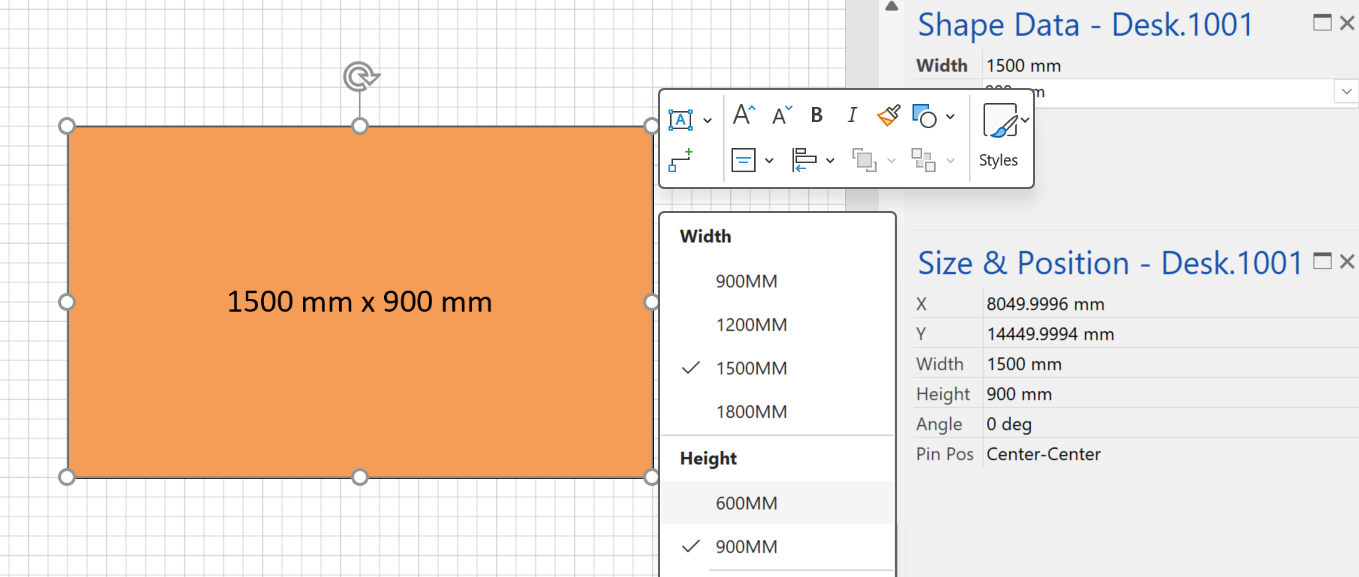
Fixing dimensions of 2D shapes
I am often asked what makes Visio unique and makes it stand out from the crowd, especially in today’s online world. Well, I think there are many reasons, but one of them is the ability to create scaled drawings with parametric components of specific dimensions. This was crucial for my adoption of Visio back in…
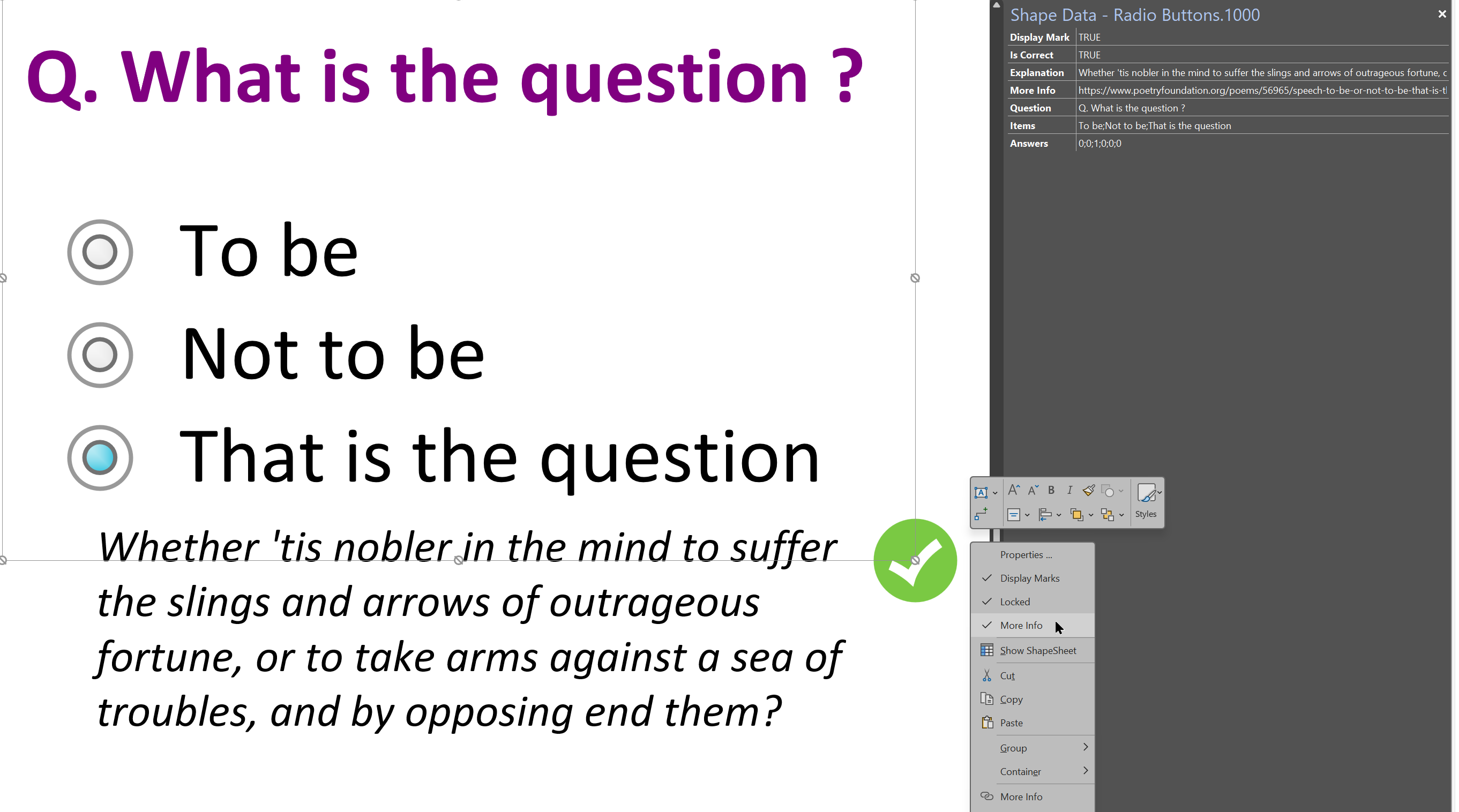
Smart Radio Buttons and Check Boxes in Visio
A recent project requires an interactive tutorial within Microsoft Visio desktop where a lot of the questions need a single answer using radio buttons, or multiple-choice answers using check boxes. I thought that this would be a great use of the list containers capability because the questions and answers could be part of the container…
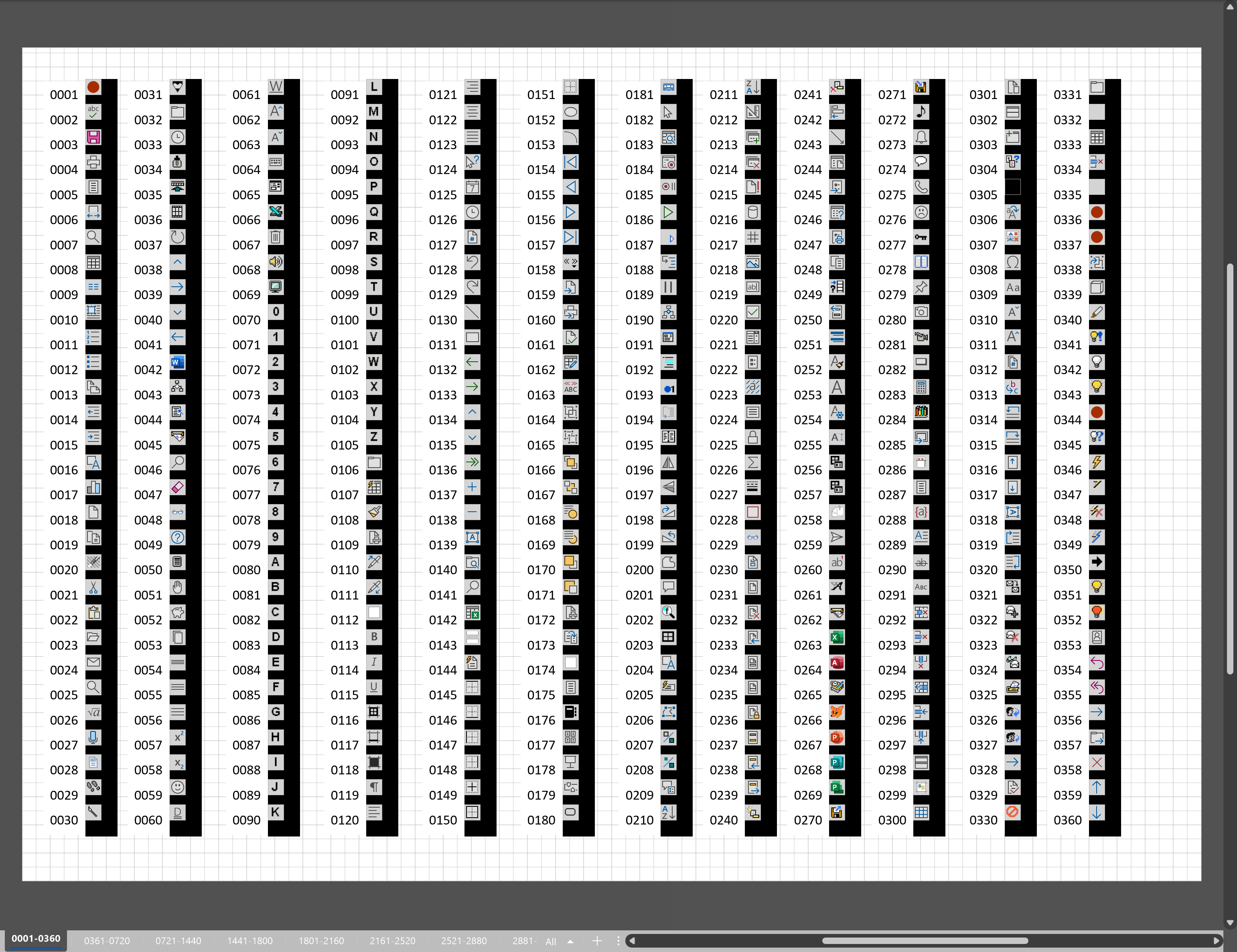
Using Button Face Ids in Visio
Microsoft Visio desktop has the ability to display icons from a built-in list of Office icons on Actions and Action Tags (nee Smart Tags). These can be set in the ShapeSheet by using the desired number from several thousand in the ButtonFace cell. Although there is the ability to add better icons using code, the…

Leave a Reply
You must be logged in to post a comment.