I have created many Visio solutions over the past 25 years and used a number of methods of creating an installation that includes Visio templates and stencils. I have just wasted many hours trying to debug an installation created with Advanced Installer until I realised that the problem was that Visio was not properly updating the cache of installed templates and stencils. In the end, the answer was to delete the cache and let Visio re-create it. The screenshots below show the custom shapes opened with the custom template and the More Shapes context menu. Before I deleted the cache, Visio incorrectly displayed the file name of some of the stencils (those with a trailing “_M” ) rather than the display name as entered into the PublishComponent table in Advanced Installer. In addition, the context menu did not show those stencils as being present in the workspace.
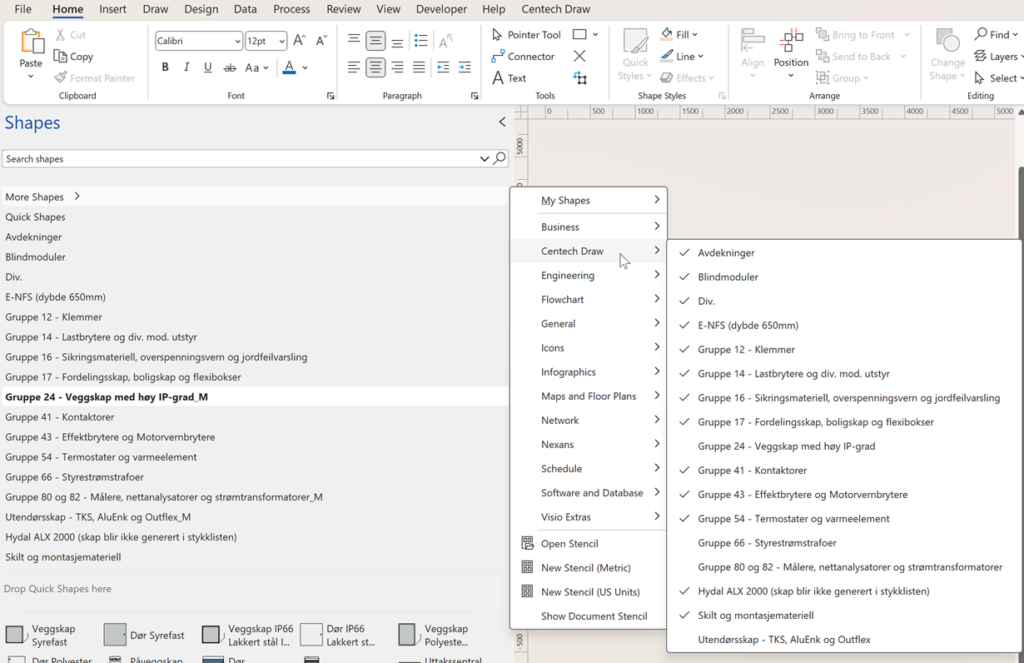
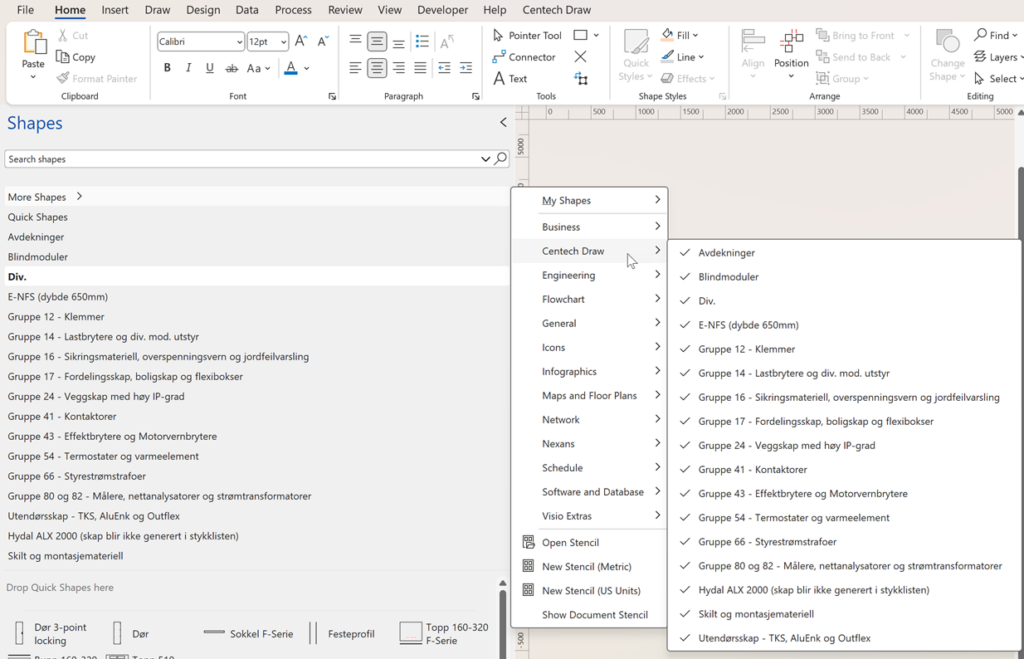
I realised that the problem stencils were those that contains Norwegian characters not found in English, and they had been problematic previously, so I tried editing my setup files many times, switching between English and Norwegian, but nothing worked. Actually it was working on my 64bit Visio installation but not on my 32bit Visio installation.
Visio has two files that it creates or updates on close. This is content16.dat and thumbs.dat which typically can be found in C:\Users\<username>\AppData\Local\Microsoft\Visio. One holds the information about each installed template and stencil and this was not getting updated. The other holds the preview images. Content16.dat can safely be deleted with Visio closed, because Visio will recreate it when it is opened, and saved to file when it is closed.
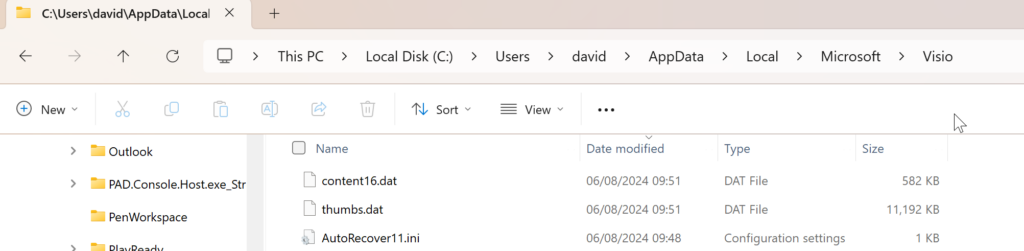
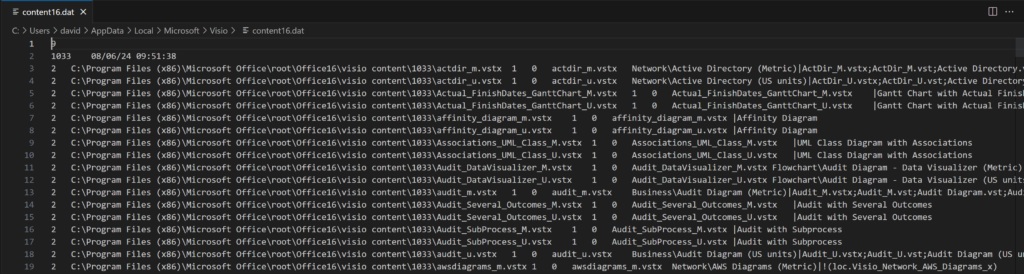
So, this solved the issue, but it is not a complete solution because the installer should cause this to refresh. To date I have been using a Custom Action in Advanced Installer that, I thought, would force this refresh. This vbscript bumps up the value of the ConfigChangeID in the registry.
Dim WshShell, visChangeId
Set WshShell = CreateObject("WScript.Shell")
On Error Resume Next
visChangeId = WshShell.RegRead ("HKLM\Software\Microsoft\Office\Visio\ConfigChangeID")
If Err = 0 Then WshShell.RegWrite "HKLM\Software\Microsoft\Office\Visio\ConfigChangeID", visChangeId + 1, "REG_DWORD"
However, I have recently been getting warnings in Advanced Installer that vbscript is being phased out. So perhaps that was the root cause of the problem. Fortunately Advanced Installer can use JavaScript as an alternative, so I will now try to replace the above script with the following:
const { execSync } = require('child_process');

try {
    const visChangeId = execSync('reg query "HKLM\\Software\\Microsoft\\Office\\Visio" /v ConfigChangeID').toString().match(/ConfigChangeID\s+REG_DWORD\s+(\d+)/)[1];
    const newVisChangeId = parseInt(visChangeId) + 1;
    execSync(`reg add "HKLM\\Software\\Microsoft\\Office\\Visio" /v ConfigChangeID /t REG_DWORD /d ${newVisChangeId} /f`);
} catch (error) {
    // Handle error if needed
}
Back to project work ….
Related articles
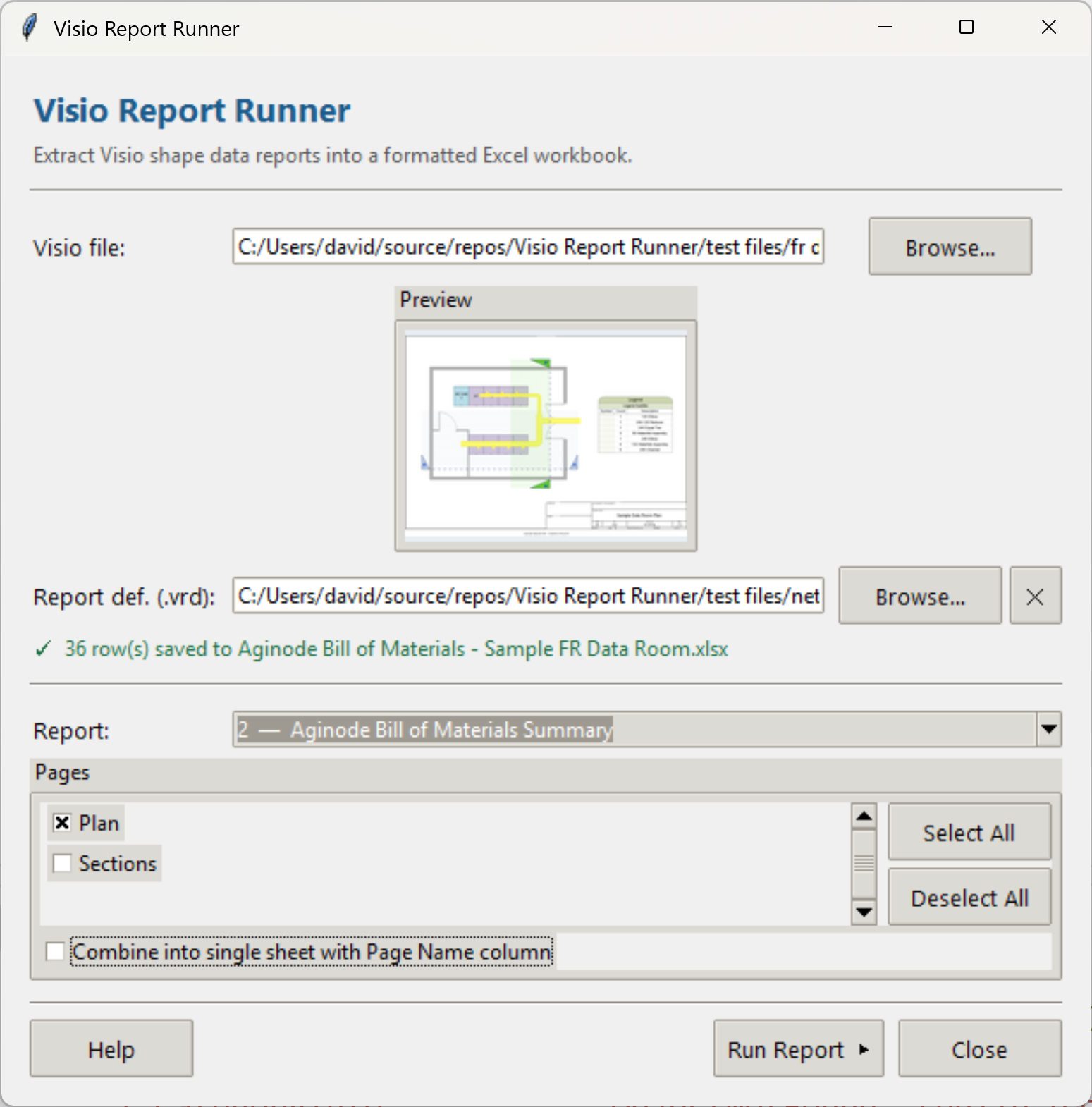
Introducing a free Visio Report Runner application
AI is changing the world and how we should approach it. So I decided to see if I could get Claude Sonnet 4.6 Agent to completely write an application for me, and I mean completely. The application is written in Python by Claude, and I have not written a single line. The code is available…

Protecting the integrity of custom Visio masters
All of my Visio solutions contain custom masters because this is the best way to create smart shapes that respond to user’s needs. This usually means creating Shape Data, User-defined Cells and Action rows that govern aspects of the shape with formulas designed to provide an efficient user interface. As a developer I sometimes forget…

Migrating from Lucidchart to Visio?
My fellow Visio MVP, Michel Laplane, and I recently converted and transformed 15k Lucidchart documents to Microsoft Visio for a large multi-national organization. This was approximately 4 years after they had moved from Visio to Lucidchart! I do not know the full reason behind these changes in technology, and I do not have a particular…

Installing Visio Templates and Stencils
I was recently on holiday but needed to update an installation of Visio Templates and Stencils for all languages. I use Advanced Installer in Enterprise mode so that I can edit the PublishComponent table like I have described in my earlier article ( see Using Advanced Installer with Visio VSTO Add-Ins – bVisual )Unfortunately I…

Creating a Dynamic connector master automatically
I have been creating Microsoft Visio solutions for 30 years now … my first was in 1996! I have been an advocate for custom Masters from the very start, every since I learnt how editing the Master can automatically update all of its instance shapes can be automatically updated throughout the document. Whenever you drag…
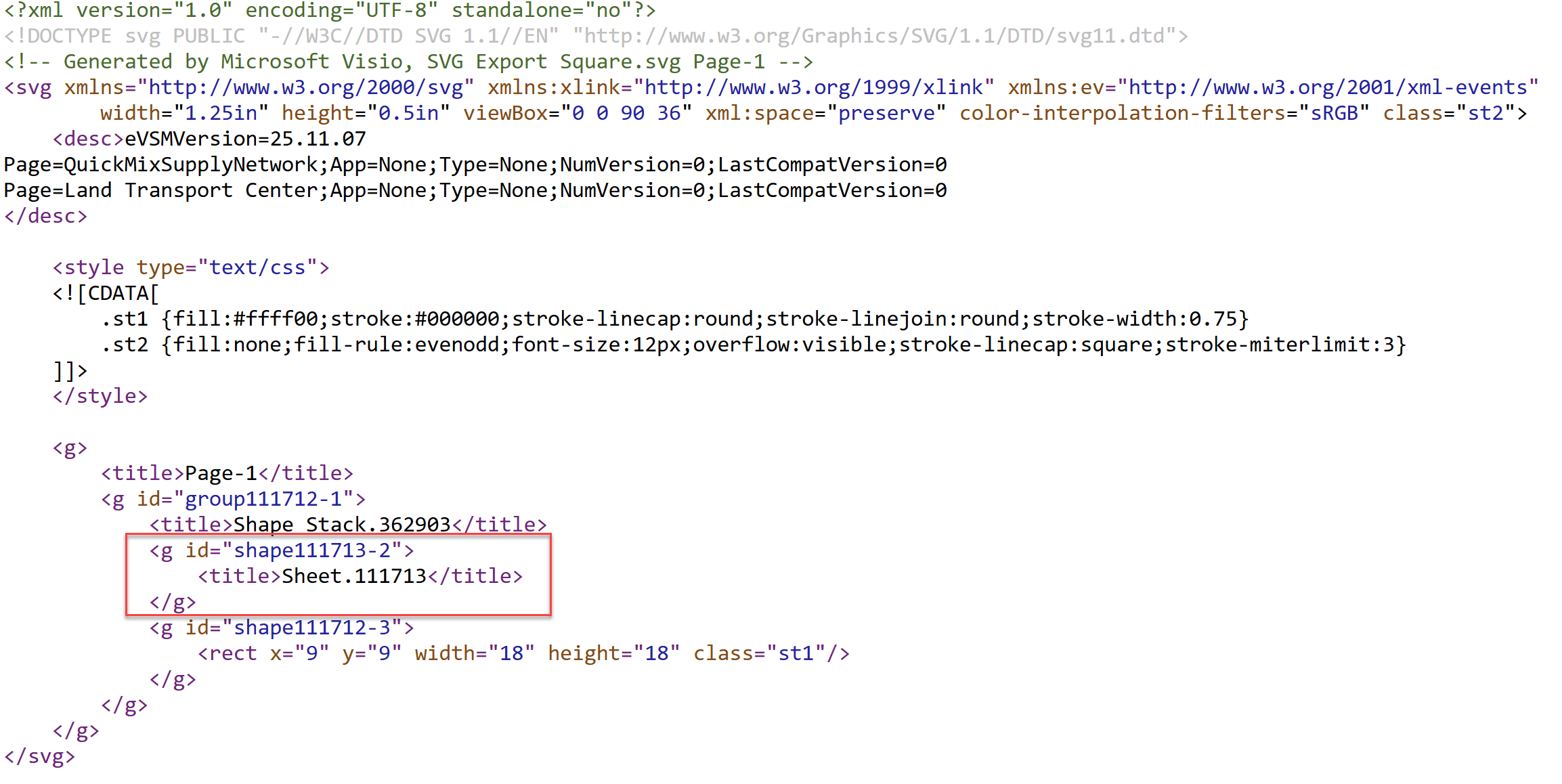
How SVG in Visio can cause a Shape.BoundingBox(…) error
I have used Visio’s Shape.BoundingBox(…) for many, many years and I cannot ever recall it failing, but I have now managed to create some shapes that cause it to error. This caused many hours of confusion, so I nearly abandoned using the method, until I discussed it with my fellow Visio MVP, John Goldsmith (see…

Leave a Reply
You must be logged in to post a comment.