

One of my current Visio VSTO add-in projects requires me to react to users pasting custom shapes in the Visio page from the clipboard. The process involves registering the ExitScope event and then checking the Clipboard contents. Initially, I was merely testing for a line in the DataObject that started with the word “Visio “, but then testing revealed that copying and pasting text from one shape to another was also getting processed, so then I added a further check that the line also finished with the word ” Shapes”. This works fine, but then I got to wonder if I could also post-process tables copied and pasted from Excel because the standard paste maintains font settings but omits the tabs and line feeds, making the text unusable without serious manual editing. This article explains how this can done.


Although I managed to put the tabs and line feeds back into the pasted text, I could not automatically set the tab spacing because that is not supported in code. So, the tab spacing must be set manually, or I need to create a custom master shape, with tab spacing included, that the text can be pasted into.
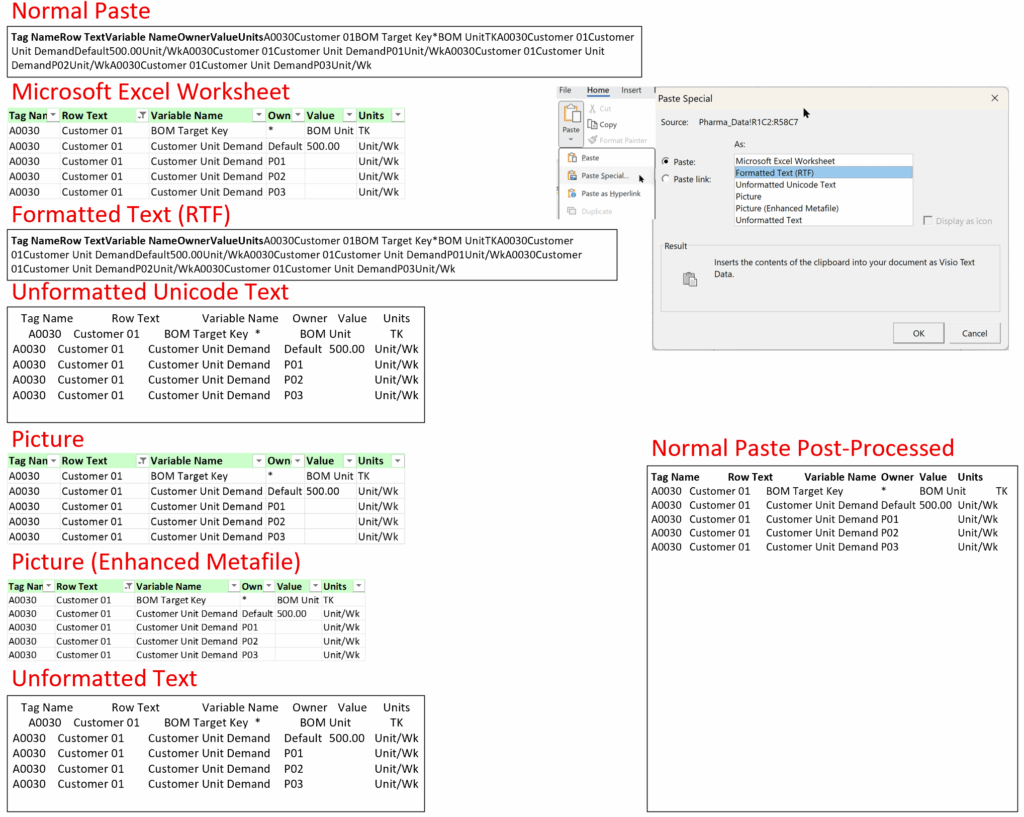
The following screenshots are the contents of the Clipboard DataObject when the following are copied and pasted into Visio:
- Excel table
- Notepad text
- Visio shape
- Visio text


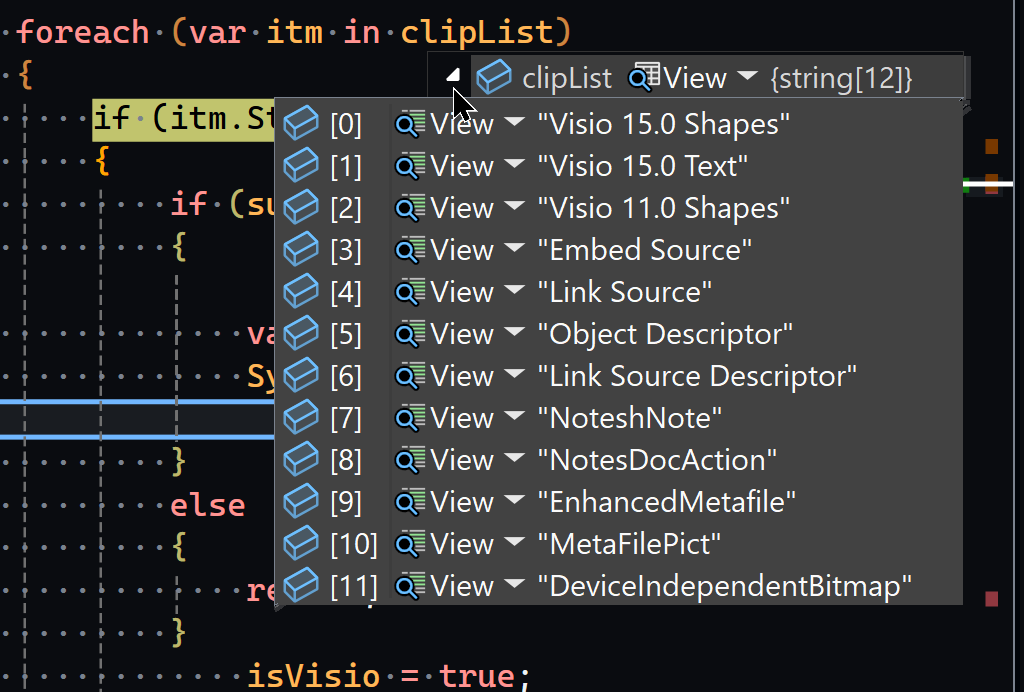


This the C# code that checks the contents of the Clipboard, and passes processing to the relevant methods if a Visio shape or Unicode text is found (I have left other types of text formats in for future use if necessary)..
case (int)Visio.VisUICmds.visCmdUFEditPaste:    //Paste 1022
    {
        try
        {
            var isVisio = false;
            var isRTF= false;
            var isText = false;
            var isUnicodeText = false;
            var isCsv = false;
            var isHtml = false;
            IDataObject iData = Clipboard.GetDataObject();
            if (iData != null)
            {
                var clipList = iData.GetFormats();

                foreach (var itm in clipList)
                {
                    if (itm.StartsWith("Visio ") && itm.EndsWith(" Shapes"))
                    {
                        isVisio = true;
                        break;
                    }
                    if (itm.Equals("Rich Text Format"))
                    {
                        isRTF = true;
                        break;
                    }
                    if (itm.Equals("Text"))
                    {
                        isText = true;
                        //break;
                    }
                    if (itm.Equals("UnicodeText"))
                    {
                        isUnicodeText = true;
                        //break;
                    }
                    if (itm.Equals("HTML Format"))
                    {
                        isHtml = true;
                        //break;
                    }
                    if (itm.Equals("Csv"))
                    {
                        isCsv = true;
                        //break;
                    }
                }
            }

            if (isVisio)
            {
                pagVm.ProcessDuplicates(subjectApplication.ActiveWindow.Selection);
            }
            if (isUnicodeText)
            {
                string uniText = Clipboard.GetText(TextDataFormat.UnicodeText);
                if (string.IsNullOrEmpty(uniText))
                {
                    uniText = Clipboard.GetData(DataFormats.UnicodeText) as string;
                }
                if (string.IsNullOrEmpty(uniText))
                {
                    return;
                }
                pagVm.ProcessUnicodeText(subjectApplication.ActiveWindow.Selection, uniText);
            }

        }
        catch (Exception ex)
        {
            Flogger.WriteError(Flogger.GetFlogDetail("EventSink.HandleExitScope", ex));
        }
        break;
    }
So, once the Unicode Text format has been detected, the Selection and the uniText is passed to the ProcessUniicodeText(…) method where each line and tab is looped through at the same time as the Characters in the pasted shape text. Then the tab (CHAR(9)) and carriage return – line feed (CHAR(13) & CHAR(10)) can be inserted in the pasted text. Finally, the width, height and vertical alignment are updated to ensure that the shape encloses the text.
public void ProcessUnicodeText(Visio.Selection selection, string uniText)
{
if (selection.Count == 0 || string.IsNullOrEmpty(uniText))
{
    return;
}
try
{
    var shp = selection.PrimaryItem;
    var vsoChars = shp.Characters;

    // Now you can process tabs and newlines
    string[] lines = uniText.Split(new[] { "\r\n", "\n", "\r" }, StringSplitOptions.None);
    var charPos = 0;
    var maxTabCount = 0;
    foreach (var line in lines)
    {
        string[] columns = line.Split('\t');
        if (columns.Length - 1 > maxTabCount)
        {
            maxTabCount = columns.Length - 1;
        }
        //Console.WriteLine("Line:");
        var colIndex = 0;
        foreach (var col in columns)
        {
            charPos = charPos + col.Length;
            vsoChars.Begin = charPos;
            vsoChars.End = vsoChars.Begin;
            colIndex++;
            if (colIndex < columns.Length)
            {
                vsoChars.Text = ((char)9).ToString();
                charPos = charPos + 1;
            }

        }
        vsoChars.Begin = charPos;
        vsoChars.End = vsoChars.Begin;
        vsoChars.Text = ((char)13).ToString() + ((char)10).ToString();
        charPos = charPos + 2;
    }

    shp.CellsSRC[(short)Visio.VisSectionIndices.visSectionObject,
        (short)Visio.VisRowIndices.visRowText,
        (short)Visio.VisCellIndices.visTxtBlkVerticalAlign].FormulaU = $"=0";

    shp.CellsSRC[(short)Visio.VisSectionIndices.visSectionObject,
        (short)Visio.VisRowIndices.visRowXFormOut,
        (short)Visio.VisCellIndices.visXFormHeight].FormulaU = $"=TEXTHEIGHT(TheText,2)";

    shp.CellsSRC[(short)Visio.VisSectionIndices.visSectionObject,
        (short)Visio.VisRowIndices.visRowXFormOut,
        (short)Visio.VisCellIndices.visXFormWidth].FormulaU = $"=TEXTWIDTH(TheText)";

}
catch (Exception ex)
{
    Flogger.WriteError(Flogger.GetFlogDetail("PageVm.ProcessUnicodeText", ex));
}
}
This is a simple alternative to the Paste Special options (shown below), and maintains the text formatting present in the normal Paste task and allows the user to select parts of the text.

Of course, there could be many more options to post-processing pasted objects into the Visio page, but I just wanted to demonstrate how simple it can be within a Visio VSTO add-in.
Related articles

Introducing a free Visio Report Runner application
AI is changing the world and how we should approach it. So I decided to see if I could get Claude Sonnet 4.6 Agent to completely write an application for me, and I mean completely. The application is written in Python by Claude, and I have not written a single line. The code is available…


Protecting the integrity of custom Visio masters
All of my Visio solutions contain custom masters because this is the best way to create smart shapes that respond to user’s needs. This usually means creating Shape Data, User-defined Cells and Action rows that govern aspects of the shape with formulas designed to provide an efficient user interface. As a developer I sometimes forget…


Migrating from Lucidchart to Visio?
My fellow Visio MVP, Michel Laplane, and I recently converted and transformed 15k Lucidchart documents to Microsoft Visio for a large multi-national organization. This was approximately 4 years after they had moved from Visio to Lucidchart! I do not know the full reason behind these changes in technology, and I do not have a particular…


Installing Visio Templates and Stencils
I was recently on holiday but needed to update an installation of Visio Templates and Stencils for all languages. I use Advanced Installer in Enterprise mode so that I can edit the PublishComponent table like I have described in my earlier article ( see Using Advanced Installer with Visio VSTO Add-Ins – bVisual )Unfortunately I…


Creating a Dynamic connector master automatically
I have been creating Microsoft Visio solutions for 30 years now … my first was in 1996! I have been an advocate for custom Masters from the very start, every since I learnt how editing the Master can automatically update all of its instance shapes can be automatically updated throughout the document. Whenever you drag…

How SVG in Visio can cause a Shape.BoundingBox(…) error
I have used Visio’s Shape.BoundingBox(…) for many, many years and I cannot ever recall it failing, but I have now managed to create some shapes that cause it to error. This caused many hours of confusion, so I nearly abandoned using the method, until I discussed it with my fellow Visio MVP, John Goldsmith (see…