

A recent project requires an interactive tutorial within Microsoft Visio desktop where a lot of the questions need a single answer using radio buttons, or multiple-choice answers using check boxes. I thought that this would be a great use of the list containers capability because the questions and answers could be part of the container shape whilst the individual questions are presented as items in the list and automatically inheriting their particular question text from the containing list shape. So, this article provides these smart master shapes, and explains how they are built.

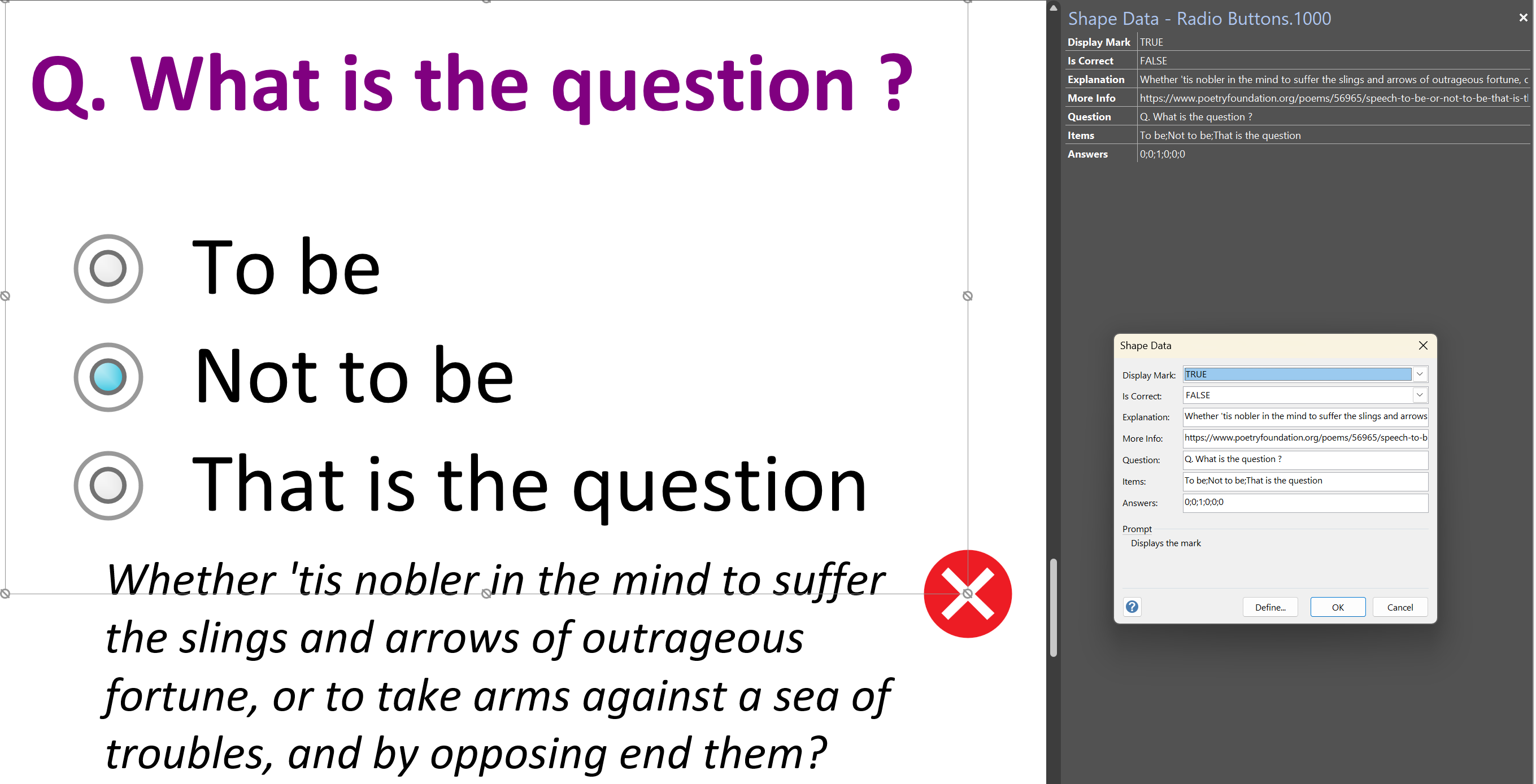

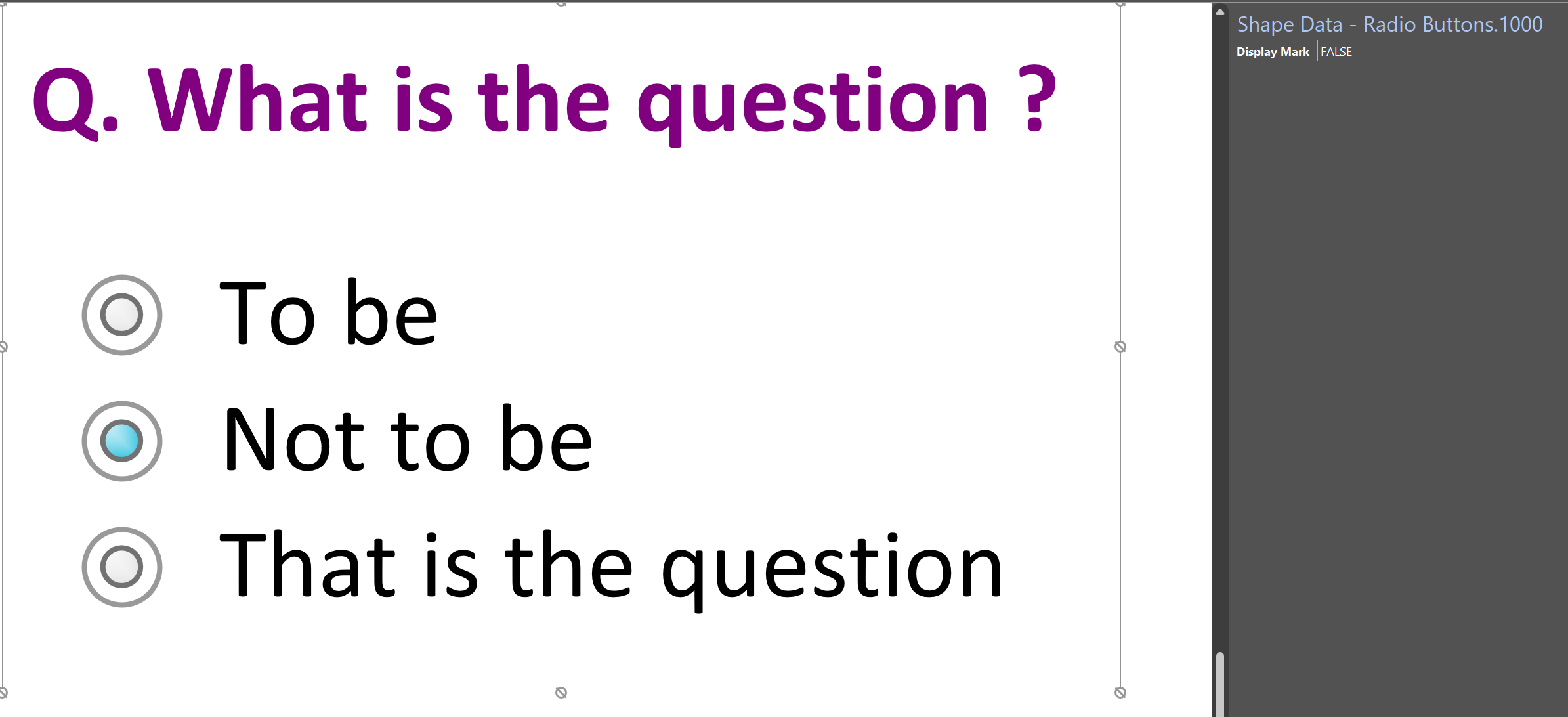

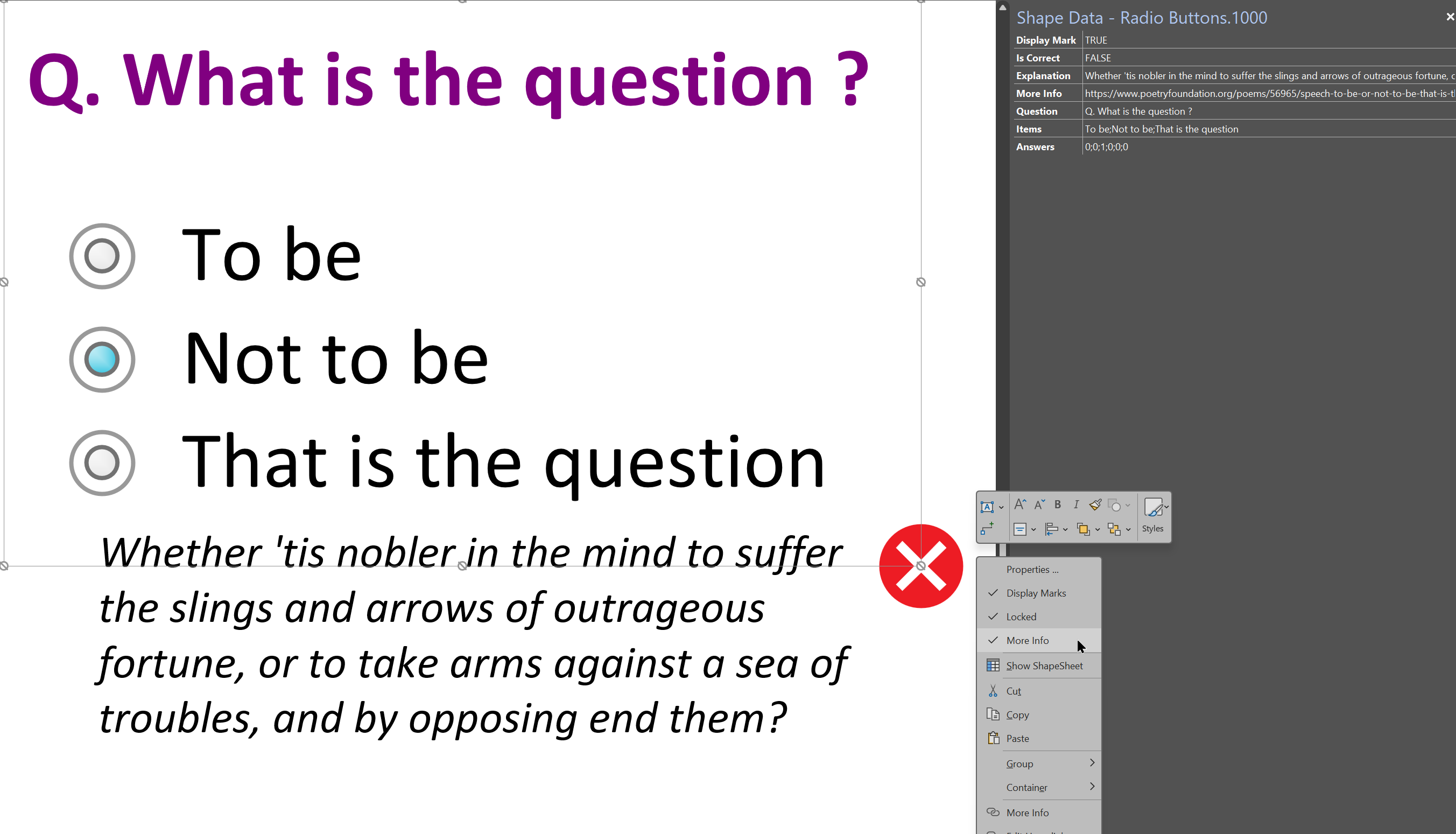

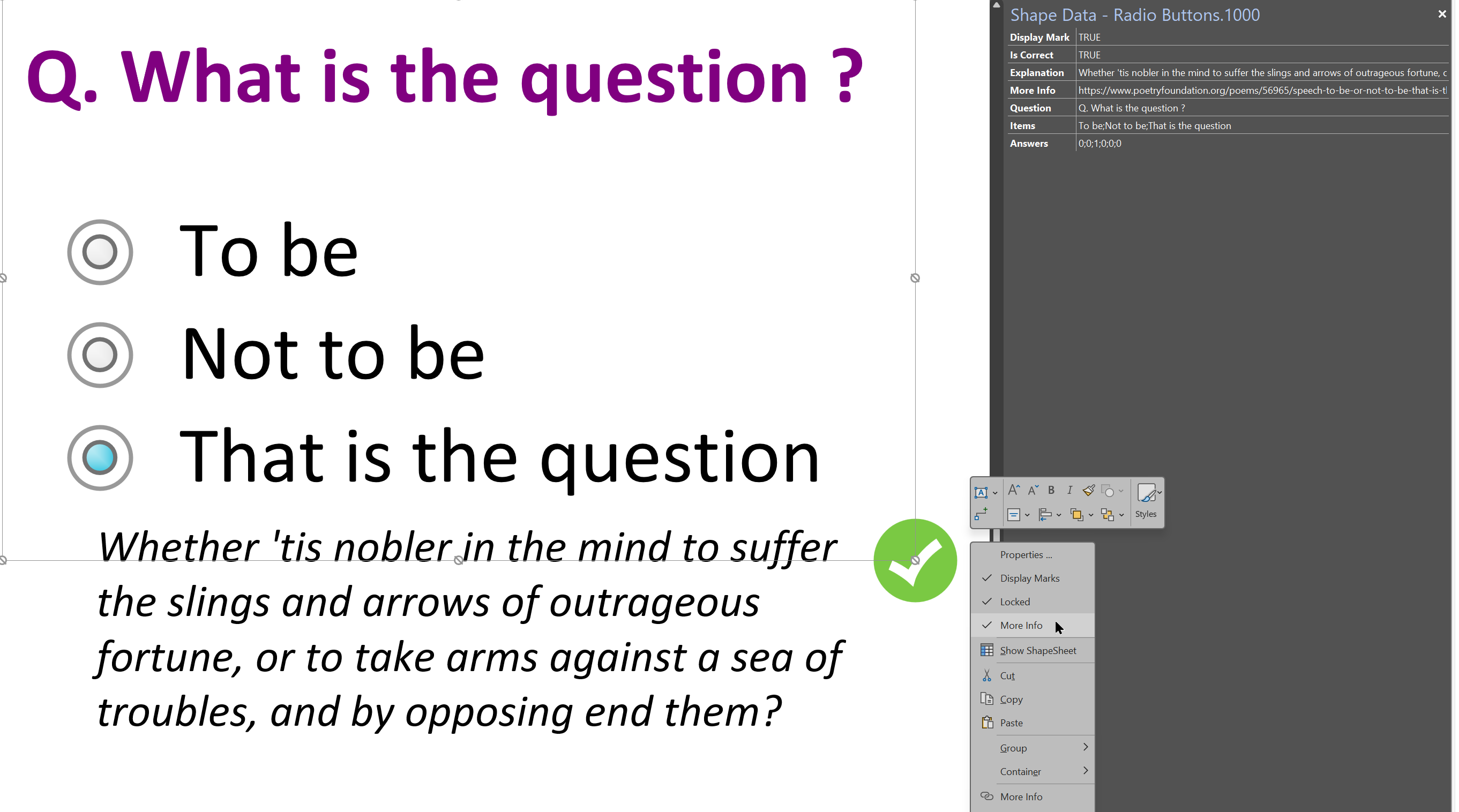
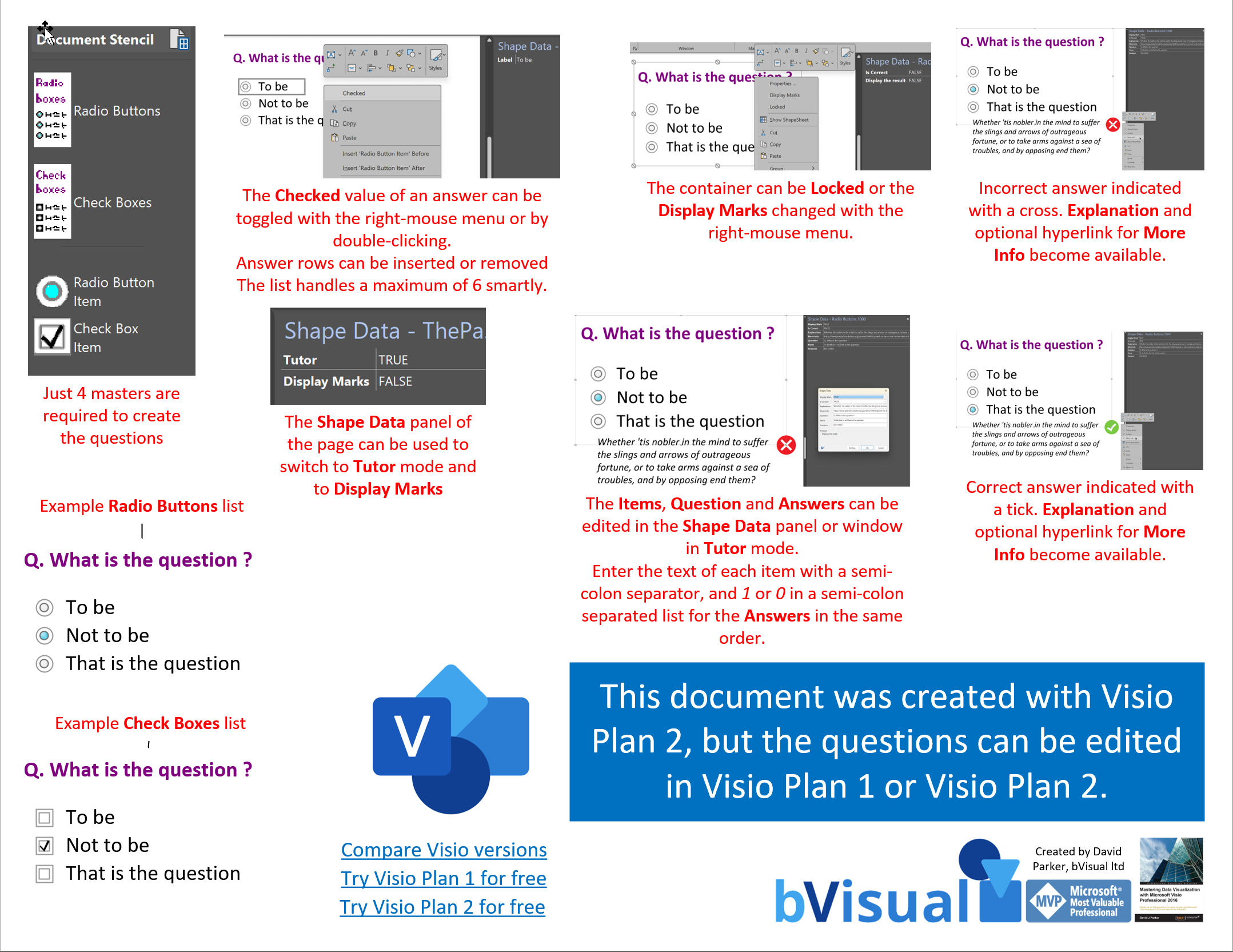
There are four masters in the Document Stencil which contain the smartness for these questions and answers:
- Radio Buttons – a list container for Radio Button Item shapes
- Check Boxes – a list container for Check Box Item shapes
- Radio Button Item – can only be contained in the Radio Buttons list shape
- Check Box Item – can only be contained in the Check Boxes list shape
Whenever a Radio Buttons or Check Boxes master is dragged and dropped onto the page, then three items will be added automatically. More can be added or removed using the right-mouse menu options Insert “xxx” Before or Insert “xxx” After, or simply by selecting an item then duplicating using CTRL+D. Another method is to drag and drop an item from the stencil, however they will only be inserted in the relevant type of list container.
The list container also have a right-mouse menu option, Locked, that can prevent any more rows from being added, or existing ones from being deleted. The list container contains formulas that works for upto 6 items because I don’t recommend more than that as possible answer options.
Display Marks can be toggled from the right-mouse menu of the list containers or in the Shape Data panel of the page.



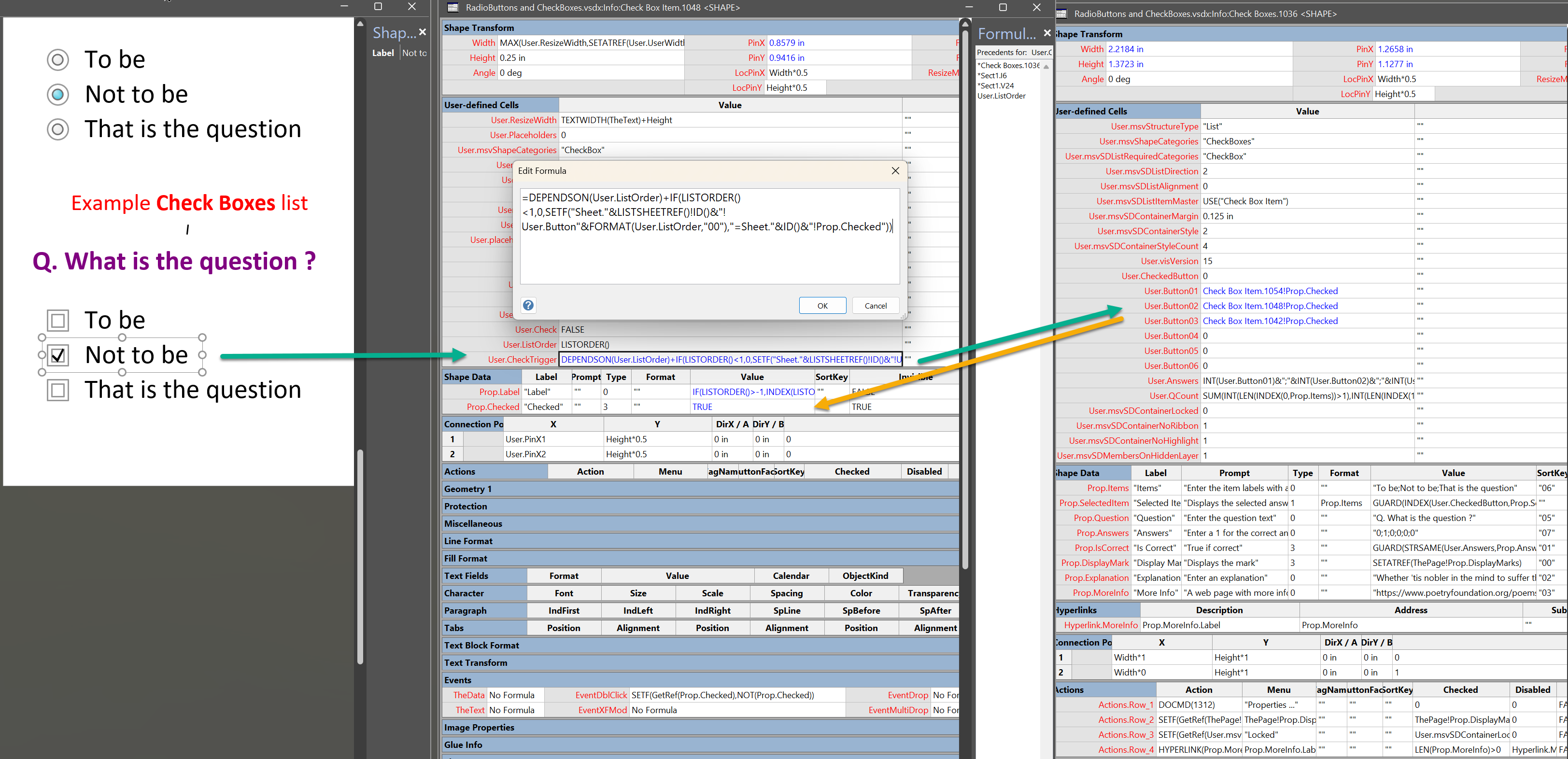
Normally a list container does not know anything about the items within it, except for the count ( see LISMEMBERCOUNT() ). However, I have added formulas into each item so that it pushes a reference to the Prop.Checked value of each row to the relevant User.ButtonXX row in the list container shape. This formula is triggered whenever the LISTORDER() of the item shape changes.


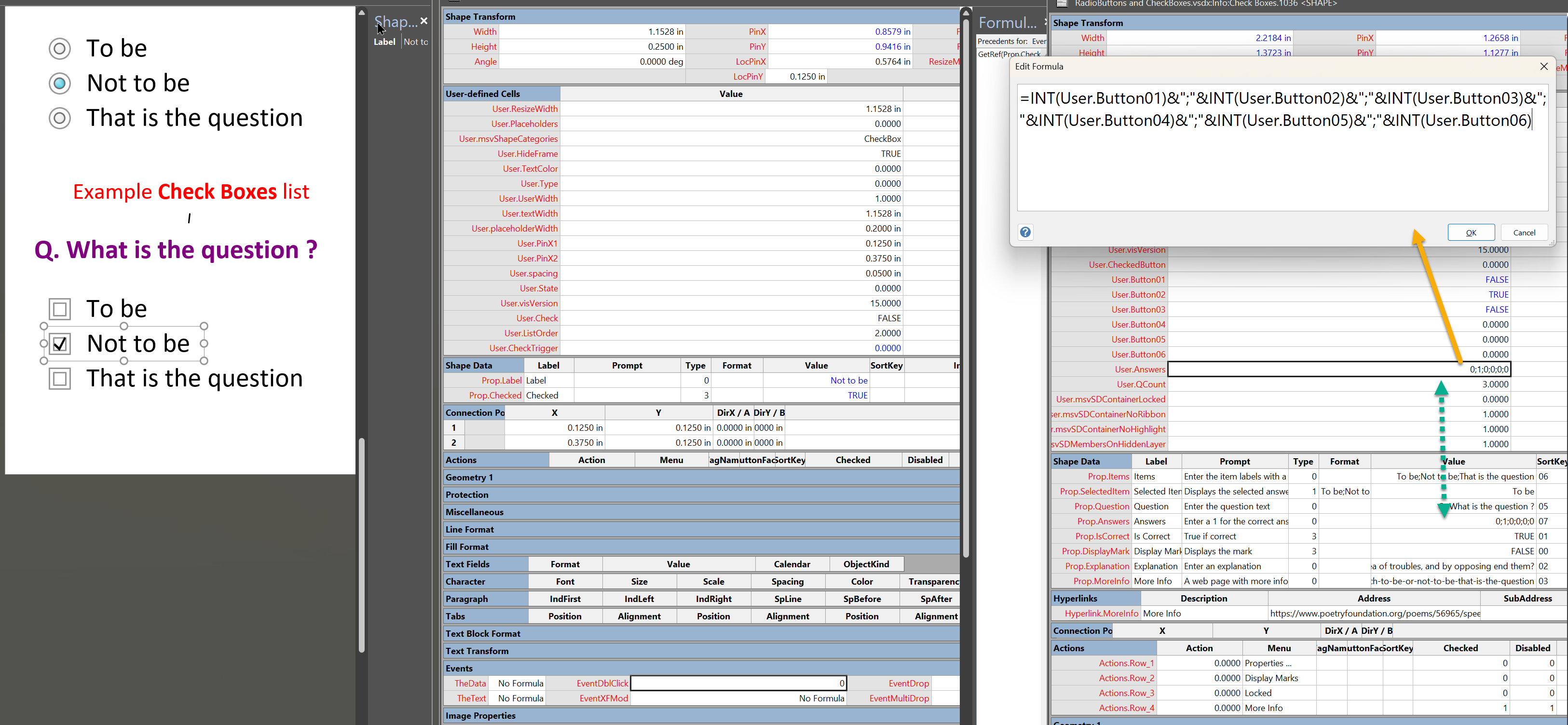
So, now I can update the Shape Data of either a Radio Buttons or Check Boxes shape with Questions, expected Answers, an Explanation and a More Info hyperlink.
The Visio document discussed in this article can be viewed and downloaded from here.


Creating a Dynamic connector master automatically
I have been creating Microsoft Visio solutions for 30 years now … my first was in 1996! I have been an advocate for custom Masters from the very start, every since I learnt how editing the Master can automatically update all of its instance shapes can be automatically updated throughout the document. Whenever you drag…

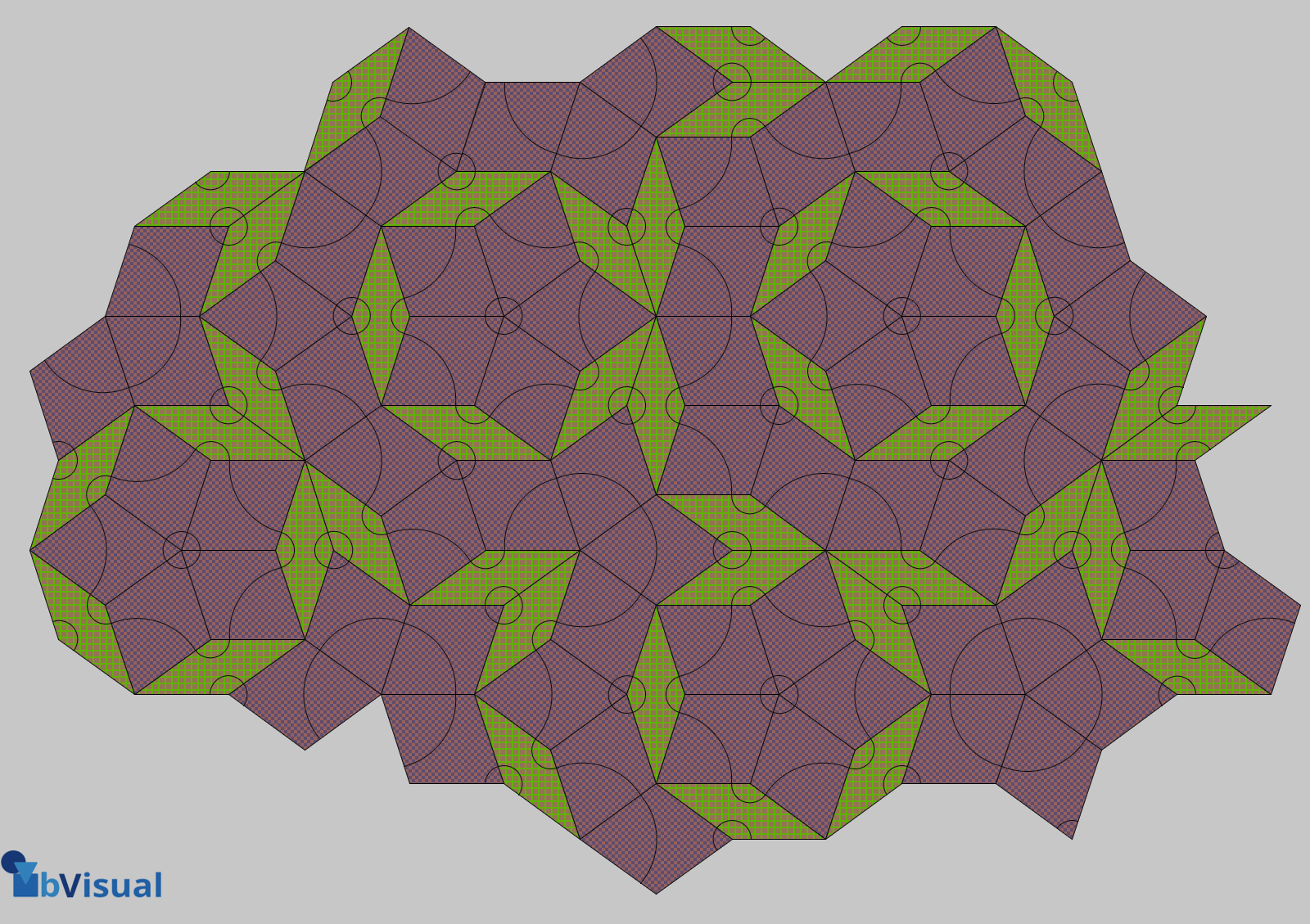
A visual exploration of Penrose Tiling in Visio
Maybe it is because I used to be a building architect, but I have always been fascinated by the relationship between numbers and visualisations. Perhaps the most famous one is the Golden Ratio which has been used as the basis of many building designs and art pieces. It is often recognised to create a harmony…

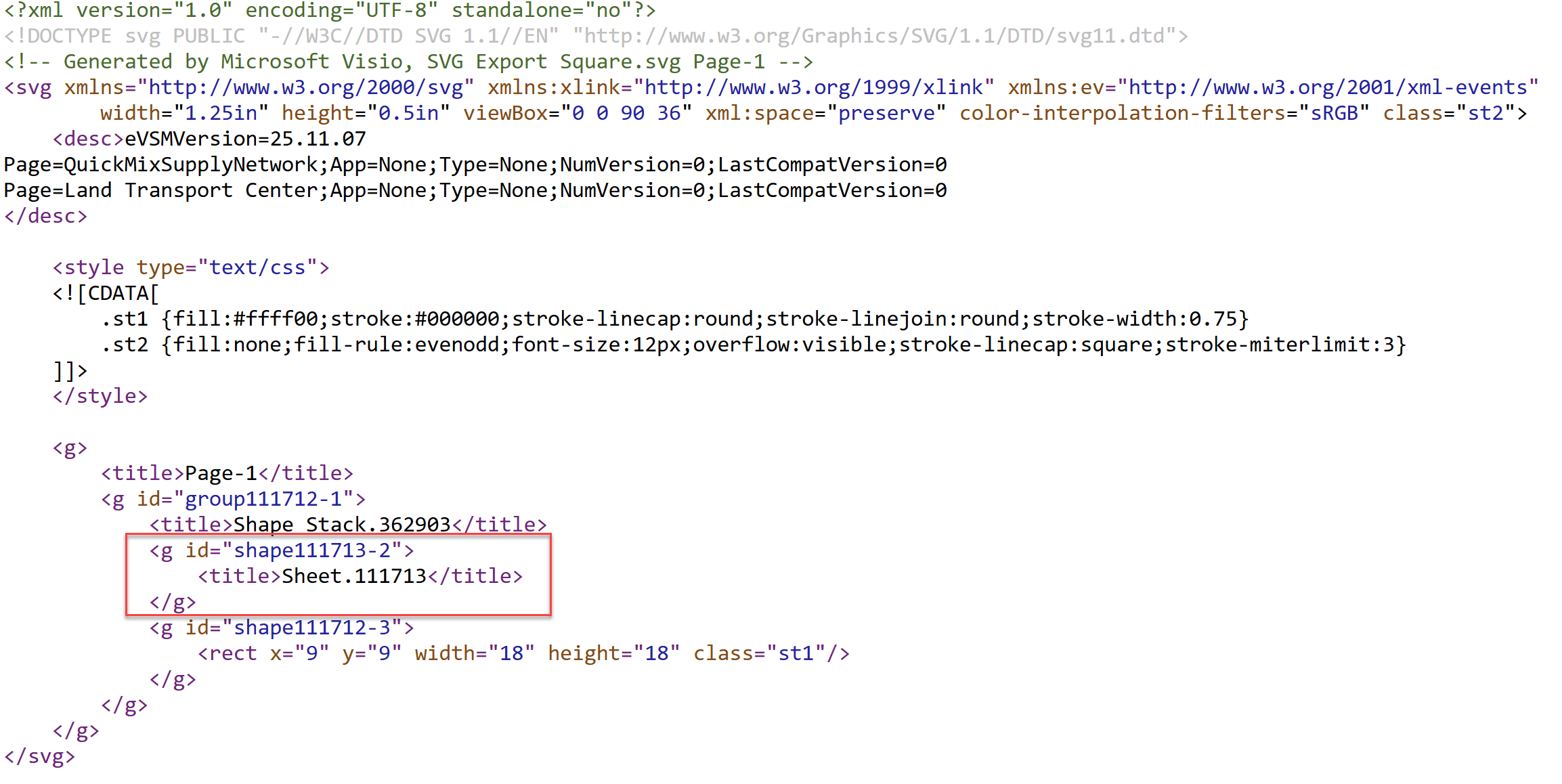
How SVG in Visio can cause a Shape.BoundingBox(…) error
I have used Visio’s Shape.BoundingBox(…) for many, many years and I cannot ever recall it failing, but I have now managed to create some shapes that cause it to error. This caused many hours of confusion, so I nearly abandoned using the method, until I discussed it with my fellow Visio MVP, John Goldsmith (see…

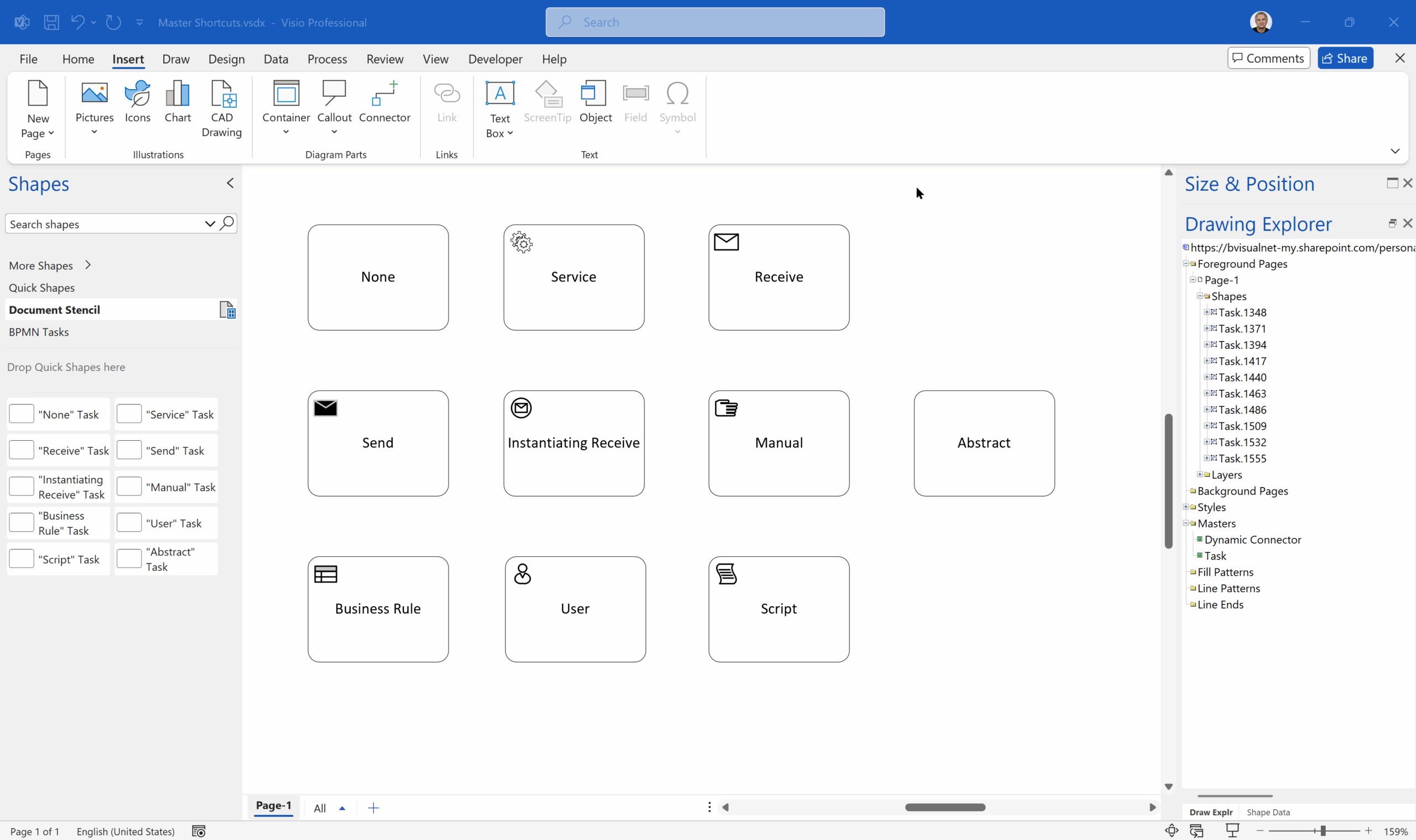
Are Master Shortcuts useful in Visio?
Many Visio users may not even understand the question, but this almost hidden feature has been available for many years. A Master Shortcut looks like a normal Master in a stencil, but it is merely holds a reference to another Master in a Stencil, not necessarily the same one, and has an option to add…


Jumping between Shapes in Visio
Many Visio diagrams get quite large, and sometimes it is useful to provide the ability to jump to another shape quickly in the same document, either on a different page or on the same one. Although there is an add-on provided in desktop Visio that is used by the Off-Page Reference shape provided in the…

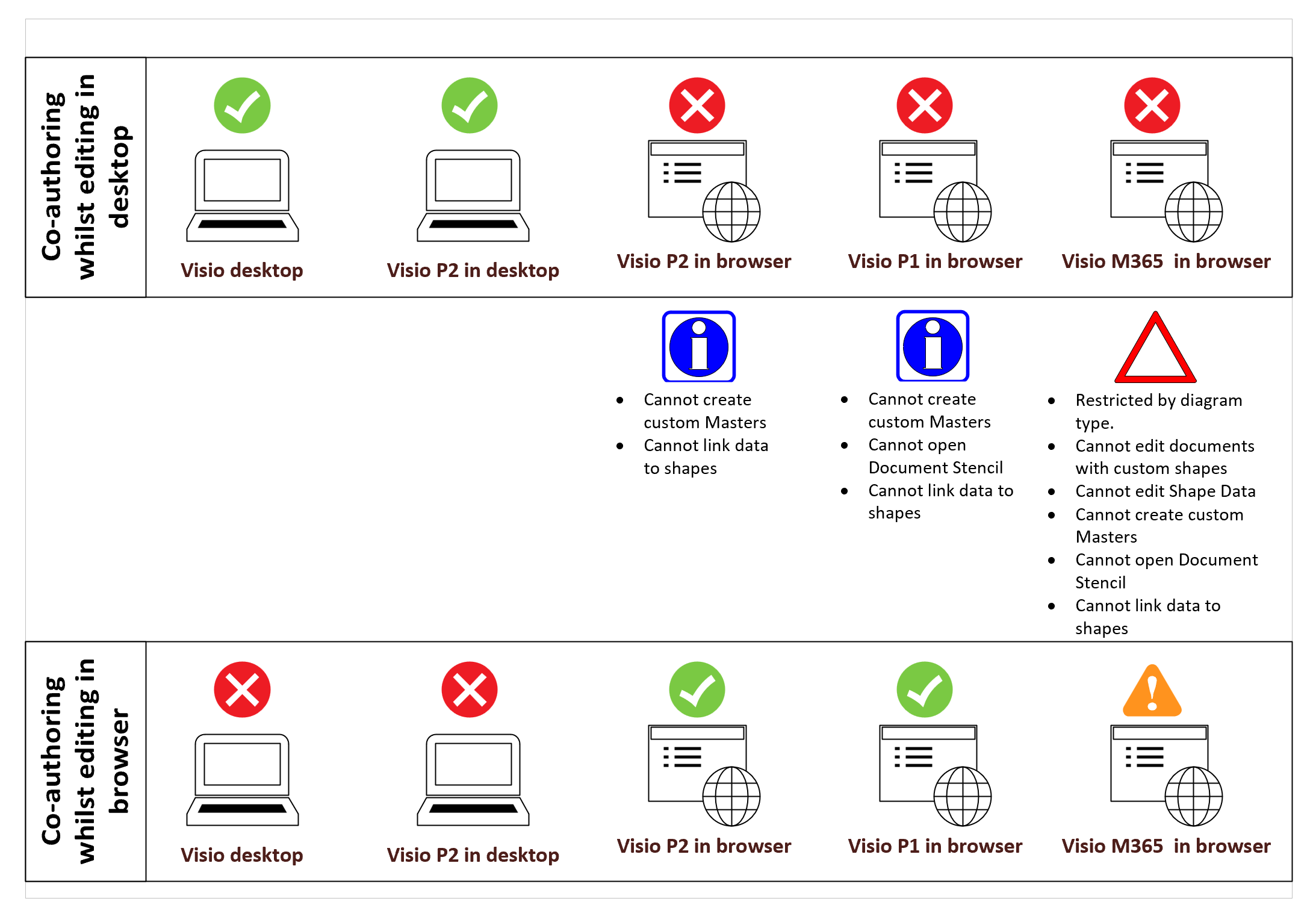
Co-authoring and Commenting with Visio Documents
Microsoft Visio can be used in the web browser and on the desktop, but there are several licensing options available, so which ones can be used concurrently whilst supporting co-authoring and commenting? This article tests the various scenarios but assumes that the Visio documents are stored in OneDrive for Business or SharePoint Online\Teams. The Microsoft…